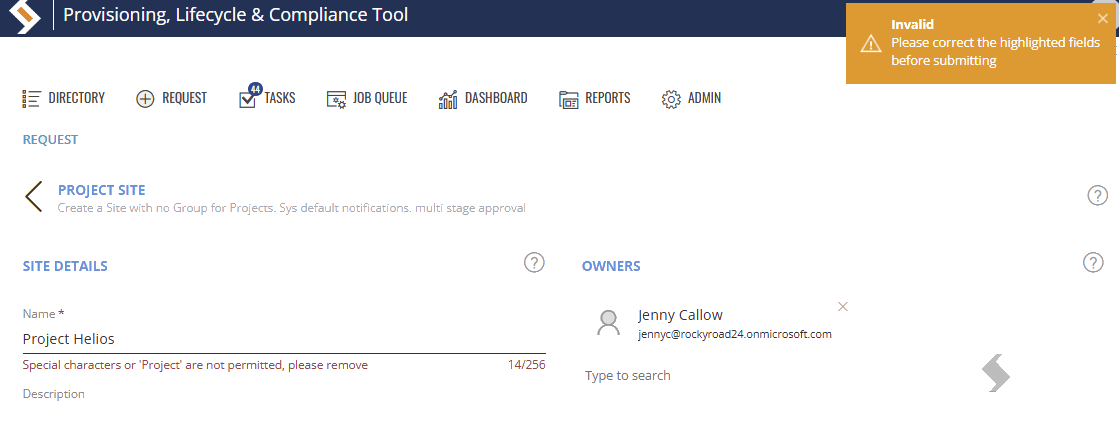
One of the most common requirements we are asked about, is how to apply naming conventions to the Team or Site.
Within the Service Definitions > Request tab, the Title/Display name and the URL/mailbox can have the same or different naming conventions applied.
For example,
- All Departmental Teams title must only be the department name, however the URL/mailbox should be prefixed with TM.
- Project Teams must always have the project number in both with a prefix in the SiteUrl of PRJ
Applying a naming convention can help to:
- Ensure only 1 Department Team or Site is created
- Always produce a unique Url - use a sequential number for example
- Allow retention labels to be applied to lists via a Dynamic scope in Purview (use SiteUrl starts with for the scope to match the naming convention)
- Identify Teams, Sites or communities via the SiteUrl prefix
- Identify the type of request, Organisation, Project or collaboration
- Identify if something is external or internal
Whatever your requirements ProvisionPoint can help you apply the naming convention.
What can be used in a Naming Convention?
Expand to see some useful examples:
- {Title} = text that the requestor adds to the 'Name' field in the request form - If title formula is left blank this is what the default is
- {EncodedTitle} = same as above with spaces and special characters " .,:;<>@[]\()$&+/=?#%{}|^~`’ replaced with underscores
- {Privacy Setting} = The Privacy setting defined in the request form will set either Public or Private to the naming.
- {Group Guest Access} = The Guest access defined in the Request form will set either Disabled or Enabled to the naming. A lookup column can be applied to change this to Internal or External, read
- {Sensitivity} = The Sensitivity label that can be applied via the service definition or selected on the request form.
- {Requested} = the date and time the request was made, other parameters can be used to limit this, for example {Requested.yyyy}.{Requested.MM}.{Requested.dd} will result in 2022.09.30
Prefix or Suffix Text
Within the Title formula or Dynamic Url format fields, add static prefix or suffixes by Typing the values to use.
Combined with {Title} and {EncodedTitle} tags you can allow custom names but define Internal or External or types of workspace (Project, org or collaboration)
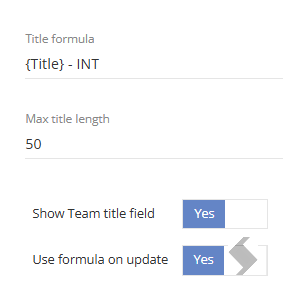
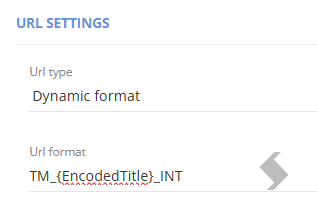
Request form fields or columns can be added to your requests to collect additional data, the value of these fields can also be used in your naming conventions.
To use the columns, they must be added to a request form that is linked to the Service Definition.
Expand to see options for Request form field
Taking the earlier example of Department, this could be added to the request form as a managed metadata (Term Store) or drop down column.
This would ensure that only 1 Department is created as the name is pulled from the drop down list to ensure accuracy.
Request Variables
A Request Variable can pull the data from Entra {Requestor}.Department, change data or pull details from other attributes.
Expand to see options
For all Request variables they must be
- Created in Admin > Templates > Request Variables with an appropriate Formula
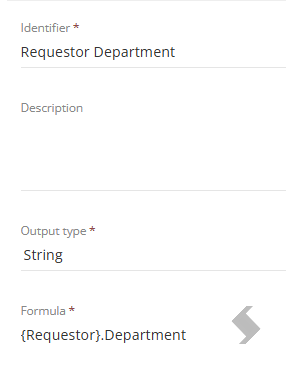
- Add the name of the variable to the Title formula or URL Settings in {}
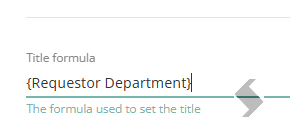
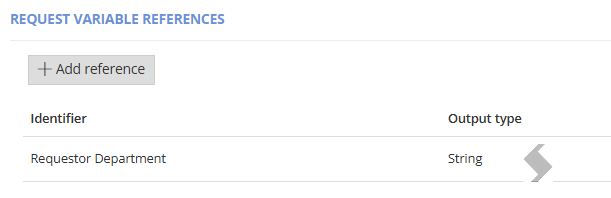
- Add the Request Variable Reference to the Service Definition > Request tab
This will ensure we collect the data, if this is excluded it will not be used and your request will fail.
Below are the formulas for naming broken down
- Remove spaces from the Department Drop down for use in the URL Settings: {Department}.Replace(" ","")
- Pull the Department from Entra: {Requestor}.Department
- Use OnPremiseExtensionAttributes from Exchange: {Requestor}.OnPremisesExtensionAttributes("Department")
- Replace values with acronyms: {Department}.Replace("IT Services","ITS")
- Add extra Text to the Department: {Department}.Append("Dept")
URL Patterns
Apply a random or Sequential number to the naming convention, this is used most in the URL settings to add a count for the service definition or to keep each request unique.
This could be used to auto generate a project number for each request.
Restrict the Title length
Apply a 'Max title length' that can be applied, restricting the number of characters in the Title field on the request form. By default this is 255.
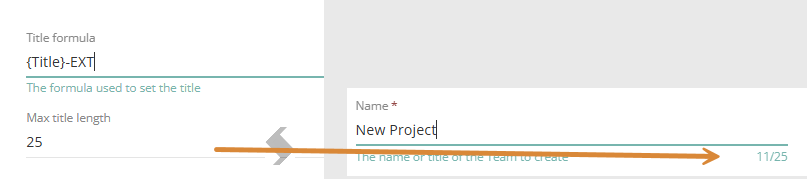
Blocked Words
Upload or add a list of words that should not be used in the Title or URL.
This can include any Prefix or Suffixes you are using within the naming convention. This will prevent duplicates if your users are used to adding them manually.
Customise the warning messages that will appear on the request form based on the setup you provide in the blocked word template. For example prevent INT being added at the end of the Title
Read more about the configuration in Use Blocked Words to assist with Naming Conventions article