After your Compliance Policy is configured and has been running an update or change to the Policy may be required. The guidance below will advise the best practice method to change the Policy, Rules or Rules.
Replace the Policy
Expand to see the steps - if the existing policy needs to stay as it is, as it will affect other Service Definitions.
- Create a new Compliance Policy in Admin > Policy > Compliance Policies
- Edit the Service Definition, go to Admin > Service Definition > Compliance tab
- Click Edit to amend the Policy
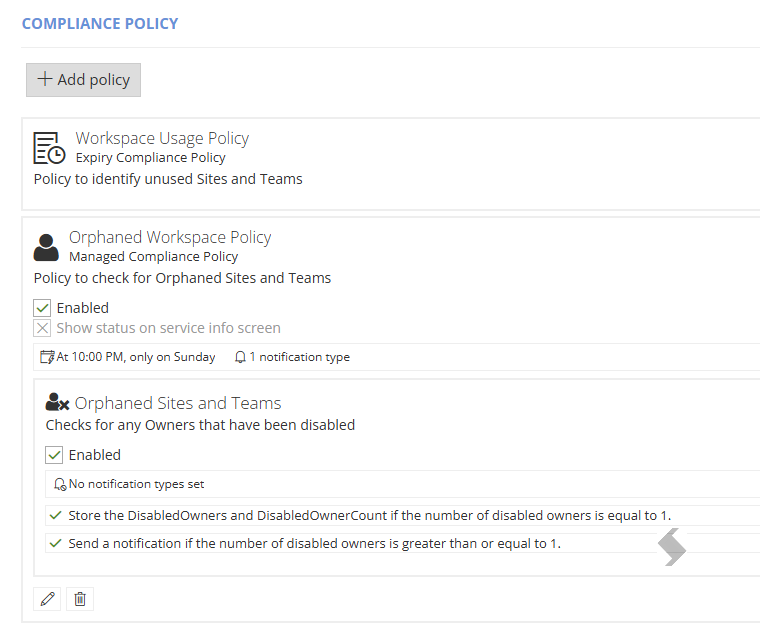
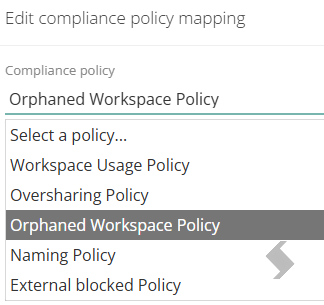
- Select the replacement Compliance Policy to use from the list
- Apply an override to the Schedule, if required

Edit an Existing Policy
Expand to see the steps - if changes need to be applied to all Service Definitions linked to this policy.
The changes will be applied to all Service Definitions the Policy is linked to.
- Go to Admin > Policies > Compliance Policies
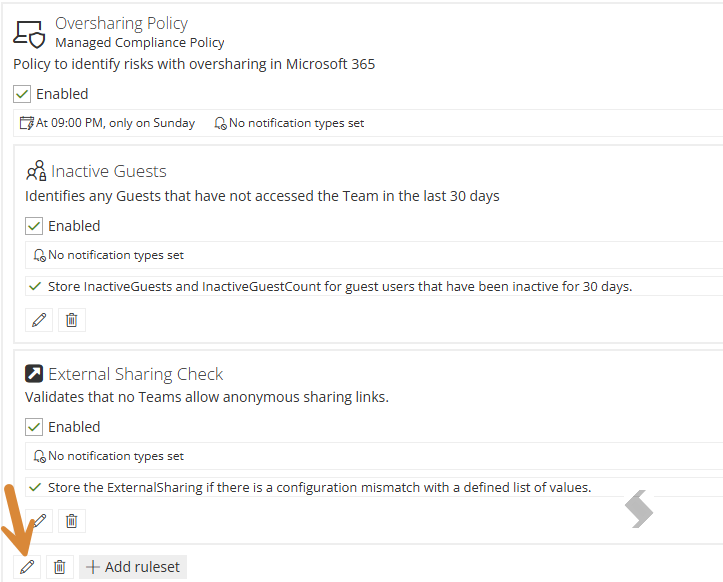
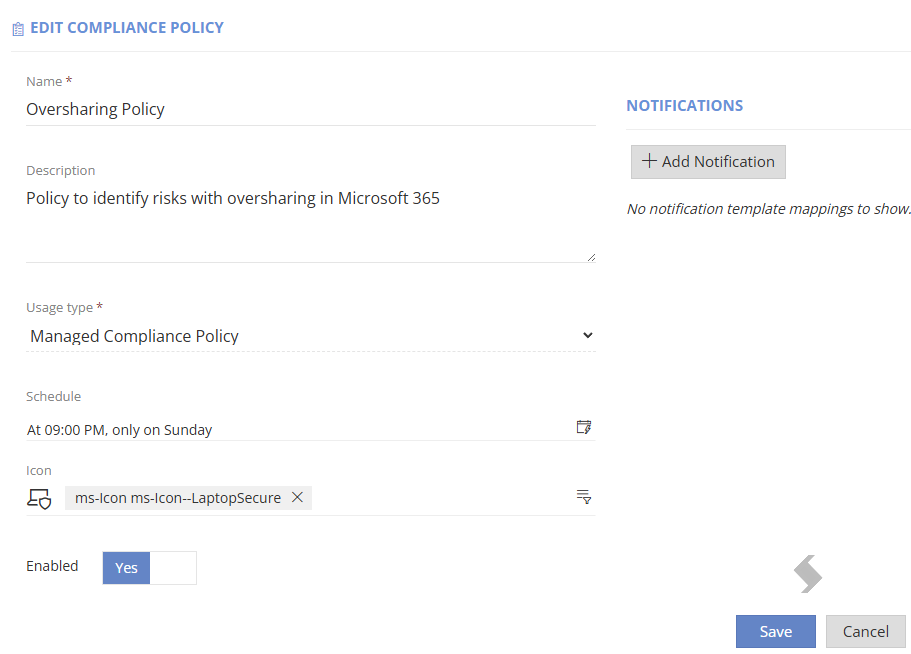
- Click the bottom edit button to apply changes to the Policy
- Edit the Policy Name, description or icon
- Edit the Policy Schedule
- Disable the Policy
- Click Save
- Changes the Ruleset associated with the Policy, will not allow changes to rules
- Change to another Ruleset (edit)
- Delete the Ruleset
- Add a Ruleset
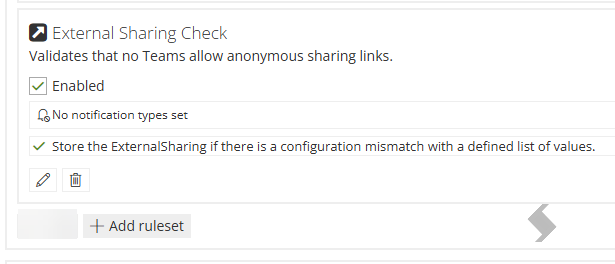
- Check the Service Definitions to ensure the Compliance has been updated
*If the schedule is overridden at the Service Definition level it will always keep the Service Definition schedule
Edit Existing Rulesets and Rules
Expand to see the steps - If a rule needs to be changed on an existing ruleset, this will .
The changes will be applied to all Policies and Service Definitions the Ruleset is linked to.
- Go to Admin > Policies > Compliance Policies > Rulesets
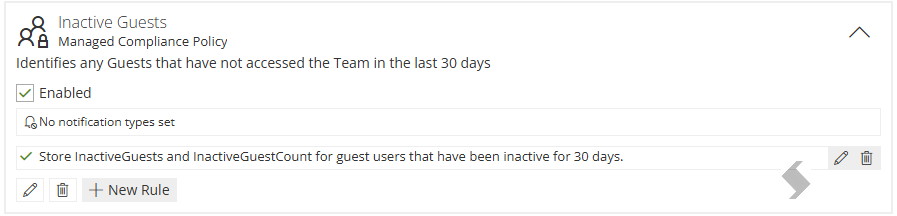
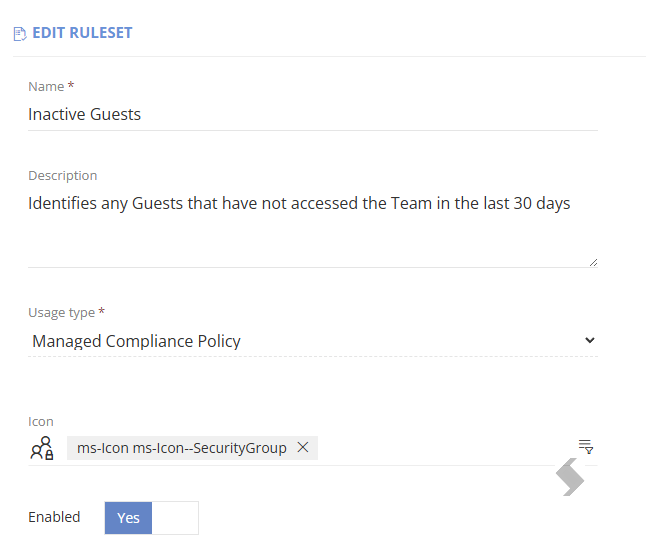
- Click the bottom edit button to apply changes to the Ruleset:
- Edit the Ruleset name, description or icon
- Disable a Ruleset
- Click Save
- Apply changes to the Rules associated with the Ruleset
- Edit the configuration of the Rule, by clicking edit at the end of the rule line
- The name cannot be changed.
- Disable the Rule
- Change the configuration
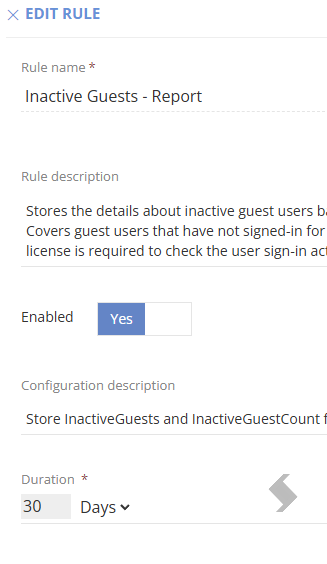
- Delete the Rule, by clicking delete at the end of the rule line
- Add a New Rule
Rules cannot be copied from one Ruleset to another.
Any changes made will be reflected on the next scheduled run.
Best Practice
- Ensure there is enough time between schedules to run all checks on your workspaces.
- If your policy is used on multiple Service Definitions, only set the schedule at the Service definition level, leave the Compliancy Policy blank
- Ensure the Rules are in the priority order they should be run in
- Ensure rulesets are in the priority order they should be run in
- Group as many rulesets into a single compliance policy
- Keep Deletion Mismatch rules as a separate compliance policy
- Try to only have 2 managed policies on each Service Definition
- Do not add rules that will not run on the service type it is intended for, for example, privacy and guest access checks can only be run on Group connected workspaces.
- If they are added the Job queue will fill up with compliance failures. Have a group connected and non group connected policy to allow for this.