A Compliancy Policy will need to be created to start monitoring your workspace's compliance, this may be to check external sharing permissions, if there are disabled owners or to extend a lifecycle if a site or Team is still being used.
The Policy will
- Contain the rules you configure and
- Define the default schedule of when the policy will run.
- Setup Notifications for the policy - Notify rule details and failures
Members of the ProvisionPoint App Manager can configure the Policies. Members of the Service Definition Manager roles can view the Policies but cannot apply changes.
Create a Compliance Policy
- Go to Admin > Policies > Compliance Policies
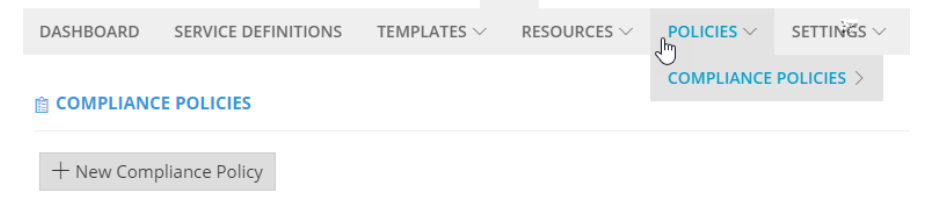
- Click + New Compliance Policy
- Complete the Policy configuration:
|
Field name
|
Description
|
|
|
Name
| The name is required and will appear as the Policy name in the timeline activity for your workspace |
|
|
Description
|
An optional field giving guidance on what the Policy is for. We recommend filling this in to highlight what it is for for admins
|
|
|
Usage Type
|
- Managed Compliance Policy - to check the state of workspaces registered in ProvisionPoint with the source workspace in O365
- Expiry Compliance Policy - To change the lease based on usage
NOTE: Multiple Managed policies can be assigned to a Service Definition but only 1 expiry policy.
|
|
|
Schedule
|
- Select from:
- Every number of days at set time
- Every named day at set time
NOTE: The minimum number of days is 7, the time zone for all instances is UTC.This may need a calculation to ensure the time selected is correct for your timezone.
|
|
|
Icon
|
Select from a list of available icons, this will be displayed in the Policy and timeline activity
|
|
|
Enabled
|
If set to No this Policy will not be run, toggle to yes to enable
|
|
- Click Save to create the Policy, this will be minimised on the list
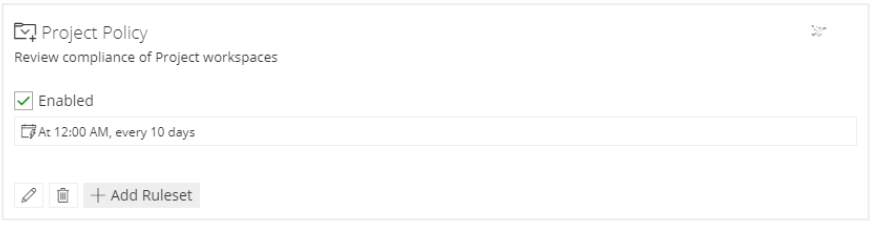
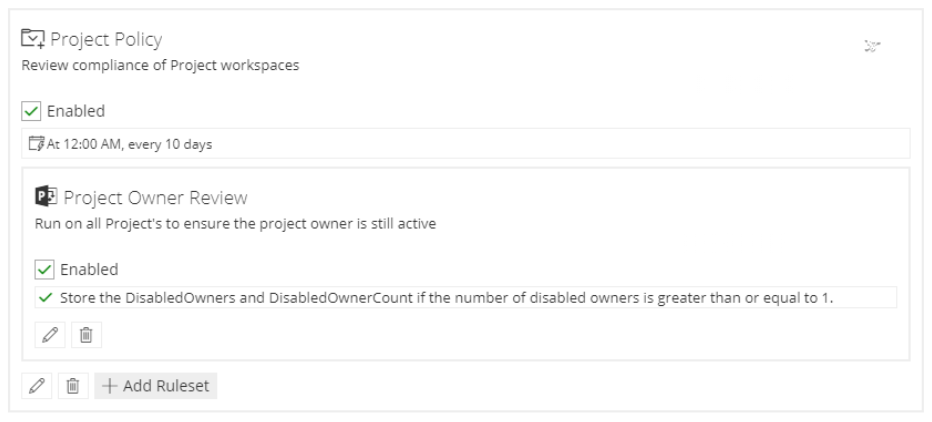
- Now add a ruleset to the Compliance policy to define what it will do. Click + Add Ruleset
Only rulesets with the same usage type can be added.
Read the Create a Ruleset and Rules article if you have not created them yet
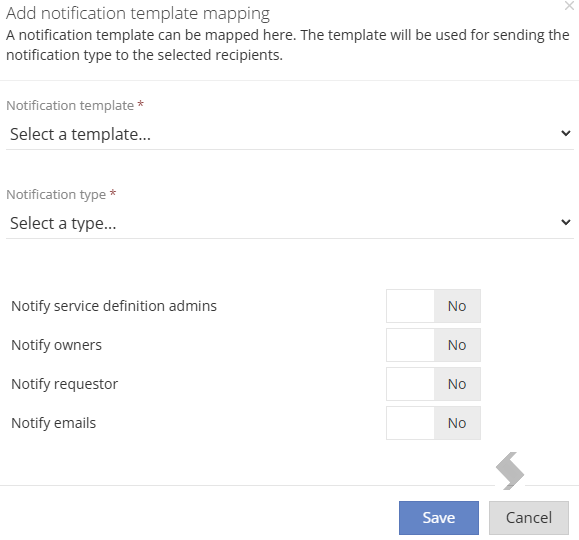
- Add Notification setup for failures and Notify rules - Edit Policy > + Add Notification
- Determines the Notification template to be used: system default, custom template
- Type: Notify rules or Failures
- Who will receive the notification
- Finally Link the Policy to your service Definitions: Link a Compliance Policy to Service Definitions
Review the results of any non-compliant or failed policies to ensure your compliance is setup correctly.