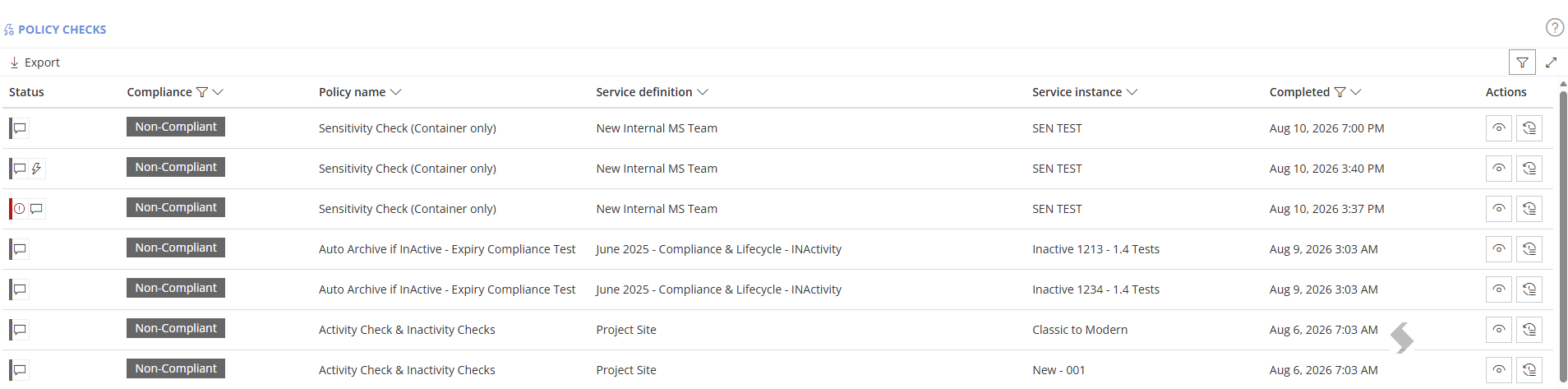
The Policy Check view allows app or queue managers to view each policy run for each service instance (workspace).
Go to Admin > Job Queue > Compliance > Policy Checks to view the checks and see why they have been flagged an non-compliant or failed.
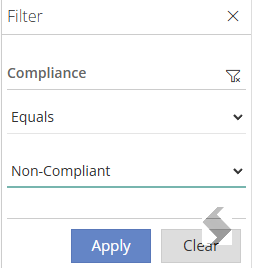
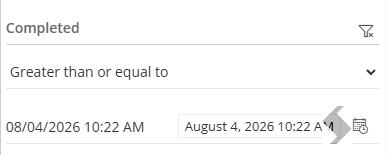
Each column can be used to filter or sort the view, allowing you to look at specific cate ranges or just for Non-Compliant results.
Actions
Use the actions to view more details about the check and and what has been found to be non compliant
View

View a summary of the policy run on this workspace, the history of policy checks compliance and rulesets and rules
Expand to learn more
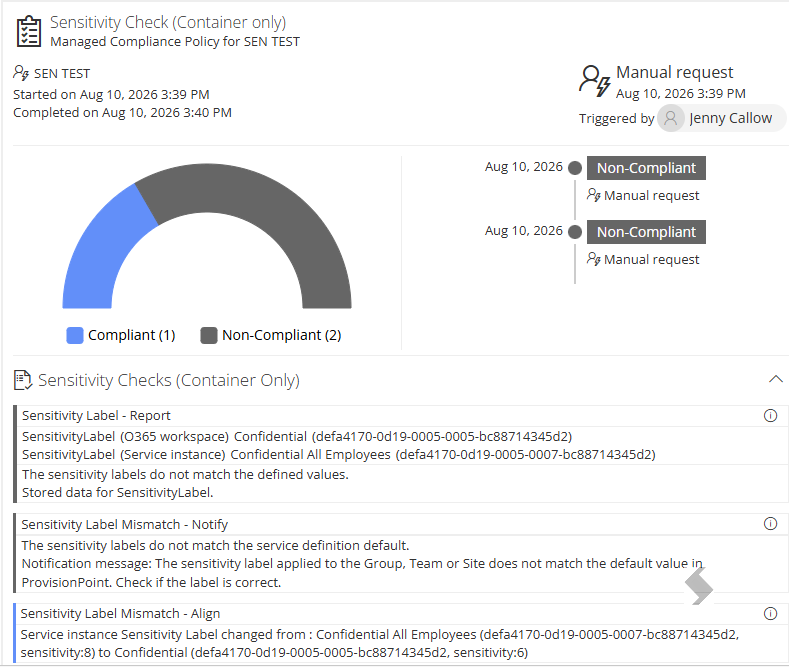
In this summary we can see:
- Which rules were run - report, notify and alignment on Sensitivity labels
- Colours define
- Grey show non compliance
- Blue shows compliance or that an alignment has been run
- Red shows failures
This highlights a failure, with the reason why. In this case the sensitivity being applied is not enabled for the Group, Team or Site only files.
To resolve and prevent future errors, another label must be used in the alignment rule.

Show Trace

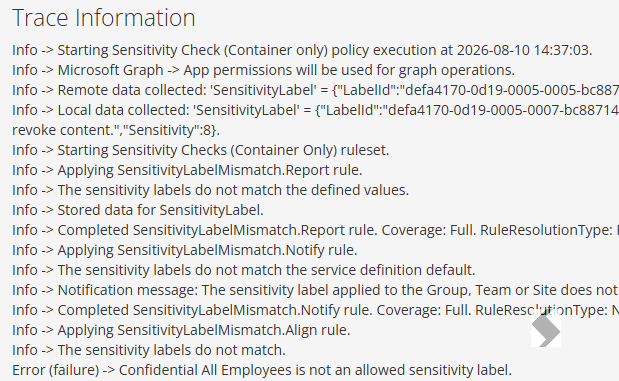
Show trace log will display a full log of what happened, the data collection and changes that were made when the rule was run.
Expand to learn more
If the rule fails, it is a good way to see what the cause of the failure maybe, in the example below, the Team no longer exists therefore the resource cannot be found.
For our sensitivity failure it does not give us more details but we know the cause.
Other errors could include:
- Unable to collect Remote Data: Resource not found = Unable to find the item in Microsoft. This often indicates a temporary error or that the item has been deleted
- Permissions issues - Some rules require additional permissions like
- Incorrect Licenses - Inactive Guests rules require a P1 License Inactive Guests
- Issues with validation
- Remove Owner rules may fail because the removal takes it below the minimum number of owners defined in ProvisionPoint Ownership Settings
- Replace Owner rules may have a base group defined, trying to automatically add a user that is not a member of the group would cause a failure
Export to CSV
Use the filters to create a list to export for processing or to use with the API