To consent ProvisionPoint to your tenant, a global admin of the tenant will need to complete the signup form
ProvisionPoint Instances
There are 5 different instances of ProvisionPoint, select one that is appropriate for the location you need:
Complete Consent
- Ensure you are logged in as the global admin. Please complete the form with the following information:
- Organisation name
- Contact person name and email
- Number of licensed users
- Host SharePoint URL, for example, https://companyname.sharepoint.com/
This should not have -admin in the URL - The Admin Security Group name
- The security group name created in Entra Identity admin centre, that contains the admins for ProvisionPoint.
- It must also have the Global Admin that will complete the form, added as a member.
If the Global Admin account is added as an Owner, please add as a member before consenting.
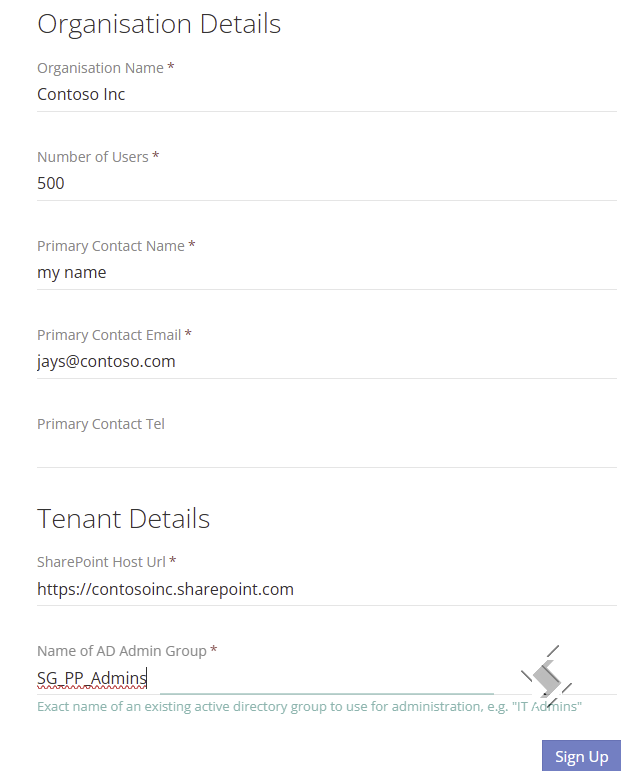
- Click Sign up
- The Global admin will need to confirm their login details
- The permissions will be displayed, click Accept to continue
- The Global admin will be redirected to ProvisionPoint to start the configuration.
Complete Initial Setup
To complete the setup within ProvisionPoint , go to Admin > Settings > App Settings
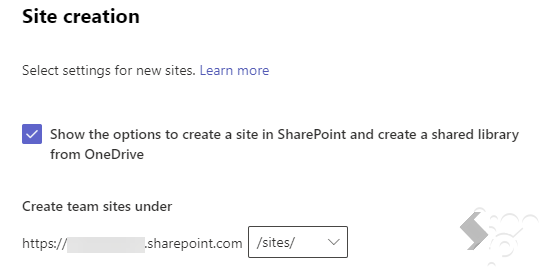
- Assign the Groups Managed Path, select /sites or /teams.
This must match your SharePoint Admin Centre > Settings > Site Creation setting for ‘Create team sites under'
- Setup the Banner localisation:
- Setup any Language settings:
- Define your Notification Provider:
- Add the Service Account, if it is needed:
- Setup the Access to ProvisionPoint, this may be best after you have configured the app:
Now you are ready to start building the service definitions, templates, resources and policies within ProvisionPoint.