The Job Queue is available to any user logged in with App or Queue Managers roles.
Jobs will be added to either the Requests, Lifecycle or Policy queue and can be used to monitor what is being processed in the app at any time.
It will show any of the following:
- New requests for a workspace
- An action to change something
- An automated task is processed, for example expiry actions or notifications.
- A compliance policy is run
- Any issues found during one of these options
We recommend that the queue is reviewed on a regular basis and error notifications are enabled in the Service Definitions.
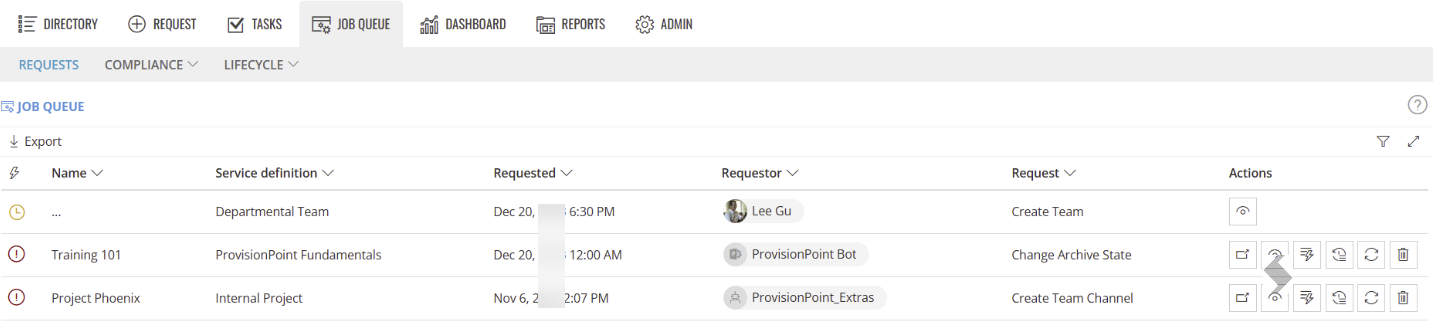
The Job queue can be filtered and the order can be sorted using the columns displayed to look for items that you are investigating or to look for trends in failures.
Expand here to learn about Filters
Filters can be applied to each column allowing you to build up a view, for example, any workspaces that failed in the last 7 days or by name. Whatever you are looking for use the filters to get the results.
Either apply the filter on each column or open all filters in the right hand side.
The options for each filter will vary depending on the type:
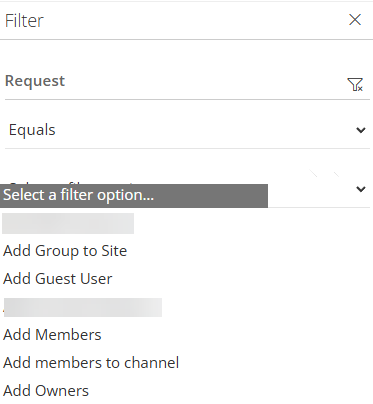
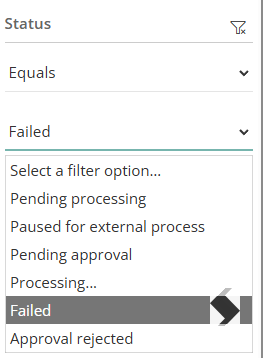
- Request or Status will allow you to select from the list of Job types that are visible in the Job Queue.
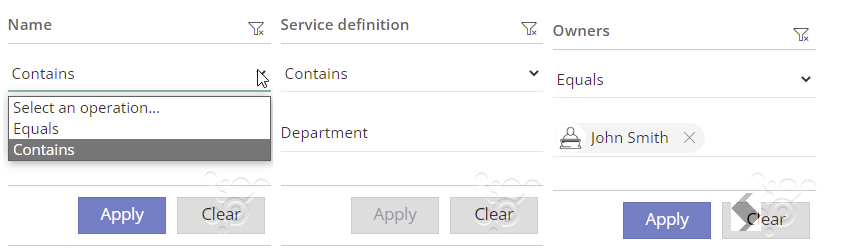
- Text and people picker columns like Name, Service definition & Requestor will filter on values you provide. the search method is either equals for an exact match or contains to have a wider search.
- Date columns like Requested will filter based on dates greater than, less than or between the dates and times provided
Once all filters are setup, click Apply.
To remove the filters simply open the filter and click the
Clear 
Expand here to learn about Export
Any filters applied will be respected in the CSV export. A file will be sent to the default location for downloads.
The Job queue can be exported to CSV, this can be used to help:
- Review failures in bulk
- Review non compliant workspaces
- Get OperationId's to assist with bulk replay or removal of jobs via the API
- Assist in Support enquiries for issues
Expand here to learn about Sort
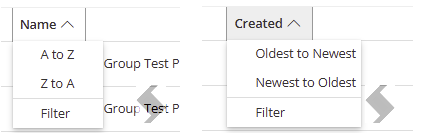
The Job Queue can be sorted to help group the same requests or workspaces to look for all issues in the order you choose.
The columns can be sorted in ascending or descending order alphabetically or dates oldest or newest.
When a job is added to the request queue, it will be in one of the following status':
Pending

If the job is showing as pending, the provisioning has not started, we are running checks to see if approval is needed or if there are any pre checks to be completed.
This status should not remain for long, if it does last for more that 4 hours, please review and discuss with our Support Team.
Paused Jobs
When a pre web hook is used the job can be paused whilst it does something else, the job will stay like this until it is continued or cancelled via a call to through our API from the web hook or the play icon is used in the Job Queue.
This is most commonly used for external approvals or company pre-checks.
If this status persists for more than 24 hours, please check the webhook configuration to see if there is a reason for the failure.
Approval
Once the pre-checks are done if approval is applied the approval needs to be completed before the workspace is created.
Please wait for the approval to be granted, you can check who this is assigned to in the Timeline and reach out if you believe this is taking to long.
If the approval is rejected,
- A new status icon will be displayed to the owners in the Sites I manage area only:

- An email will be sent to the requestor and a new request can be made.
In Progress
After pre-checks and approval the provisioning will begin and the in progress status will be displayed.
This is when any naming conventions will be applied and the configuration set in the template will be processed.
Depending on what needs to be done this can take a few minutes to an hour or 2.
Failed Jobs
A failed job is a request that has not completed in full. When processing a request all options that have been configured need to be successful for this to be complete.
- The job will be paused at the point it gets to and a trace log and error will be displayed in the queue allowing troubleshooting to be completed.
- This may mean the Team is created but the channel is not added or the Group is created but the site creation has failed.
-
A job will likely fail, either because of a delay in the Microsoft Graph, misconfiguration in the Service Definition or as a result of an incident in the Microsoft 365 tenant.
-
When a creation job is in a failed state no service definition actions can be run and the creation will be paused at the point of failure.
- The failure icon will be displayed in the job queue for admins and in Sites I manage directory view for the owners.
Notifications can be configured to alert your helpdesk, IT team or requestors, if any errors are reported, read
What are Notifications?
Successful Jobs
Any Successful jobs will be removed from the Job queue view.
When a job has is in the queue, there are a variety of actions that can be run, these include:
Open
The open action is usually only available if the workspace has been created. Selecting this will open the Team, Site, Planner, Community in M365.
View
The View action will open the info page in ProvisionPoint, the status will be displayed.
Show Error
The show full error action is only displayed if the job has failed.
Expand this to show an error string that can assist in diagnosing issues and can be sent to the support team for assistance, this will always need to be accompanied by the Trace.
Show Trace
The show trace action is only displayed if the job has failed,
Expand this to show an error string that can be used to show what has been completed and where it has failed.
Often the issue can be seen by selecting this, if not review the
troubleshooting section of the knowledge base or
contact support with both logs, the name and service definition of your request.
Replay request

The Replay request action is only available if the job has failed.
Once the issues have been resolved, the request can be replayed to re run the request and successfully create the workspace.
In most cases, updating the Service Definition or waiting for the issue in M365 to be resolved is required before the replay is run.
Remove Jobs from Queue
When a job is removed from the queue that request is also removed from ProvisionPoint.
This can have big consequences.
If a creation request is removed from the job queue any completed steps will remain in M365 but there will be no reference in ProvisionPoint. The created parts will need to be manually removed from M365 if they are no longer needed.
For example if the Group was created but the Site was not, you will need to manually delete the Group in M365 Admin Centre.
If you remove a failed action, it means the action itself will not be displayed in the timeline any longer and any changes applied will remain in place. The Action can be re-run to apply full changes.
It is vital to resolve the issues and replay.
Removing a job will NOT delete everything that has been created in M365 so far.
Once a job has been removed from the queue it cannot be replayed or restored.
If the action is 'Create' this will remove the item from ProvisionPoint's directory. To add it back in import it via the API.