Expiry Actions - Manage the Lifecycle of your Workspaces
All Actions are disabled by default and will need to be enabled for each Service Definition.
Additionally
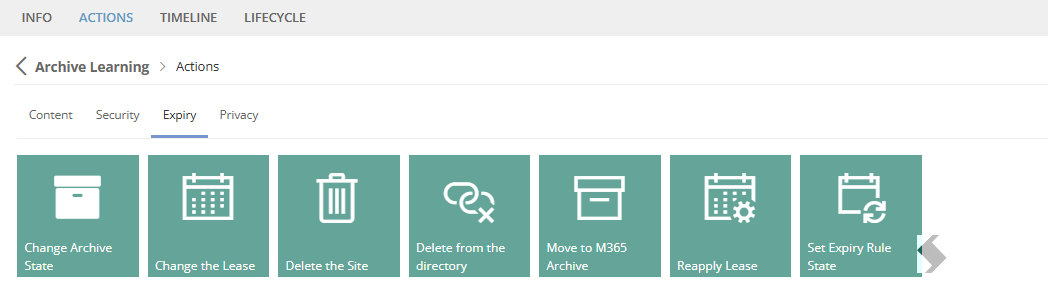
Lifecycle Options
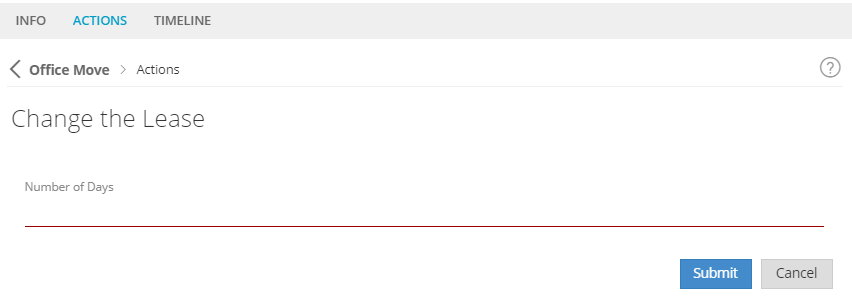
Change the Lease
Expand to read more about how to Change the Lease
Requesting this Action will allow the expiry date to be extended or shortened.
- When selecting the number of days choose the number of days from today. A maximum number of days is defined in your lifecycle policy.
- Set to 0 to end your lease on the day of change, this will run the lifecycle actions.
If you manage the expiry via a date field on your request form we recommend using the 'Update Details' Action to change the date. The Change the Lease action will not update the date picker on the info page.
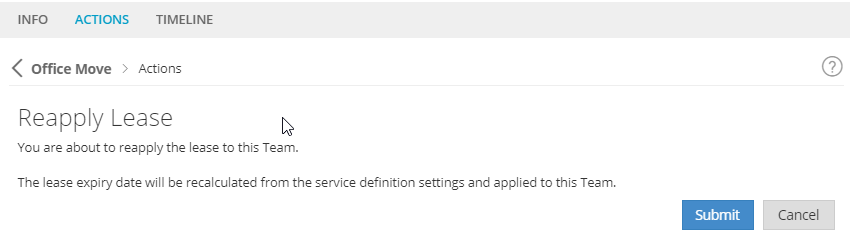
Reapply Lease
Expand to read more about reapplying a Lease
This action can perform two different changes:
- Reapply changes to the Lease tab to existing workspaces. This is not required if you are using lifecycle policies to manage your expiry dates.
- adding a lease to a workspace that previously did not have a lease,
- removing a lease from a workspace that currently has one,
- changing the lease type,
- adding reminders to owners or admins
- Add a set number of days if the Lifecycle policy uses a 'Request Variable' with formula Now.AddDays(##).
- Read the Set up a Expiry Date using a 'Start Date' column for more information.
If you are currently using the Lease tab in a service definition we recommend migrating to lifecycle policies.
If you want to know more, please reach out to our support team.
Set Expiry Rule State
Expand to read more about the action: Set Expiry Rule State
This action will only be displayed if an expiry compliance policy is linked to your service definition with an align rule.
Expiry compliance policies can be configured and linked to a Service Definition to extend or reduce the expiry date of your workspaces, by checking the activity or inactivity of the Team or Site.
The 'Set Expiry Rule State' can be used to exclude workspaces from this check. Use the action to either disable or re-enable the check for the workspace it is run on
For more information about Expiry policies please read What are Expiry Compliance Policies?
Archive Options
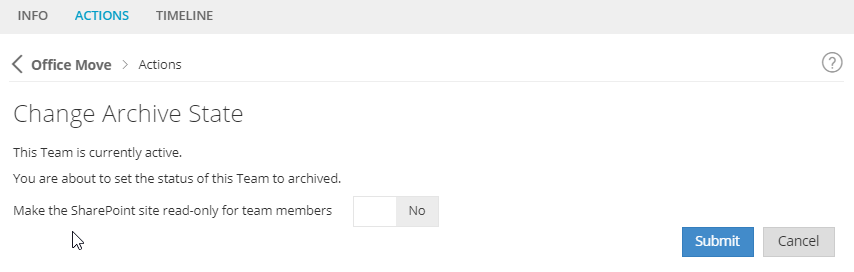
Change Archive State
Expand to read more about the action: Change Archive State.
Requesting this Action will perform different archive and restore options depending on the service type of the Service Definition.
- For Microsoft Teams, running this Action will
- Move the workspace to the 'Archived Sites' view in ProvisionPoint Directory
- Archive the Team in M365
- Make the Site Read-only for members of the Team, if selected.
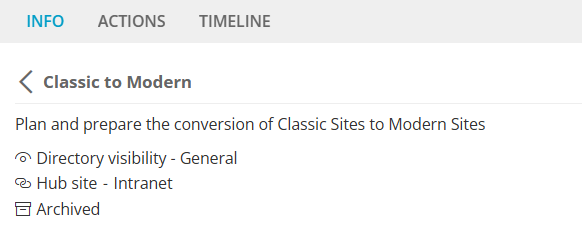
- Flag the workspace as 'Archived' in the ProvisionPoint Info page
- For Sites, Planner, Viva Engage Communities it will
- Move the workspace to the 'Archived Sites' view in ProvisionPoint
- Apply a lock to the Site.
- Flag the workspace as 'Archived' in the ProvisionPoint Info page
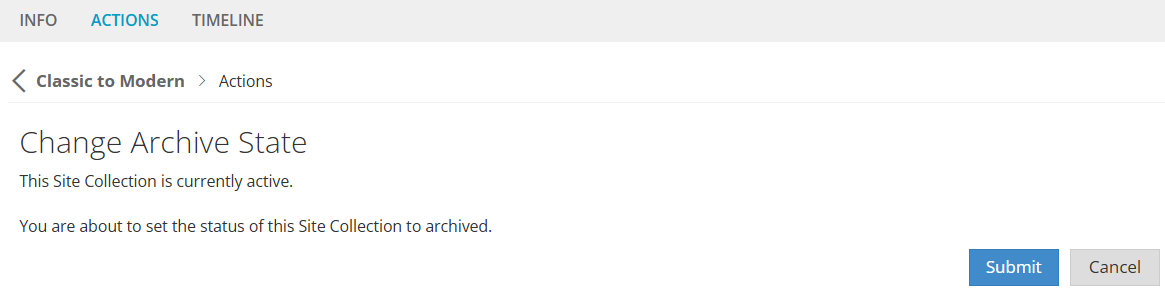
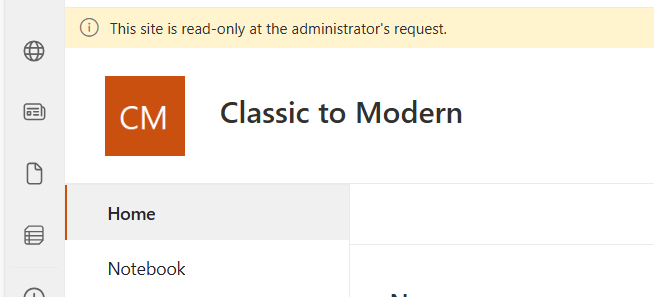
The workspace will appear as Archived or Read-Only.
Once it has been archived, the same action can be used to unlock or unarchive the workspace. The current state of the workspace will be displayed when selecting the Action.
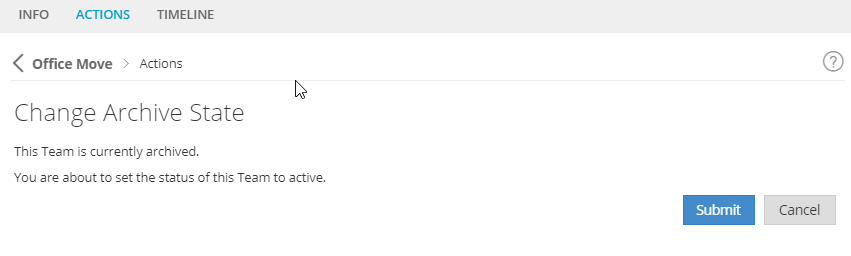
Once Submitted the:
- Archived status will be removed in the info page
- The workspace will be back in all Sites views in the ProvisionPoint Directory
- The lock or Archive in M365 will be removed.
Move to M365 Archive
Expand to learn about the action: Move to M365 Archive.
Additional permissions are required to use the M365 Archive Actions, please ask your Global Admin to complete the reconsent process found here
Reconsent the ProvisionPoint.
The Additional Permissions added: Sites.Archive.All (application)
This action will allow requestors to manually Archive the Site. This includes SharePoint Sites associated to Microsoft Teams and Viva Engage Communities.
What is M365 Archive
- Storage Management: When a site is archived, it stops consuming active storage quota and instead counts towards Microsoft 365 Archive storage. This helps organizations manage their storage costs effectively.
- Compliance and Searchability: Archived sites retain compliance features such as eDiscovery and retention labels. Although users cannot access archived sites, administrators can still search through the archived data using Microsoft Purview-based search.
- Reactivation: Archived sites can be reactivated if needed. Reactivating a site within 7 days of archiving is free; after that, a fee applies based on the amount of data being restored.
Microsoft 365 Archive must have a Pay as you go subscription setup to allow the feature to work, details about the setup and costing can be found here:
As with all Actions you can define approvals, notifications, permissions and post webhooks to the requests.
The action MUST be enabled with appropriate permissions and will allow the requestor to Submit the request.
This action can only be submitted once, after successful completion the other actions that can be run are limited:
- The Timeline will record the Action name, who ran it and when:

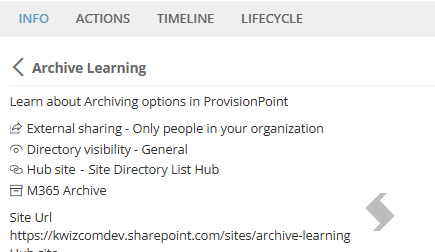
The Info page will show a status of M365 Archived & the Site Url will no longer be a hyperlink:
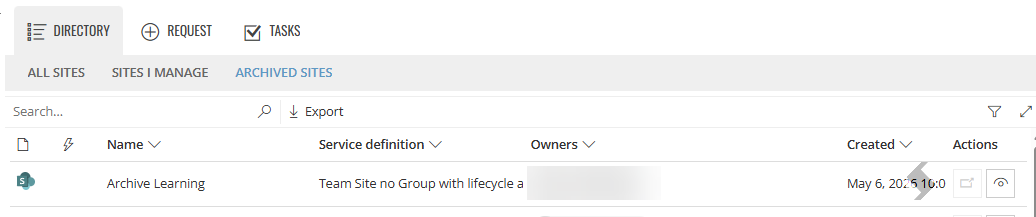
The Site will be moved to the 'Archived Sites' view & the Open button will be disabled.
- Actions will be restricted, the actions that will be available are:
- Sync Directory
- Change the Lease, Reapply Lease
- Set Expiry Rule State
- Delete Workspace & Delete from the Directory
- Change Directory Visibility
- If the Site is Group connected the Group Owners & Members can be updated but this will not impact the Site
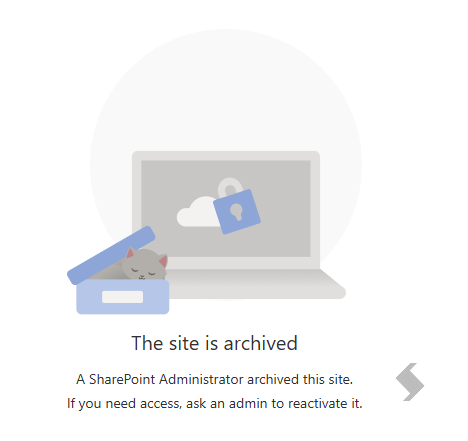
- If the Site is opened it will display as Archived
Delete Options
Delete the workspace
Expand to read more about the Action: Delete the Workspace
Requesting this Action will delete the Site, Team, Planner, Viva Engage Community and Group in M365, they will still be listed in ProvisionPoint.
The name of the delete Action will be updated depending on the service type selected.
The workspace will remain in the ProvisionPoint Directory until the Delete from the Directory Action is run.
Delete from the Directory
Expand to read more about the Action: Delete from the Directory
Requesting this Action will delete the workspace from the ProvisionPoint Directory and any Site Directory List set up in the Integration tab. If you have deleted a workspace in your M365 environment you will need to run this Action to remove it from your list.
If it has been deleted a bin icon will be displayed in the ProvisionPoint Directory and the Info page will flag the status as Deleted.
If the Workspace has been deleted from ProvisionPoint in error, the Restore to directory action can be used. If you do not know the serviceinstanceid, please reach out to our support team.
Restore to Directory
Expand to read more about the Action: Restore to Directory
If a workspaces has been status is set to deleted or it has been deleted from the directory this action will grant permissions for the ProvisionPoint API to change the status to active or restore the instance to the directory. This Action can only be run using the ProvisionPoint API, when a workspace is deleted only the delete from directory action is available in the UI and if it has been removed from the directory you cannot select any actions.
This will not perform a restore in your MS tenant, this must be completed manually before restoring through ProvisionPoint API
For more information please read the How to Restore a Deleted Workspace to the Directory to the Directory article.