Please follow this article if you would like to migrate Repeating Rows from SharePoint On-Premises to SharePoint Online. The below steps will need to be done by an administrator
Follow the steps below to successfully migrate your Repeating Rows data and configuration from SharePoint On-Premises to SharePoint Online.
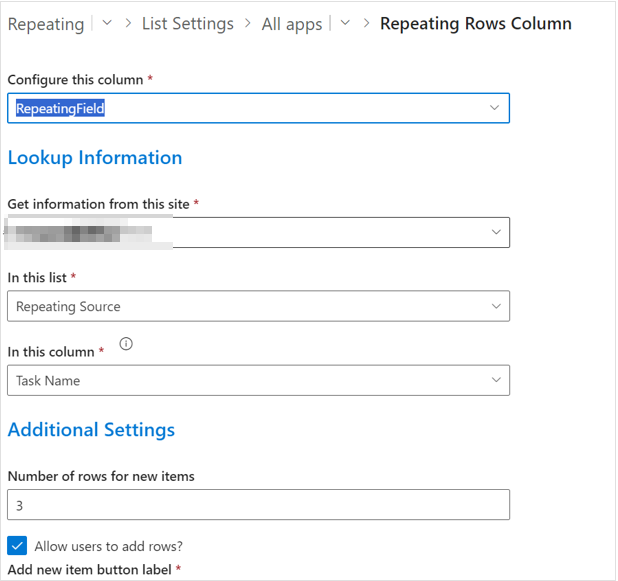
- Create the Repeating Rows Field
- Navigate to the Repeating Rows list settings, of the target list in SharePoint Online.
- Create a new Repeating Rows field in that list.
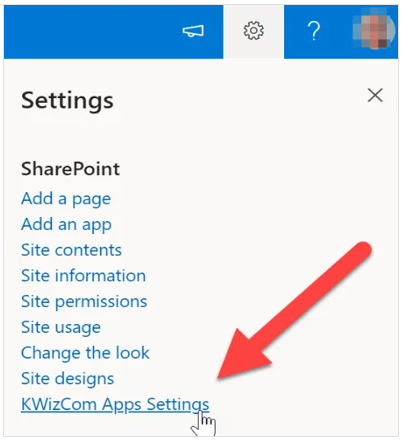
- Access KWIZ Apps Settings
- Click the Settings (cogwheel) in the top-right corner.
- Select KWIZ Apps Settings from the dropdown menu.
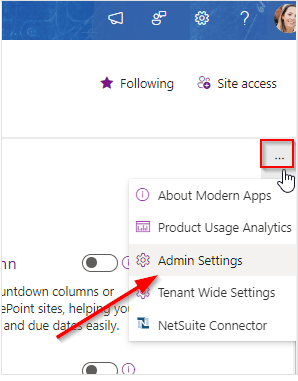
- Open Admin Settings
- Click the Ellipsis (⋯) icon.
- Choose Admin Settings from the dropdown menu.
- Configure Remote Events
- Click Remote event settings.
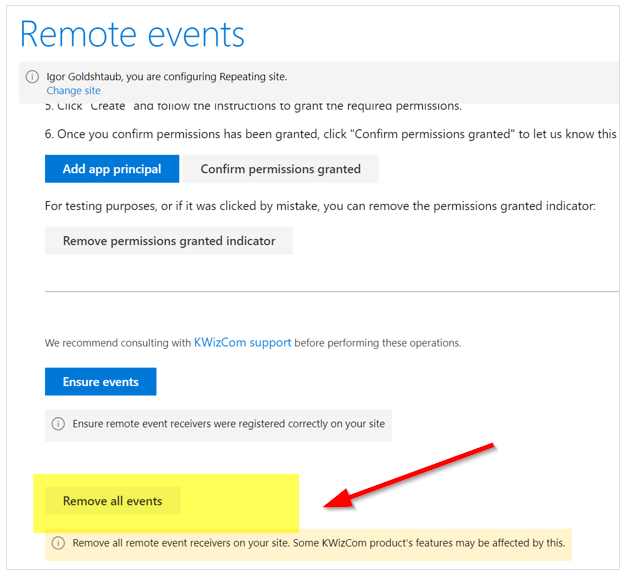
- Click Remove all events to clear existing bindings.
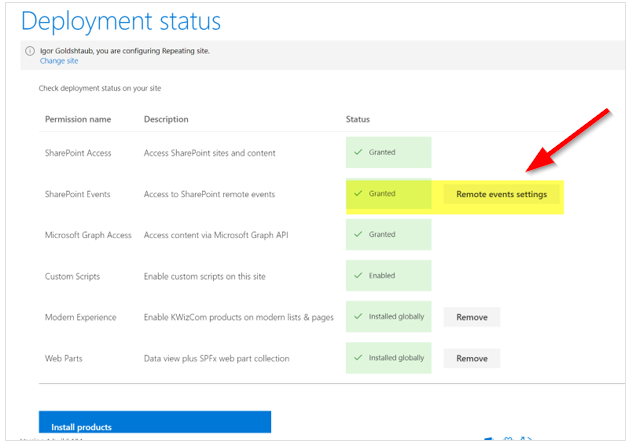
IMPORTANT: Removing the events will impact certain KWIZ app features, including Repeating Rows and Custom Actions/Activities withing the site. Please be aware of this before proceeding.
- Run the PowerShell Script
- Open PowerShell or SharePoint Management Shell as Administrator on your local machine.
- Open the provided
.ps1 file in any text editor and update the following parameters: Repeating Rows PowerShell script - Required Parameters:
- URL to SharePoint site where the Repeating Rows list was migrated.
- Name of the list with the Repeating Rows items.
- Name of the list where the new Repeating Row field exists.
- Name of the new Repeating Rows field.
- Name of Reverse Lookup field which was migrated from the On-prem environment.
- Rebind Remote Events
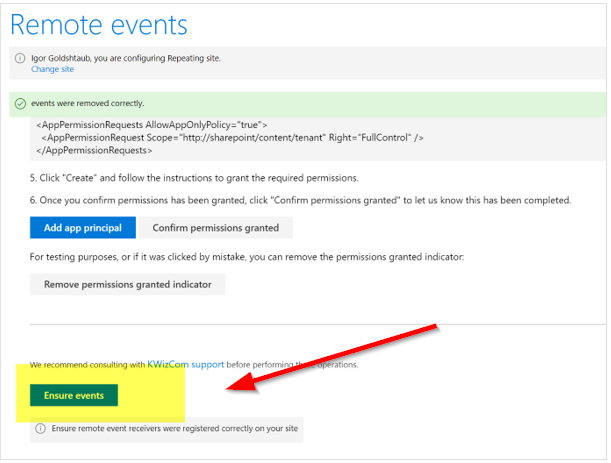
- Return to the Remote Event Settings page.
- Click the Ensure Events button to re-register the necessary events.