Configuring Actions
Actions allow changes to be made to your workplaces in O365, that are managed by ProvisionPoint.
Changes made via our app will be displayed in the timeline giving a full history of changes, who ran them and when they were run.
For some additional controls are required:
- Limit the Actions that are available
- The right people can run the Actions
- Approval of changes can be set
- Notification if changes are sent - this may be to the Owners of the Team or to Admins
Any member's of an App Manager or Service Definition Manager role can configure the Actions in a Service Definition.
By Default all actions are disabled!
Any changes you make in the Actions areas for the Service Definition, will be immediately applied to all workspaces linked to the Service Definition
Enable Actions
Expand to read more about enabling Actions.
All Actions are disabled by default when a new service definition is created. This allows the app managers to define which actions should be available.
Go to Admin > Service Definitions > Actions to enable the actions that are required. Toggle from Off to On, then add any other configuration controls needed.
Once enabled the owners will be able to run the action on their workspaces, go to the Info/view details page from the directory.
Permissions
Expand to read more about Permissions.
Define who has permission to see and run the Actions.
- 'Enabled for owners' - By default all Service Instance Owners will be allowed to run the action, this can be toggled off to limit access to specific people or groups.
- Check the Info page or directory view to see who the owners are
- If you are using form fields to define your owners, this will be limited to any that have 'service instance owner' rights enabled for the form
- 'Names users or groups' - Add the name of a person or Group that should also have permission to runt he actions
- Often the App manager Group will be added here to allow them to manage workspaces, but it could also be IT Admins or members of your governance team.
- 'Form field name' - This can only be used if you have a request form with people or group columns included. Add the Columns name to the list, whoever is added to this column will also have permissions to run the action.
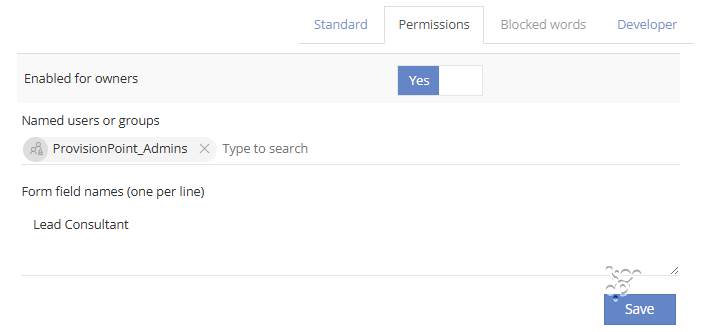
Always click Save on the right-hand side to keep any changes made.
Approval
Expand to read more about Approval.
An approval process can be applied to any of the Actions ensuring the change has been authorised by the correct people.
The approval tasks will be sent immediately after the action is submitted, if approved it will start to make the change.
Select the Approval Template to be used. The Approval Template will define who will receive the approval task.
Always click Save on the right-hand side to keep any changes made.
Notifications
Expand to read more about Notifications.
Notification emails can be sent when an Action is run successfully.
Notifications will only be sent if notifications are enabled for the Service Definition.
Toggle on who the notification recipient should be. The content cannot be customised.
- Notify Administrators - an email will be sent to the admin email address defined in the Notifications tab of the Service Definition.
- Notify Site Owners - an email will be sent to any Service Instance Owners of the workspace.
- Notify Requestor - an email will be sent to the user who originally requested the Action to be run.
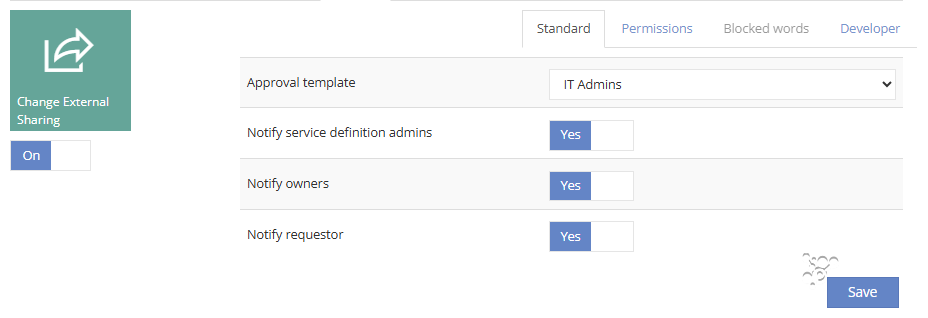
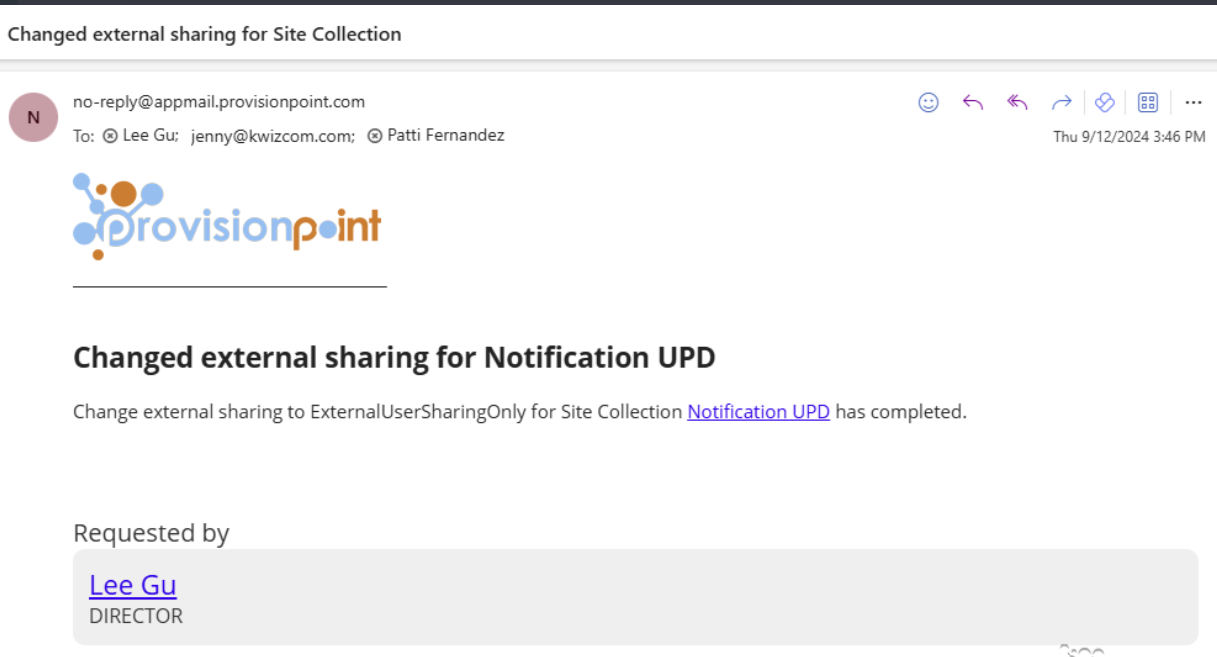
Always click Save on the right-hand side to keep any changes made.
Blocked Words
Expand to read more about Blocked Words.
Blocked Words can be applied to any Actions that contain Text fields. Use them to apply limitations on text fields using regular expression checks within an Action, this tab will only be selectable when it is supported, read Create Blocked Word Templates article for more information.
Always click Save on the right-hand side to keep any changes made.
Developers
Expand to read more about Developer Actions.
The Developers tab allows the use of web hooks to extend the Action functionality using Azure runbooks, PowerShell scripts, Power Automate, APIs and more Using Webhooks in Requests and Actions.
Enable the pre or post webhooks depending on when the webhook should be triggered:
- Pre Webhook - to trigger something else to happen before the change is made. A pause can be added, this will require a response back to our API to continue or can be un-paused in the Job Queue.
- Post Webhook - to trigger something else to happen after the action is completed successfully. This may be to update another system or trigger another action to be run.
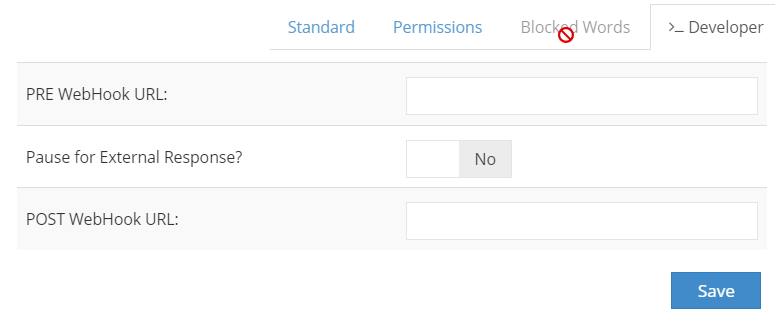
Always click Save on the right-hand side to keep any changes made.
Available Actions
The full list of possible Actions for a Service Definition are listed in the articles below (note some are dependent upon service type):
Create your own Actions to include the approval, notifications and availability using
Admin > Templates > Custom Actions these will use Web hooks to link to PowerShell scripts, Flows in Power Automate, updating systems via API's or much more.