If a Custom Action or Custom Service Type has the 'Wait for Response' enabled, your webhook will need to produce a response that will complete the request.
Wait for response
When enabled, the Custom Action/Service Type will show as processing in the Job queue and Timeline until an API call is made back to ProvisionPoint to update the status.
The Blue circle will be rotating and the item will be listed in the Job Queue for Queue or App managers to see.
Webhook Message Sent
The message sent to the webhook URL is a POST request that has the following properties, these can be used in the results from the action:
- actionTypeId
- customActionId
- operationId - this will be needed in the API endpoint for the response
- serviceInstanceId
- serviceDefinitionName
- serviceInstanceName
- actionName
- actionDetail
The actionDetail is a JSON representation of the request including the request form array, if provided. - requested
- requestedBy
Webhook Response
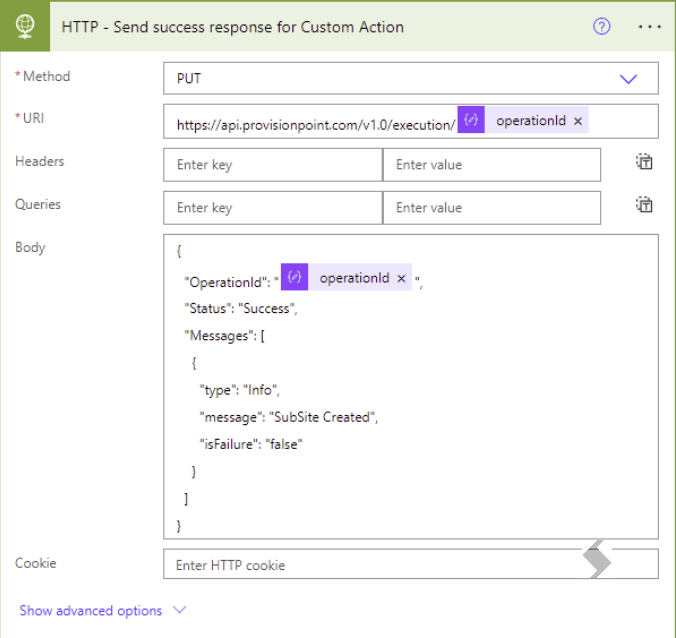
When the 'wait for response' is enabled, a PUT request must be made to the ProvisionPointInstance/v1.0/execution/{operationId} endpoint to register the response.
The message body must have the following properties:
- operationId
- status: Success or Failure)
- messages
NOTE: Messages is an array of the following message objects:
- type: Info, Warning, Error, NotFound, Conflict, InvalidState, Exception, Forbidden or Unauthorized
- message
- isFailure: true or false
Collect the OperationId as a dynamic value or as a variable in the tool you use. Create multiple points of failure to ensure all possible scenarios are considered.
Example of Failed response body:
{
  "OperationId": " Add the operationId here",
  "Status": "Failure",
  "Messages": [
    {
      "type": "Error",
      "message": "Failed to trigger backup, check Flow ",
      "isFailure": "true"
    }
  ]
}
Example of Successful response body:
{
  "OperationId": " Add the operationId here",
  "Status": "Success",
  "Messages": [
    {
      "type": "Info",
      "message": "Backup complete",
      "isFailure": "false"
    }
  ]
}