Content Actions - Update the Workspace and it's metadata
All Actions are disabled by default and will need to be enabled for each Service Definition.
Additionally

Hub Actions
Register as a Hub Site
Expand to reach how to Register as a Hub Site.
This Action will allow the requestor to register the particular service instance as a Hub site. The Hub site title is the user friendly name for the Hub site that appears in the navigation along the top of the Site, as well as in the SharePoint Admin centre.
The Association permissions determine who is able to associate workspaces to that Hub site. Both individual users and groups can be set in this field.
This can also be run if a Hub Site has been Imported but is not flagged as a Hub. There must be at least One Hub site registered in ProvisionPoint to allow associate to Hub to run
Associate to a Hub Site
Expand to read more how to Associate to a Hub Site
This Action allows requestors to associate a workspace to a Hub site that already exists in Provisionpoint. It can also be used to change the Hub that the workspace is associated to. If the workspace is already associated to a hub, the associated hub will be listed in the top field. The Hub site field will show a list of all Service Instances that are currently listed as registered as a Hub site in ProvisionPoint.
Change Properties of the Creation
Update Details
Expand to read about the Action: Update Details.
The name of this Action will change depending on the service type selected, for SharePoint Sites it will be 'Update Site Details' and for Teams, it would be 'Update Team Details'. Requesting this Action will allow changes to the title, description and any additional form fields linked to the Service Definition.
If the Service Definition has the 'use formula on update' enabled this will enforce the naming convention to any changes you submit, it will not update the URL/Mailbox naming.
In this example, if the department was changed or the title it would update the naming of the Team.
Other notes:
- If you define owners and members via request form fields any changes made to people picker fields will update the owner and members as well, check the Form to see which permissions will be applied to the people pickers.
- If additional columns have been added to the request form or the form has been replaced altogether, the missing information can be added using this Action.
- If a Custom or Site Directory List is linked to the service definition the changes made will update the list with this information.
Change URL
Expand to read about the Action: Change URL.
Requesting this Action will allow requestors to change:
- The URL in O365 SharePoint URL and ProvisionPoint
- Update ProvisionPoint if changes have been made to the Site URL in O365 already.
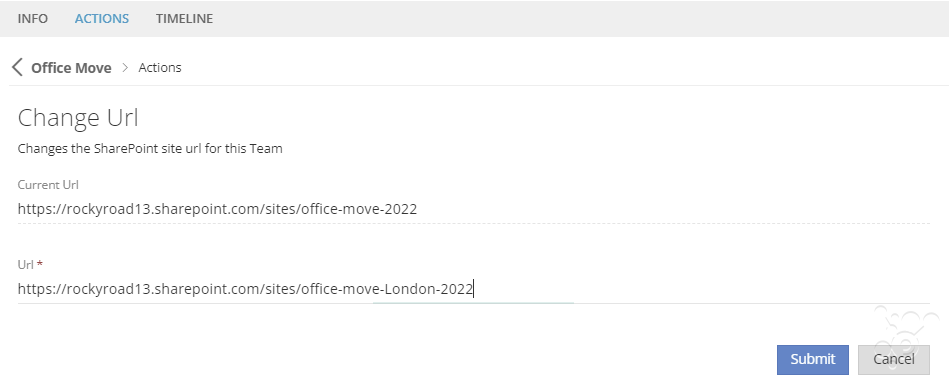
When the change is submitted, a check will be made on the URL provided
- A tick is displayed if the new URL is available, click Submit again to apply the change

A cross is shown if it is already in use:
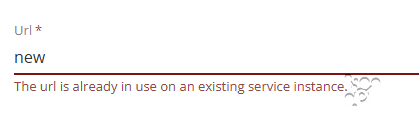

If the new URL already exists in O365 an option to apply to ProvisionPoint will be displayed.
Change Default Retention Label
Expand to read about the Action: Change Default Retention Label.
This action will allow the requestor to change the default retention label on Lists and Libraries on SharePoint Sites, including ones linked to Microsoft Teams and Viva Engage Communities.
The Change Default Retention Label action gives additional flexibility to manage the retention or removal of data in the tenant.
The action MUST be enabled with appropriate permissions and will allow the requestor to choose:
- The Retention label to be used (only available labels can be selected)
- Apply to all Lists/libraries or selected ones
- Apply the label to any existing documents
Please note there is a delay from setting the default to it applying across all documents. This is outside of our control and behaves the same as doing this in the UI
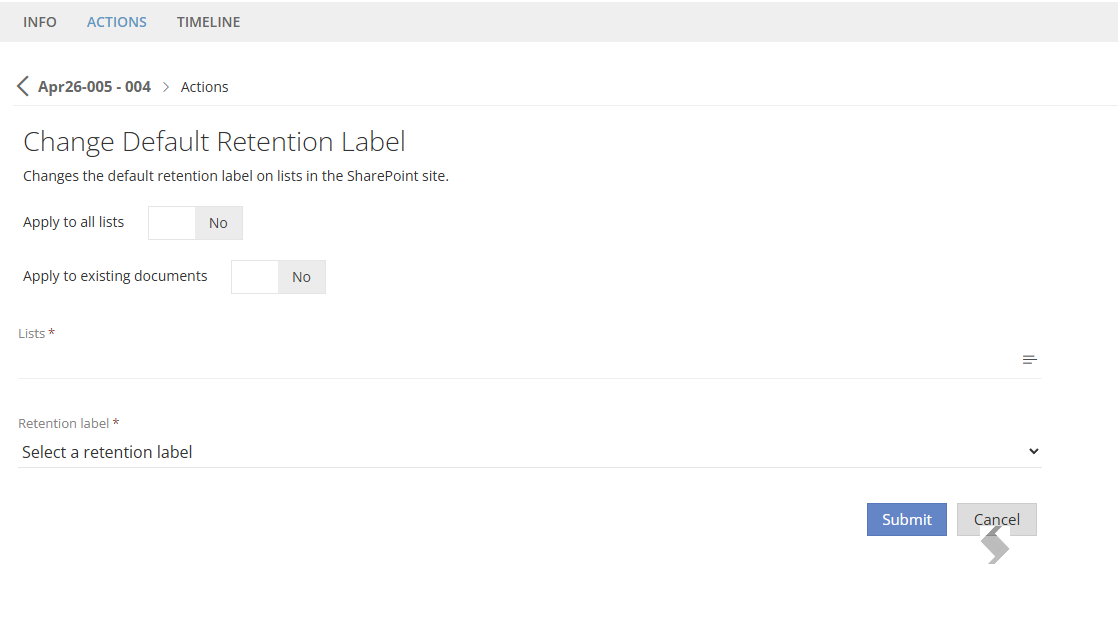
The Timeline will record the settings applied and which lists/libraries were updated
View the results in SharePoint
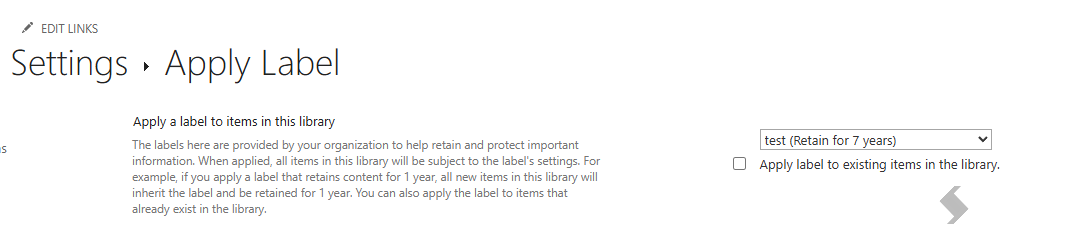
The Retention label will be set as the default of the lists, any new items will be assigned the Label. To view this:
- Add the Retention label and Retention label Applied columns to view to ensure the correct labelling is applied

Go to Library or Lists Settings > More Library/List Settings > Apply label to items in this list or library This will also allow you to see which Retention labels are available on the Site. If Dynamic scopes or static scopes that define which sites will see the labels are used, there can be delays of up to 2 days before that label is available.
Convert Actions
Convert to Group
Expand to read more about the Action: Convert to Group
This action is only available to Team Sites that have been created with no Group
A Service account is required for this action and it must have SharePoint authentication applied
This is configured in the Admin > Settings > Service Accounts area. A token will be stored for up to 90 days as per Microsoft's specifications, after that reauthentication is required.
(The Service account must be part of the Security Group allowed to create Groups in the tenant)
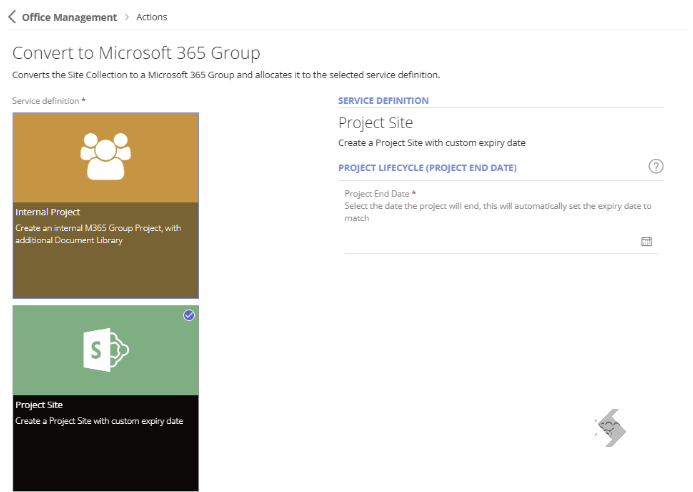
Requesting this action will convert the existing Site to a Microsoft 365 Group. When requesting, a list of active 'Microsoft 365 Group' service definitions will be displayed, select the best fit for the converted Group to be linked to. Any form values that are mandatory will need to be provided to continue.
NOTE: The converted Group will keep all settings and naming conventions of the original Team Site. To make changes use the Actions that are enabled
Convert to Team
Expand to read more about the Action: Convert to Team
This action is only available to Team Sites that have been created with no Microsoft Teams.
A Service account is required for this action and it must have SharePoint authentication applied.
This is configured in the Admin > Settings > Service Accounts area.
A token will be stored for up to 90 days as per Microsoft's specifications, after that reauthentication is required if other request use the service account the token will be auto refreshed.
(The Service account must be part of the Security Group allowed to create Groups in the tenant)
Requesting this action will convert the existing Site to a Team. If this also has no Group it will add the Group first. When requesting, a list of active 'Microsoft Teams' service definitions will be displayed, select the best fit for the converted Microsoft Team to be linked to. Any form values that are mandatory will need to be provided to continue.
NOTE: The converted Team will keep all settings and naming conventions of the original Team Site. To make changes use the Actions that are enabled
Add Additional Items
Create Additional Channels (Microsoft Teams only)
Expand to read more about the Action: Create Additional Channels (Microsoft Teams only)
This Action is only available for Teams service definitions, it must have at least one channel template created in the Channels tab & set to 'Enabled for create channel action'.
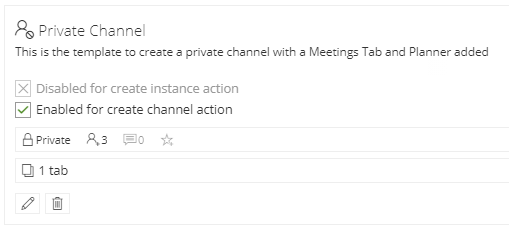
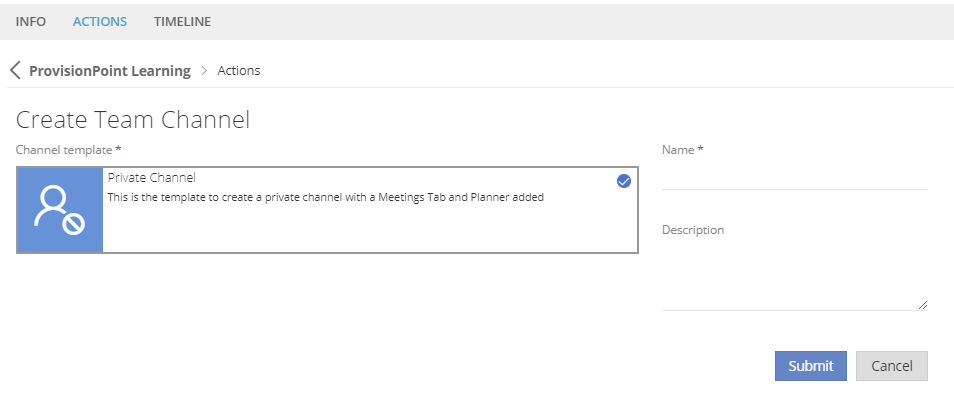
Requesting this Action will give a list of available channel templates and allow the requestor to define the name and description of the channel, all settings, tabs or apps configured in the Service Definition channel will be applied.
Create Lists
Expand read more about the Action: Create Lists
This Action is only available when a List template has been created in the Lists tab & set to 'Enabled for create list action'. This action will create the new List or Document Library with the same settings as the template.
This includes:
- Enable Versioning
- Version limits
- Sync Content Types from the content gallery
- Set the Default Sensitivity Label
- Set the Default Retention Label
- Add Folders to Document Libraries
- Will it be visible in the Navigation
Provide the name, description and URL to be applied.
Create Planner Plan
Expand to read more about the Action: Create Planner Plan
This Action is only available to Group connected Service Definitions and when a Plan template has been created in the Planner Tab & set to 'Enabled for create plan action'.
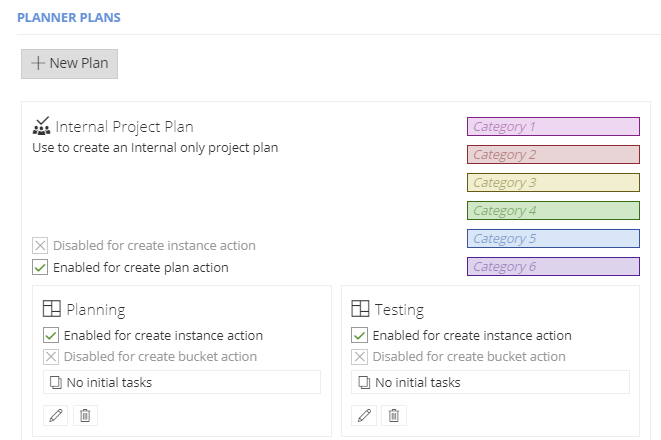
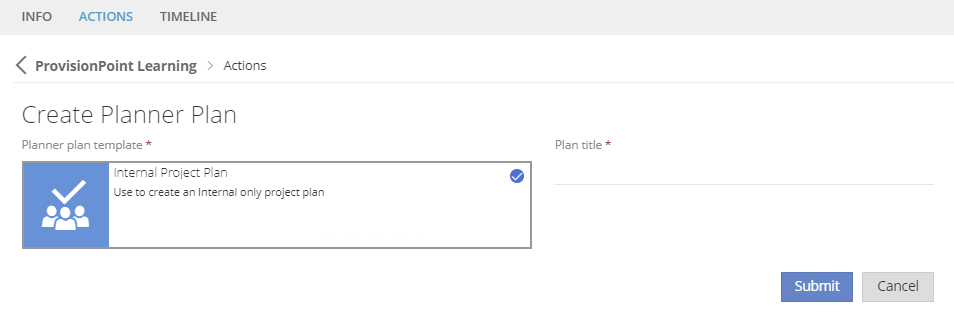
Requesting this Action will give a list of available Plans and allow the requestor to define the title of the plan, all categories, buckets and tasks configured in the Service Definition plan will be applied.
Create Sub Sites (Site collections only)
Expand to read more about the Action: Create a Subsite
This Action is only available to SharePoint Site collections. A Sub Site template must exist to apply the appropriate settings. Requesting this Action will allow requestors to define the title and description of a new Subsite linked to the Site it is requested from.
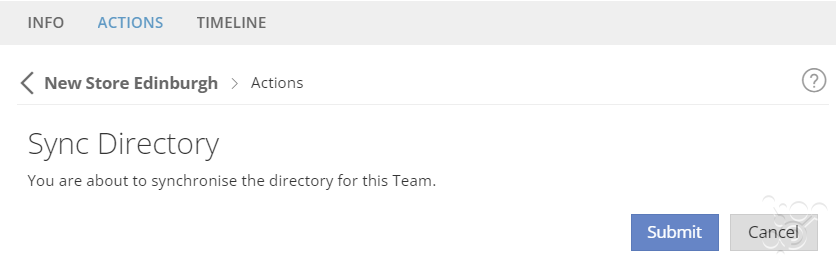
Sync Directory
Expand to read more about the Action: Sync Directory
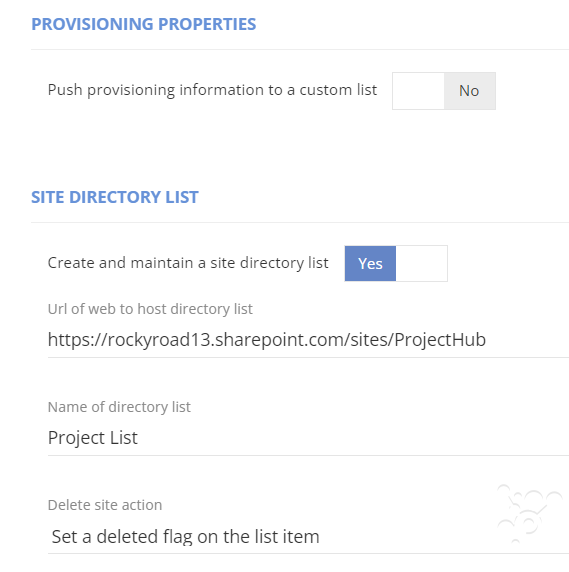
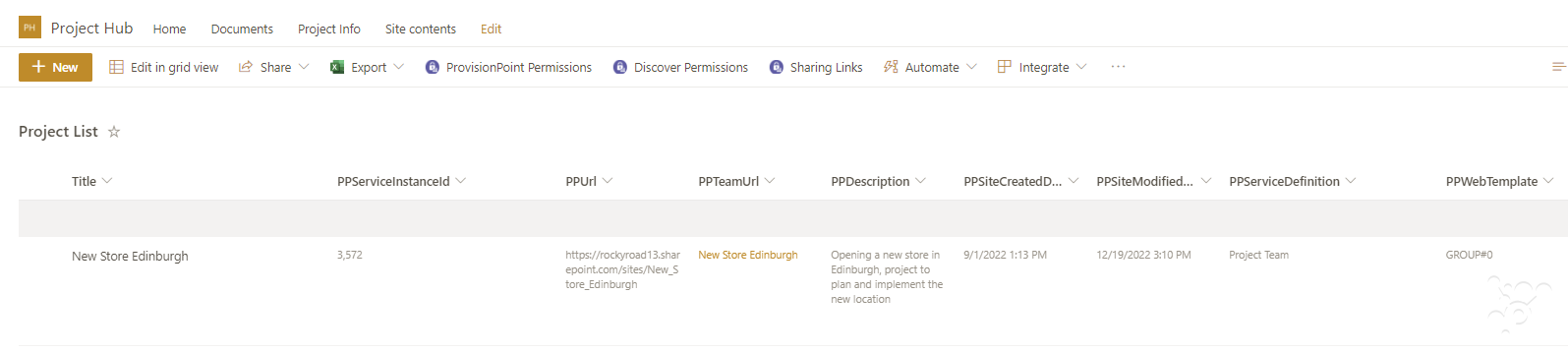
Requesting this Action will push the request information to any SharePoint lists configured in the Integration tab. Either a Custom List or a Site Directory List.
They will store the request metadata and links for the workspaces created or imported into ProvisionPoint as well as their ServiceInstanceID that can be used for API calls.
If you did not have a Site Directory List setup, it can be added to the Service Definition and then run this action to create and update the list.
Integration Tab - Site Directory List & Custom Lists