When a new request is made to create or import a workspace or to update a workspace using ProvisionPoint actions, the information about the request can be added/updated on a SharePoint List.
The Integration tab in the Service Definition will create a list of the request information when a request is successfully completed.
This can be used to:
- Create a navigation List
- Show useful metadata on your home page
- Be a trigger for automation (PowerAutomate for example, the trigger for when a SharePoint list item is created or updated is not a premium connector)
- Be a back up of the data held within ProvisionPoint
There are 2 types of lists we can export the metadata to:
- The 'Custom List' will add the request information within the individual SharePoint site created, in a list called 'PPSiteProvisioningInfo'.
- This can be used to highlight metadata collected at the point of request for your Site. For example, project information
- The 'Site Directory List' allows a central store of all requests linked to this Service Definition to be stored in a SharePoint Site you define.
- This can be used as a directory on a hub site or Site that is used to manage projects or an intranet.
- If all Service Definitions point to the same list it will hold all requests managed via ProvisionPoint
This information can be used to create reports, be published to Hub sites, trigger a Flow in Power Automate, assist with API calls to the API or much more.
Pre-Requisites
- A ProvisionPoint App Manager to create a Service Definition or amend existing Service Definitions.
- A SharePoint site and its URL, to store the site directory list, for example, https://yourdomain.sharepoint.com/sites/governance-centre
Expand here to see the values that will be exported
- Title = The name of the workspace, after any naming conventions are applied
- PPUrl = The Site Url
- PPTeamUrl
- PPYammerUrl
- PPServiceInstanceId = unique identifier for ProvisionPoint
- PPDescription
- PPGroupId
- PPServiceType
- PPSiteCreatedDate
- PPSiteModifiedDate
- PPServiceDefinition
- PPWebTemplate = Base site template of PnP template
- PPVisibility = Directory Visibility (General, Requestor List, Owners)
- PPRequestedTitle = The value added to the Name / Title field on the request form, before naming conventions applied
- PPSiteIdentifier
- PPPrivacySetting
- PPGuestAccess
- PPExternalSharing
- PPRequestedTitle = The title of the workspace, before the naming convention is applied
- PPRequestedBy
- PPOwners = Service Instance Owners, if you are managing Ownership via custom columns, this may not be displayed
- PPExpiryDate
- PPSensitivityLabel = Label of Container
- PPGeoCode
- PPArchived
- PPDeleted = Only added if you have asked for the delete action to flag as deleted
- PPCust... = Any additional columns added via Request Forms, all will start with 'PPCust' followed by the name of the column with no spaces
You can add your own Columns to these List and amend the order and display name of the columns without impacting updates.
Do not delete a column or change the type of column, this can cause failures
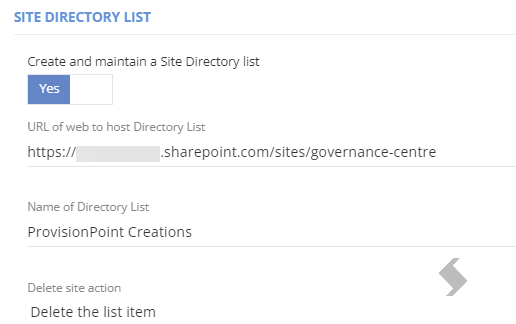
Expand here to see the steps to configure a Site Directory List
- Go to Admin > Service Definitions > Select the Service Definition to amend > Integration > Site Directory List
- Set 'Create and maintain a Site Directory List?' to Yes
- Add the 'URL of the Web to host Directory list' this is the Site you want the List to be created in
- The same details can be used on all Service Definitions to create a full Directory
- The Site MUST be a Site that already exists in your tenant
- Does not need to be managed in ProvisionPoint to be selected
- Add the 'Name of the Directory List' that will be created
- This will be created automatically (on first successful request after save) and does not need to be done in advance
- 'Delete site action' this will define what will happen in the list when the 'Delete Workspace' action is run (via lifecycle or manual action).
- Delete the list item - item will be removed from the list
- Set a deleted flag on the list item - a column called 'PPDeleted' will be added with a true false option
- Save the Service Definition
- Make a New request
Once a request is processed the list will be created and will be visible under
Site Contents 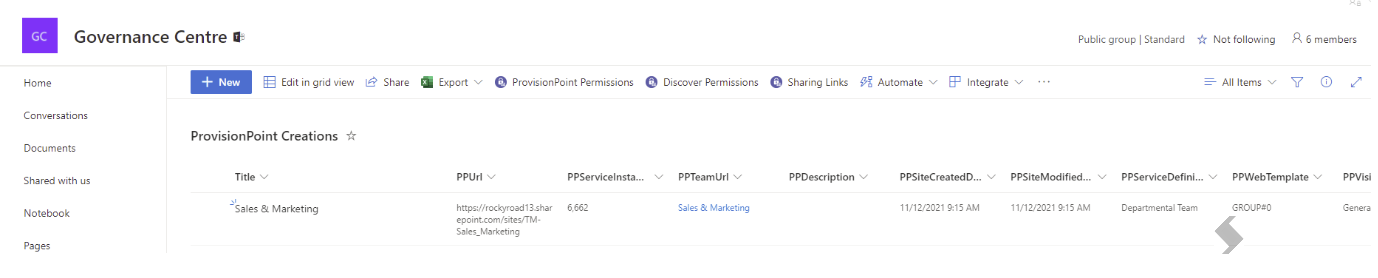
An optional Directory web part can be provided on request, allowing you to add a filtered or simplified view of relevant information from the Site Directory List on to SharePoint Home or other pages.
Configure a Custom List
The Custom List has no configuration and simply needs to be turned on using the toggle in 'Push provisioning information to a custom list'
It can also be hidden from view.
It can be accessed by adding /Lists/PPSiteProvisioningInfo/AllItems.aspx to the end of your site URL.
Update Lists via 'Sync Directory' Action
There is an Action that will update the Lists that are setup, by running the Sync Directory it will check the details in ProvisionPoint and update the Integration setup.
- If you have changed the Site Directory List - This will add to the new List provided, it will not remove the item from any old Lists
- If you have added the Site Directory List after creations were made, run this action to add the items to the List.