Go to the Resources section of the knowledge bas to download the latest version of the webpart.
It is expected that the Service Definitions used are already set to export the request metadata to a SharePoint list (Integration tab).
If this is not set up follow the instructions found here Integration Tab - Site Directory List & Custom Lists
Add the web part to SharePoint App Catalog
The webpart must be uploaded by a SharePoint Admin and be made available to specific Sites or All Sites in the tenant for it to be used.
Go to Resources to download the package
Expand here to see steps to Upload the webpart into SharePoint App Catalog
- Ensure you have an App catalog already created, if not create one in SharePoint Admin Centre > More feature > Apps or use the URL, replacing 'yourtenant' with your own: https://yourtenant.sharepoint.com/sites/appcatalog/_layouts/15/tenantAppCatalog.aspx/manageApps
- Click Upload
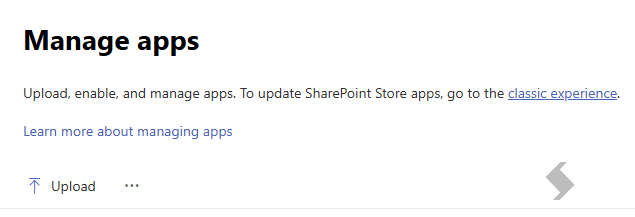
- Select the SharePoint webpart package fom the downloaded location: 'provisionpoint-directory-web-part-sppkg'
- When the deploy dialogue is displayed,
- Ensure the checkbox to make the solution available to all sites is checked. This can be stopped later if needed
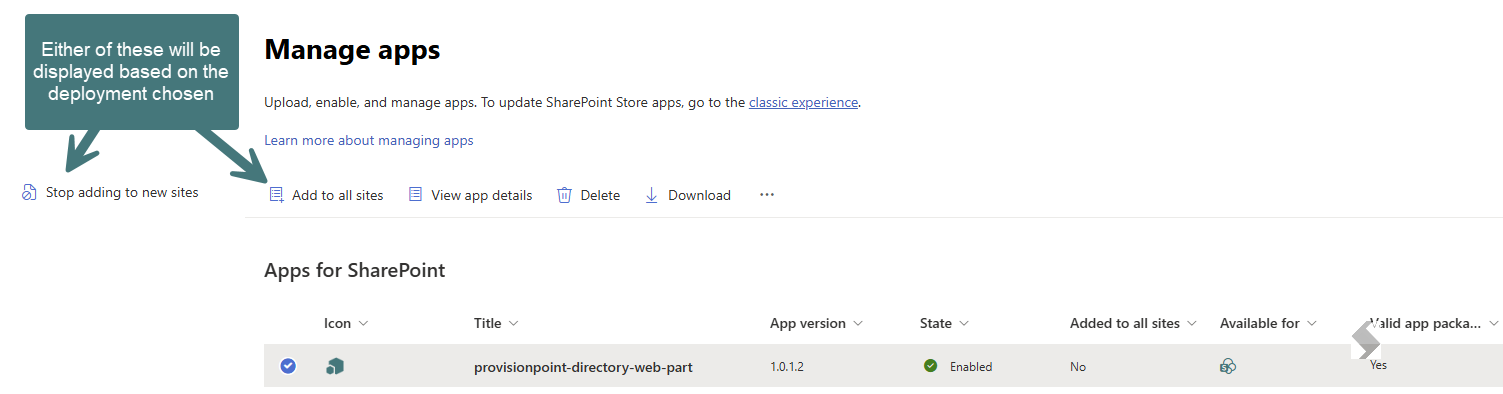
- If not available to all Sites, Site Owners can manually add this to each Site
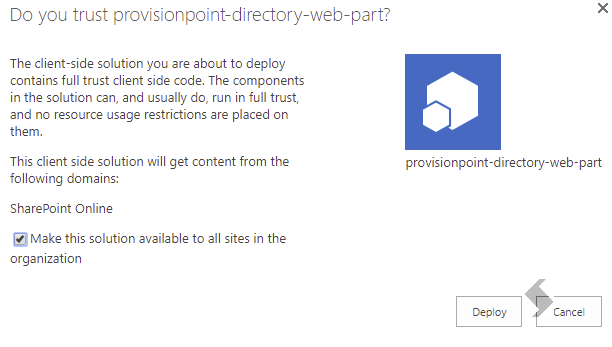
- Click Deploy
Add the web part to SharePoint Page & Configure
Once the webpart has been automatically added to all site or manually added to the Site, it will be an option for use on any pages you set.
- Edit your page
- Click Add in the location you want the List to be displayed
- Search or scroll to find 'Directory List' and select
- This will be shown as invalid until you configure the webpart.
-
Complete the configuration
Expand here to see all configuration options
- Click 'Edit Properties' button
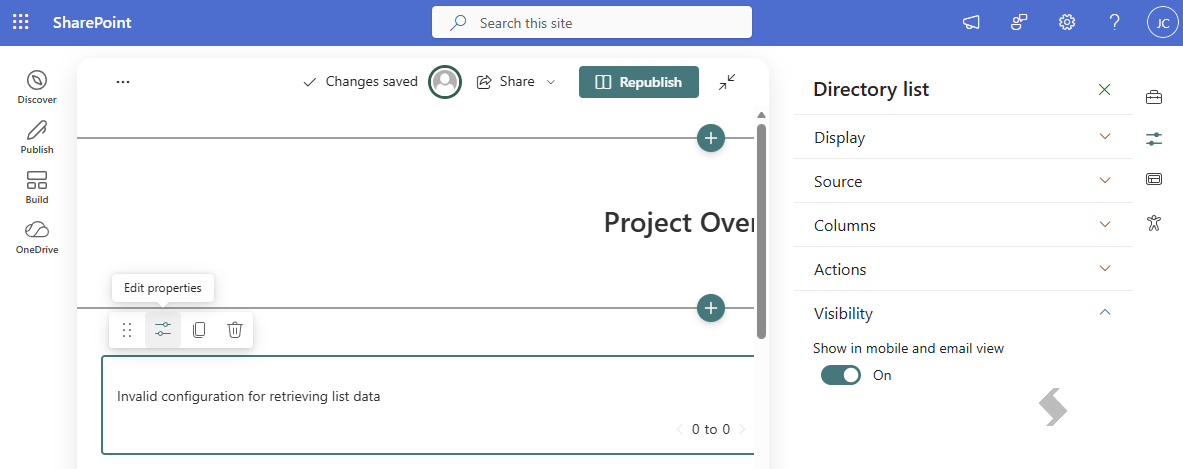
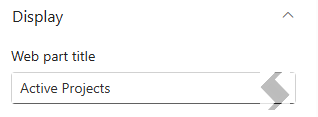
- Expand Display, add a ‘Web part title’ that will be displayed on the page
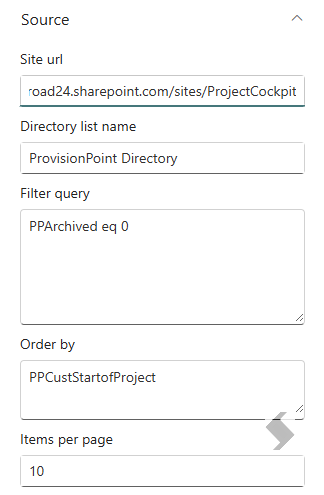
- Expand Source, provide the following
- Site url - Will default to the Site you are on, this can be changed to another, for example your Site Directory List Site
- Directory list name - The name of the List to pull data from
-
Filters can be added if you need to only show specific data, for example items that have not been archived or deleted
Expand to see examples
|
Example description
|
Value
|
|
Filter a managed metadata (Termstore) form field that equals 'Accounting and Finance'
NOTE: it is not possible to do a query on the managed metadata field name: PPCustFileplan eq 'Accounting and Finance'
|
‘TaxCatchAll/Term eq 'Accounting and Finance'
|
|
Service Definition Name equals 'Internal Project Team'
|
PPServiceDefinition eq 'Internal Project Team'
|
|
Workspace name starts with 'Accounts'
|
startswith(Title,'Accounts')
|
|
Active workspaces - Any workspaces that have not been flagged as deleted
|
PPDeleted eq 0
|
Multiple filters can be added, we recommend adding Indexing for any Columns used in the Filter or order by
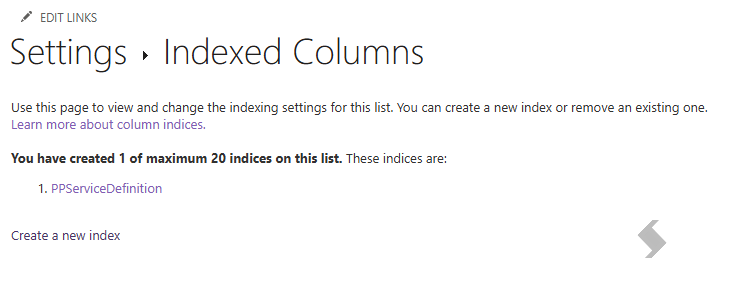
- Order by - If none is added, the default sort will be in the Id field, add the name of the column to order by it. ASC or DESC can also be used
If multiple clauses are added, they will be reset on ordering the columns via click actions as click actions only support single column ordering - Items per page - Set a number of items to display
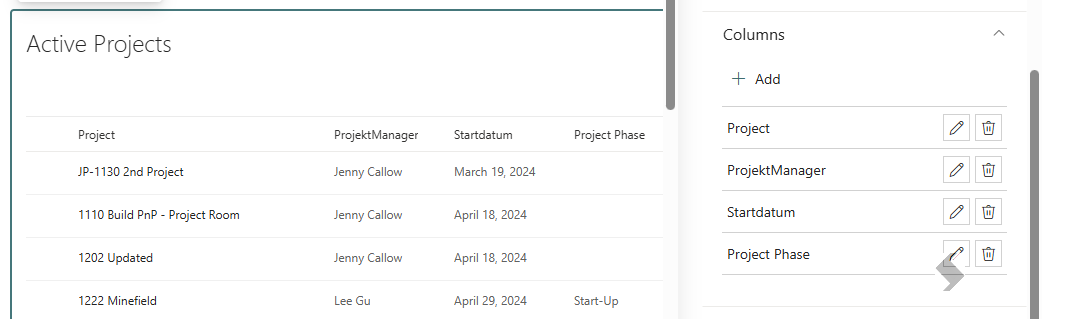
- Expand Columns to add the columns you want to display and customise the display name to exclude PP.
- Add the columns in the order you want them to appear
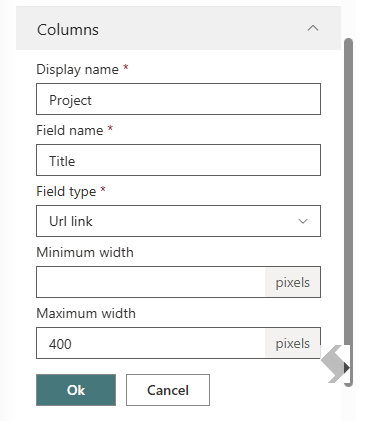
- Once a column is added data will start to be visible in the webpart
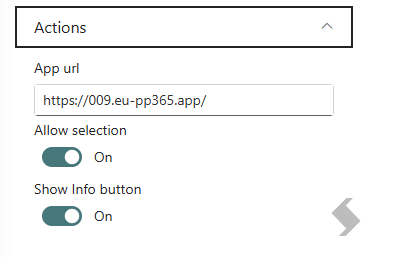
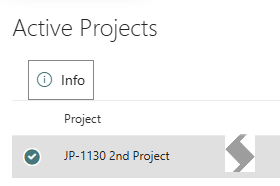
- Expand Actions to add a link to ProvisionPoint and the Info page for each item in the List
- Expand Visibility to enable/disable show in Mobile and email view
- Republish the Site