Convert a Team Site with no Group to a M365 Group or Microsoft Team
Our app allows Team Sites with no groups to be converted to a M365 Groups or Microsoft Team via Actions.
When reviewing your SharePoint Sites you may find you have various types created. You may even be asked to create additional Teams for those Sites to allow Microsoft Teams collaboration or to add Groups to allow mailbox access for those Sites. This is often referred to as 'Groupify' or 'Teamify'.
For some, the option to convert Site to Teams is hidden to users also preventing them for doing this within the Microsoft UI. Using the 'Convert to Group' or 'Convert to Teams' actions, you can reduce the number of duplicate Sites and Teams that are in your tenant and control who has the ability to make the changes. As part of the conversion, it will also need to move to another Service Definition that matches the new Service type. This ensure that the actions available after the conversion are relevant and all Dashboards and reports are updated.
In the image below I can see a mixture of
- Team site = 489 Contoso
- Team site with Microsoft Teams = ACCT Accounts Payable Team
- Team site (no Microsoft 365 group) = Accounts Team Relocation Project
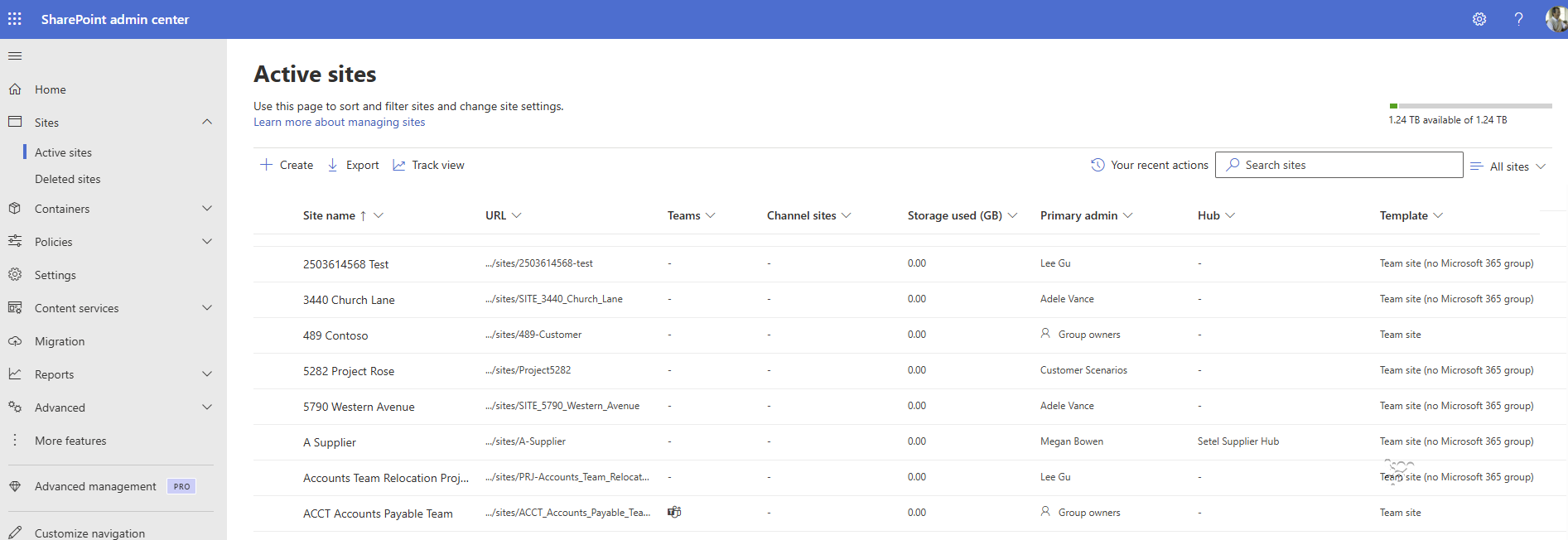
Taking the examples from above I can enable the appropriate Action, define who is allowed to run the action and get the Site updated with a Team or Group with ease and without involving a SharePoint Admin.
A service account is required for these actions to run, the account will be used to make the conversions. This is a standard user account that is when needed given elevated permissions. In this case to be a SharePoint Admin on the site that is going to be converted.
- Go to Admin > Settings > Service Accounts
- If you already have a service account, Edit. If you do not add the account here.
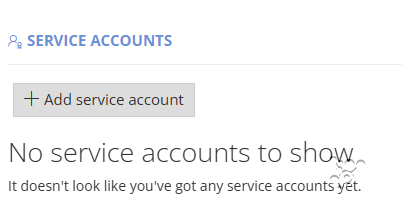
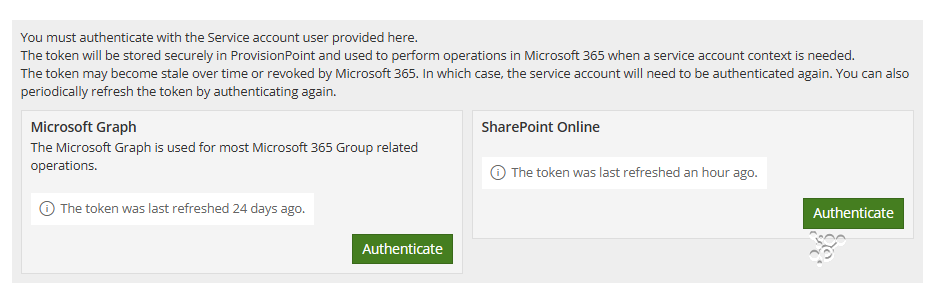
- Authenticate Microsoft Graph and SharePoint Online. This will ask for the accounts password and stores a token for our requests. Microsoft have a time restriction in place for any tokens. This is often 90 days but may be less for your tenant.
Enabled Convert to Actions
Go to a Site that you want to convert. Access the info page and go to Actions. If you have permission you will see the Actions page, if you do not it will be hidden.

Click on the Action that should be run. Please note if you want to add a Group and a Team, just click Convert to Team, this will perform both actions.
When converting no settings will be changed, this includes naming conventions, expiry dates, ownership. You will need to select the Service Definition to convert.
If there is a form associated to the new Service Definition with mandatory fields these values will need to be added.
Click Submit to process the change, you will be taken to the Timeline view. A swirling blue circle shows this is processing, once the circle is a solid colour it has finished.
If the circle is red it has failed, please contact your internal support team for assistance.
Once it is complete, the info page will now show the new Service Definition name and the Directory will now display the appropriate icon.
The SharePoint Admin centre may take between 2 and 24 hours to show updates to the template type and Membership.
Known Issues