When you set up a request form you can create columns that link to your Term store within SharePoint admin centres, using Managed Metadata field types.
This is great when you already have a shared list of taxonomies available.
What do you do when the term you need is not there?
You can of course go and add this to the Term store via SharePoint Admin centre, but only if you have access to this!
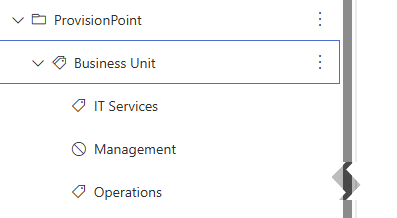
You can also setup ProvisionPoint to add to the Term store by following the instructions below:
-
Setup an Azure App Registration & Add API permissions in your tenant
Expand to see the steps
To add additional permissions to ProvisionPoint we use app registrations in Microsoft Entra, this is the preferred method from Microsoft.
To allow users to update the Managed Metadata the SharePoint API > TermStore.ReadWrite.All permissions is required
Check ProvisionPoint to see if an existing app registration already exists. If the API has been configured the same app registration can be used.
- Go to Admin > Settings > AAD App or login to Microsoft Entra Admin Center > App registrations
- Give the app a relevant name and click 'Register'
- Copy the 'Application Client ID' for creating the certificate later.
- Go to API permissions and click '+ a permission'
- Select the SharePoint or Graph API
- Select Delegated permissions and search for TermStore
- Select the TermStore.ReadWrite.All permission
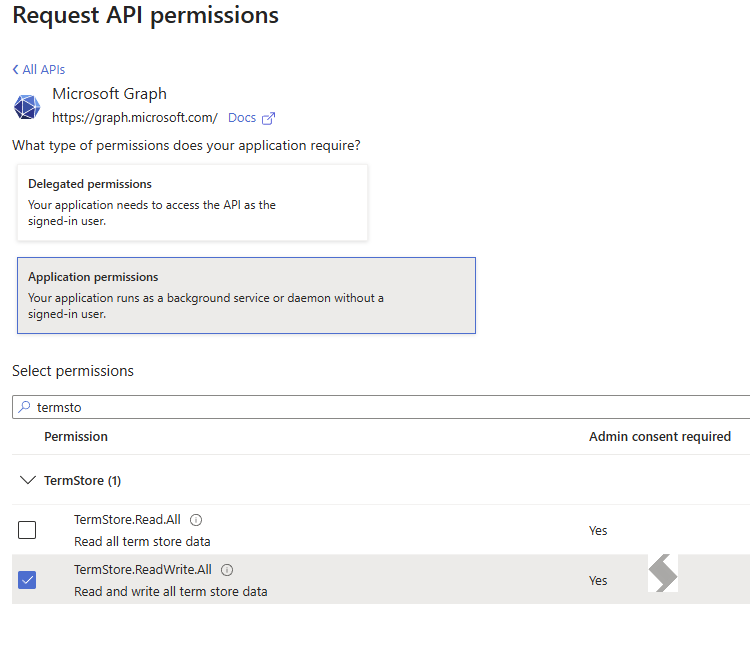
- Repeat for Application permissions
- Click 'Grant admin consent for your tenant'
-
Setup ProvisionPoint AAD App Certificate & Upload Certificate to App Registration
Expand to see the steps
To give ProvisionPoint the extra permission we need to link the AAD app and ProvisionPoint with a certificate
- Open ProvisionPoint
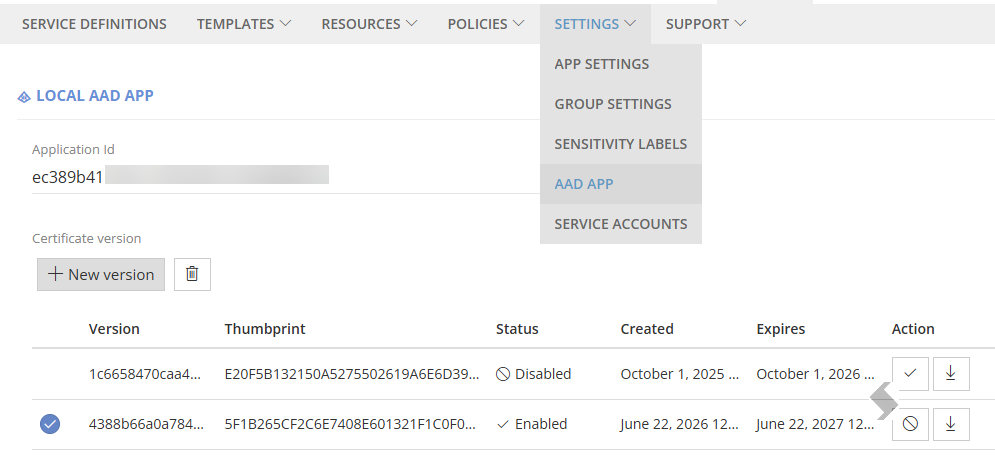
- Go to Admin > Settings > AAD App
- Add the Application Client Id (created earlier) in Entra
- Click + New Version to create a certificate
- Select the certificate and click Save
- Download the Certificate

- Go to back to Entra Admin Center > App Registrations and open the registration created earlier
- Go to Certificated & secrets
- Click Upload certificate
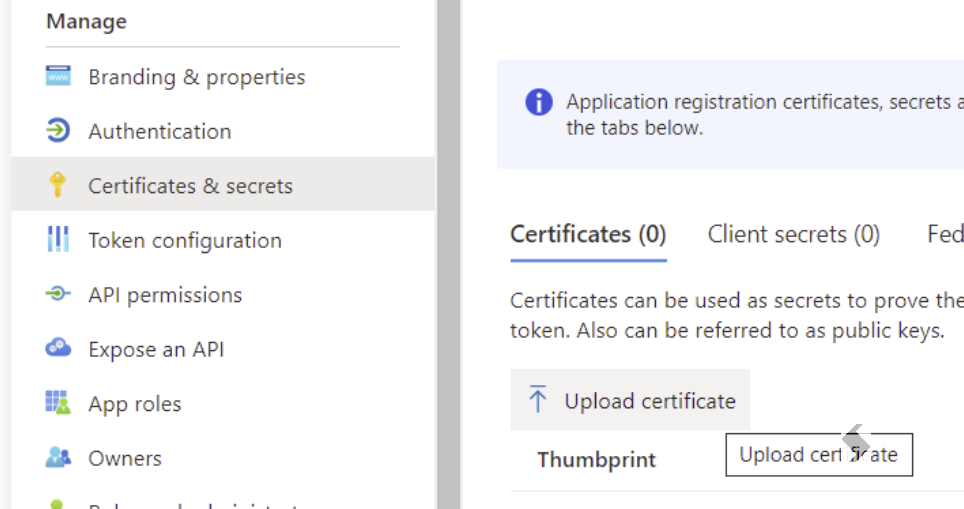
- Select the downloaded certificate and click Add
-
Add Term store Group Managers to SharePoint Online
Expand to see the steps
We need to ensure the Group managers are setup to allow the terms to be available to the Service account
- Go to the SharePoint admin center > Content services > Term store
- Select the top-level term group > Edit
- Ensure the following Group Managers are listed:
- SharePoint Administrator
- The Service account configured in ProvisionPoint
- Click Save
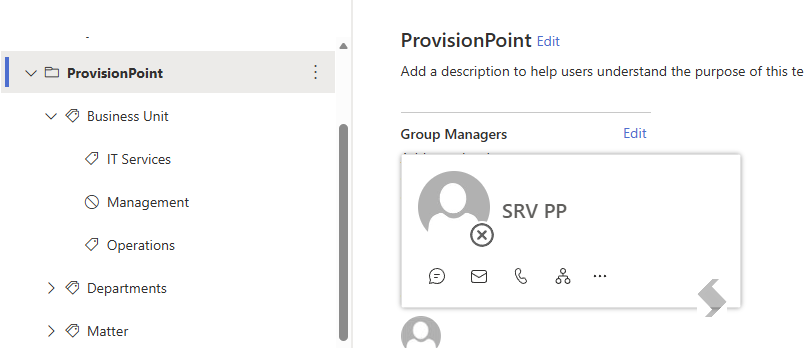
Once you update the Term store permissions, please wait up to 24 hours to test to allow for Microsoft to replicate.
-
Update Column settings in ProvisionPoint to allow updates
Expand to see the steps
- Go to Admin > Templates > Forms > Columns
- Edit the Column that links to the managed metadata Term store
- Set 'Allow terms to be added (requires a local AAD App)' to Yes
- Click Save
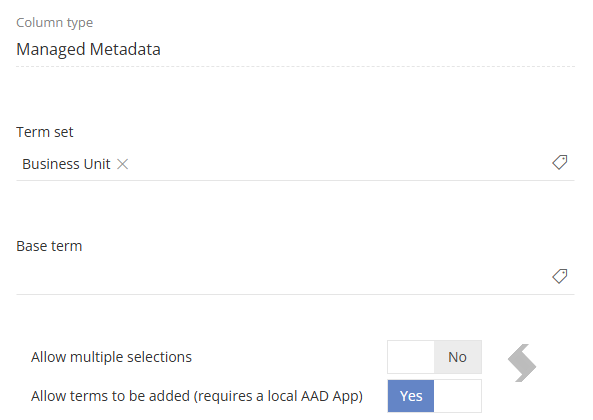
- Ensure the Column is linked to the Request form that is also linked to the Service Definition
-
Setup a Service Account to perform the operation
Expand to see the steps
A service account will be used to perform these requests.
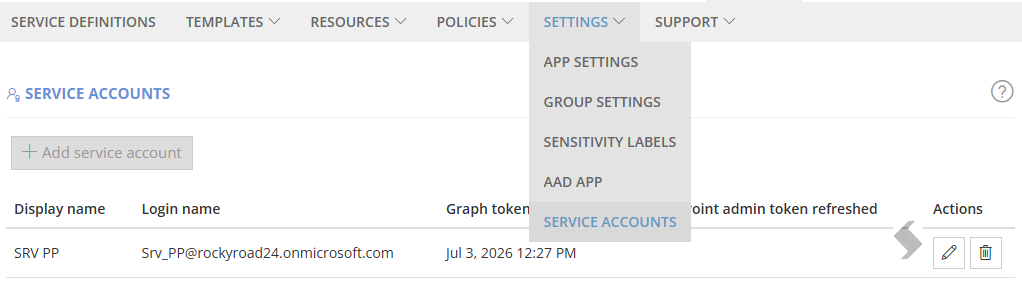
- Ensure you have a service account in Admin > Settings > Service Accounts
- Ensure there is an active token stored
-
Now when you next request a workspace to be created that has a managed metadata field you will see a + allowing you to add to the Term store.