When you create a Service Definition, you can choose how you want to manage Owners and Members.
- By default your requestors will be able to set the Owners and Members assigned to the workspace
- Create your own Columns with custom naming to be used instead
- Restrict Ownership in Microsoft to force management via ProvisionPoint, allowing admins to define which actions can be run (archive, delete, etc)
This article will focus on option 1 and the settings available.
If custom columns are required, read 'Manage Owners and Members via Custom Columns'
If additional restrictions in Microsoft are required, read 'Restrict Ownership in Microsoft'
Change Owners & Members with Actions
During the lifecycle of your Teams, Groups, Sites, Communities and Plans actions can be enabled an configured to make changes.
There are Actions that allow Owners (or other people or Groups) to apply these changes whilst keeping a record of when the changes were made and who by on the Timeline.
Use the Add Member, Owners, Guest User or the Remove Members, owners actions to make those changes.
By default all Actions can be run by Owners, but none of the actions are enabled by default, allowing you to choose which can be run and by whom.
If minimum/maximum owners or base group are defined, these settings will be reflected in the Add & Remove Owners actions.
Manage Ownership with Compliance Checks
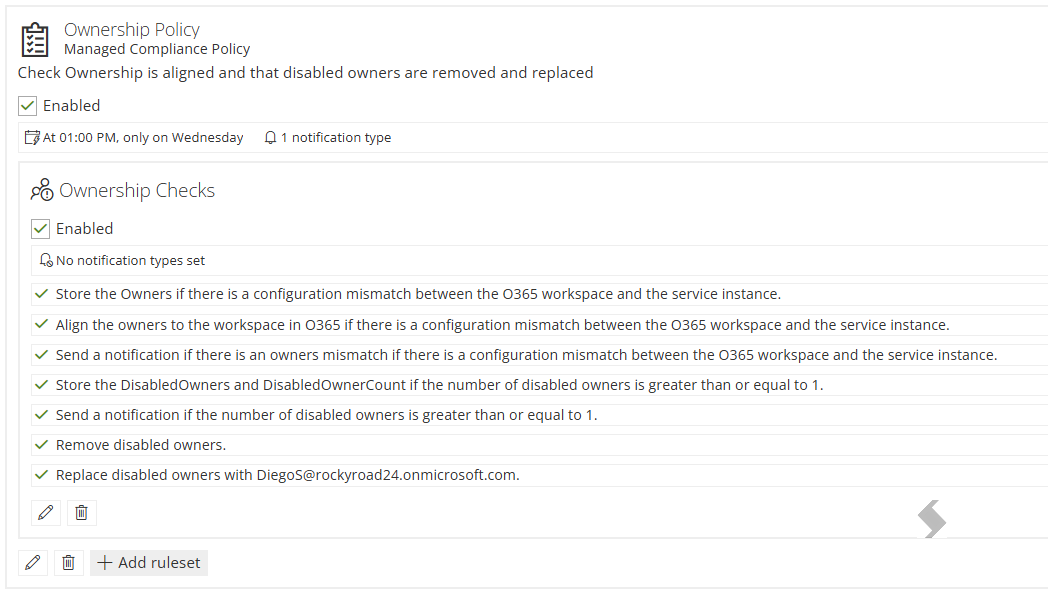
Compliance checks can be used to regularly check the ownership of the Group, Team, Sites. We have 2 main compliance checks
- Disabled Owners can be detected, then either
- Report in the compliance job queue
- Notify owners or admins that there is a disabled owner, custom emails can be created and instructions given.
- Remove disabled owners, if there is a minimum number of owners defined, the compliance check will error if it tried to remove an owner that would take you below the value provided.
- Replace disabled owners with a static person, this can be assigned to another user to ensure the minimum owner count is maintained, but the new owner can review and replace themselves via actions.
- Owner Mismatch can detect if the owners listed in Microsoft differs to what is shown in our app.
- Report in the compliance job queue
- Notify owners or admins that there is a mismatch owner, custom emails can be created and instructions given.
- Align owner to either our app or Microsoft. This will ensure that the Owners are kept in sync.
Alignment to Microsoft will ensure any changes made in Microsoft or by Admins are passed through to our app. Also ensuring the correct Owners are allowed to receive notifications or run actions.
Compliance checks are displayed under the Admin > Policies > Compliance Policies pages.
If you would like to know more please reach out to your account manager or our support team to check if you are licensed to use them.
If minimum/maximum owners or base group are defined, these settings will be reflected in the compliance checks and may result in failures