When clicking the KWIZ Apps Settings button, users may see the error message: Could not provision files.
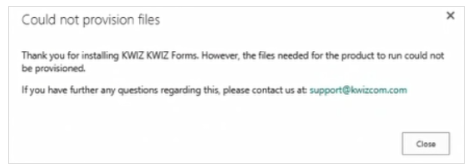
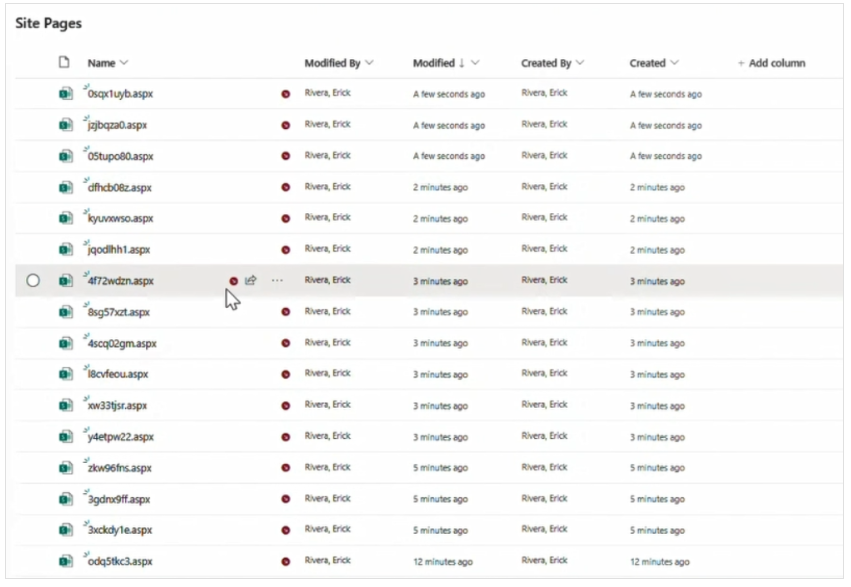
This occurs because the Modern Package attempts to create files in the root of the Site Pages library instead of the intended kwizcom folder.
Recommended Solution:
- Navigate to Site Assets to a**** folder named kwizcom
- Create Required Pages
- Inside the KWIZCom folder, manually create the following pages:
Form.aspxSettings.aspxDataSheet.aspx
- You can reference these page names from another site where the Modern Package is correctly deployed.
- Check Page Approval and Publishing
- If Page Approval or Publishing is enabled, ensure all pages are checked in, published, and approved.
- Remove Previously Created Pages
- Delete any pages or partial attempts that were automatically generated outside the kwizcom folder.
- This prevents duplication or reattempts during provisioning.
- Redeploy the Modern Package
- After creating the folder and pages, reinstall the Modern Package.
- Monitor whether the package attempts to recreate or overwrite pages.
- Persistent issues may indicate a permissions or setup issue in the Site Pages library.
- Enable Custom Scripting Temporarily
- Custom Scripting must be enabled to allow configuration pages to deploy and link correctly.
- Microsoft automatically disables it after 24 hours if the tenant uses the default policy, so ensure it’s active during setup.