Article Content
As a ProvisionPoint App Manager, you can check your unified M365 Group settings from Admin > Settings > Group Settings.
Normally you would need to use PowerShell to check the options and make changes, but here we display the options available and allow some changes to be made.
Allow Everyone to Create Groups
This is the most important setting in this area, in the tenant you can limit the creation of M365 Groups to a specific Security Group of people.
This will prevent Teams, Group Connected Sites, Planner Plans, Yammer/Viva Engage Communities from being created in Microsoft.
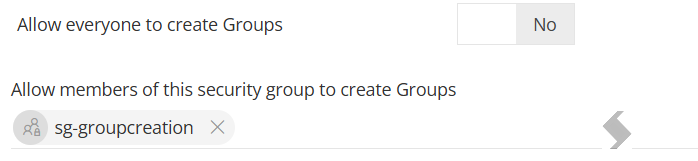
Changing this toggle will impact your entire tenancy and all users, only change this if you are fully aware of the implications and your Global Admin is aware.
When set to No, it will not prevent ProvisionPoint from working, we recommend that the Group assigned will be your M365 Manager/Administrators or IT team.
Guidelines
Both the Guest and Usage Guidelines URLs can be added to ProvisionPoint and they will be added to your tenant. They will be displayed when a new site is created.
Guest Settings
You can view what your current tenant wide guest settings are setup as. There is no point choosing to enabled guest access to Groups if you have not allowed them in the tenant.
The three options are read only and cannot be changed in ProvisionPoint. Use PowerShell to make amendments.
- Allow Guests to access Groups*
- Allow guests to be added to Groups, this requires an Azure P1 license*
- Allow guests to be Group Owners*
Enable Labels
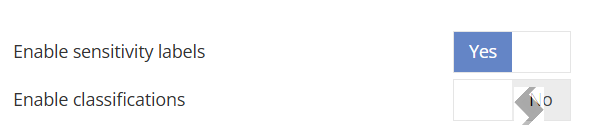
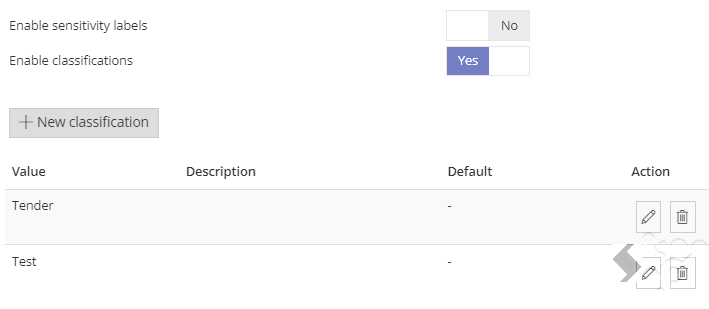
In your tenant you can configure to use Classification or Sensitivity Labels, only one of these can be used at a time. Microsoft are actively advising the use of Sensitivity not Classification.
- Sensitivity Labels will apply a label and follow the setup you have in Purview.
- Allow the setup of container level labels, controlling privacy, guest access enabled or not and external sharing settings to your Sites and Teams
- Allow the setup of file level labels, controlling encryption, sharing and more
- All labels will need to be configured in ProvisionPoint via Settings > Sensitivity Labels
Read the [insert Configure Sensitivity Labels article] for more information
- Classifications will assign a label on the Team or Site, the Labels can be created in ProvisionPoint and passed through to the tenant.