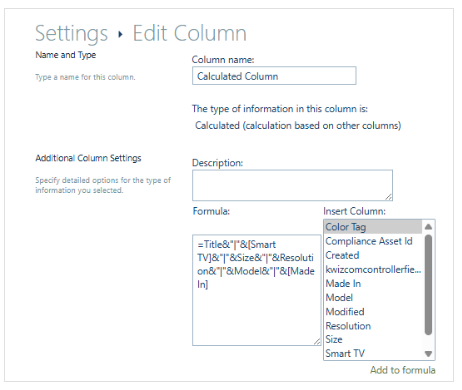
Step 1: Create a calculated column in the Repeating Rows list to concatenate the fields needed for the table.
- Navigate to the Repeating Rows list
- Add Calculated field
- In the formula field, concatenate the desired fields using delimiters (e.g.,
|):
=Title&"|"&[Smart TV]&"|"&Size&"|"&Resolution&"|"&Model&"|"&[Made In]
This formula will combine the Title, Smart TV, Size, Resolution, Model, and Made In columns into a single line of text, separated by a pipeline.
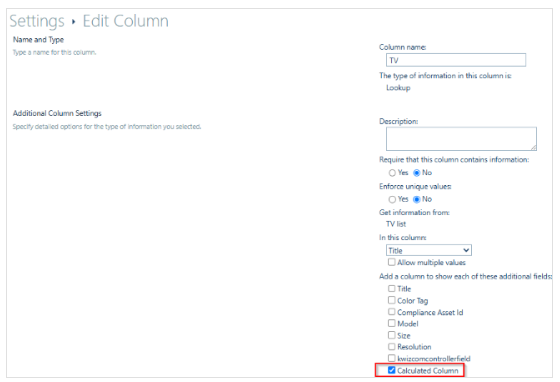
Step 2: Expose the Calculated Column in the main list
- Go to your main list where you have the Repeating Rows field configured.
- Click Settings > List settings.
- Find your lookup field and click it.
- In the configuration, check the box next to the calculated column to include it in the lookup.
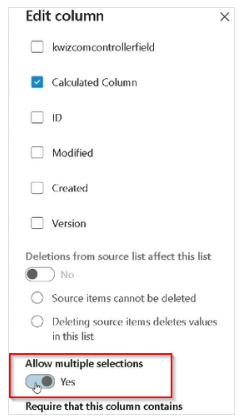
5. Make sure to choose Allow multiple selections for the column.
Step 3: Add the Calculated Column to the List View
- Go back to your main list.
- Choose your preferred view (or create a new one).
- Add the calculated field to the view so it’s visible.
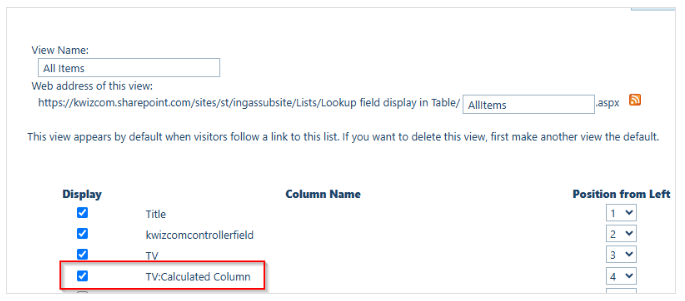
Step 4: Format the Repeating Rows field to display as a Table (using JSON)
- In your list view, go to the Calculated field, click the dropdown, and choose Column settings > Format this column.
- Click on Advanced mode
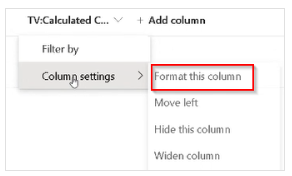
3. Paste the following JSON code and click Save.
IMPORTANT:
Replace the field labels in the JSON code to match your actual column names.
- On line 20, update the list in:
split('Title|Smart_TV|Size|Resolution|Model|Made_In','|')with your own field names, separated by a pipe (|) character. - If your column names include spaces (e.g., Smart TV), you must replace the spaces with underscores (
_) . for example, use Smart_TV.
Expand to see the code
{
  "$schema": "https://developer.microsoft.com/json-schemas/sp/v2/column-formatting.schema.json"",
  "elmType": "div",
  "style": {
    "display": "table",
    "align-items": "flex-start",
    "padding": "11px 0",
    "min-height": "0"
  },
  "children": [
    {
      "elmType": "div",
      "style": {
        "display": "table-row",
        "font-weight": "bold",
        "background-color": "#f3f3f3"
      },
      "children": [
        {
          "forEach": "header in split('Title|Smart_TV|Size|Resolution|Model|Made_In','|')",
          "elmType": "div",
          "style": {
            "display": "table-cell",
            "white-space": "normal",
            "word-break": "normal",
            "overflow-wrap": "normal",
            "overflow": "hidden",
            "text-overflow": "ellipsis",
            "border": "1px solid #ccc",
            "padding": "4px",
            "background-color": "#f9f9f9"
          },
          "txtContent": "=replaceAll([$header], '_', ' ')"
        }
      ]
    },
    {
      "forEach": "row in split(@currentField,';')",
      "elmType": "div",
      "style": {
        "display": "table-row",
        "white-space": "nowrap",
        "overflow": "hidden",
        "text-overflow": "ellipsis",
        "border": "1px solid #ccc",
        "padding": "4px",
        "background-color": "#f9f9f9"
      },
      "children": [
        {
          "forEach": "cell in split([$row],'|')",
          "elmType": "div",
          "style": {
            "display": "table-cell",
            "min-width": "20px",
            "overflow": "hidden",
            "white-space": "nowrap",
            "padding-right": "10px",
            "border": "1px solid #ccc"
          },
          "txtContent": "[$cell]"
        }
      ]
    }
  ]
}
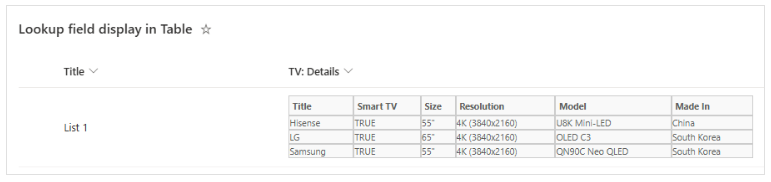
Here is the Table Format