Once you have consented to Audit, the application roles and permissions must be reviewed and setup. The roles will determine:
- The level of access to the app - Admin or user
- Which reports can be run
- Which Actions can be run
- If the user can see only previous reports that they have run or that everyone has run
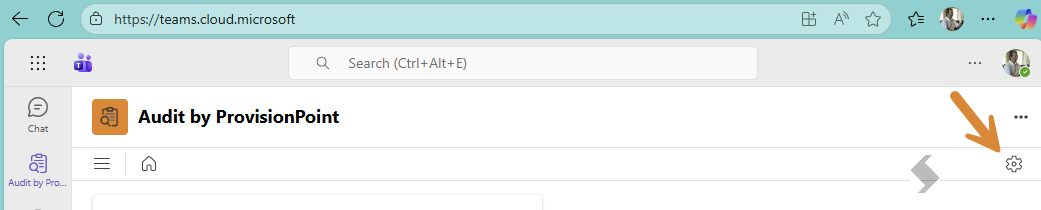
By default, only the Global Admin who completed the consent process will have permission to the Settings cog in the top right hand corner.
Default Application Roles
There are two default Roles:
- The Initial role grants access to all areas within Audit and should be assigned to admins of the app
- The Global Admin that consented Audit will be added to this role automatically.
- Ask the Global Admin to add any people or groups that will manage the app going forward.
- DO NOT DELETE this role!
- The All reports role allows everyone who has been assigned access to Audit using Teams Policies to access all reports.
- Ask the App admins to define who should have access to all reports and add them to the role.
The name and the description of any of the existing Application roles can be edited by clicking on the Edit icon.
Depending on the business requirements additional roles can be created to define who can run specific reports and to create an Owner reporting role.
Create a new Application role
To create a new Application role,
- Click on the '+ Add' button at the top of the page.
- Enter the name and description of the new role, both of which can be edited later.
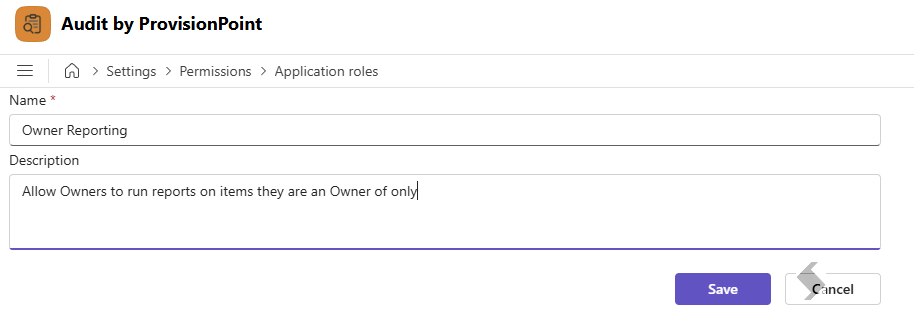
- Click 'Save'
Once a new application role has been created, define the permissions for the role and who should be granted access
Editing Application roles
For both the default and custom configured Application roles, there are four options of how to edit and configure these.

Edit - this allows you to edit the name and description of the role

Permissions - this allows you to set the permissions for the role, and set what users assigned to that role have access to

Members - configure the users who are assigned this application role. You can add individual users, M365 or security groups, or alternatively, select All all member users. This will apply the Application role to everyone who has access to Audit.

Delete - this deletes the Application role if no longer required - Do not delete the initial Admin role
Configuring Permissions for an Application role
Clicking on the Permissions icon for either a new or existing Application role, will allow you to edit the permissions for the role.
A list of the configurable areas is on the lefthand side.
Selecting it will open the sub menu on the right, which can be expanded further and enables you to toggle different permissions on or off.
These permissions can be used to limit down which reports specific users have access to, and can also ensure that Owners can only run reports on their own workspaces.