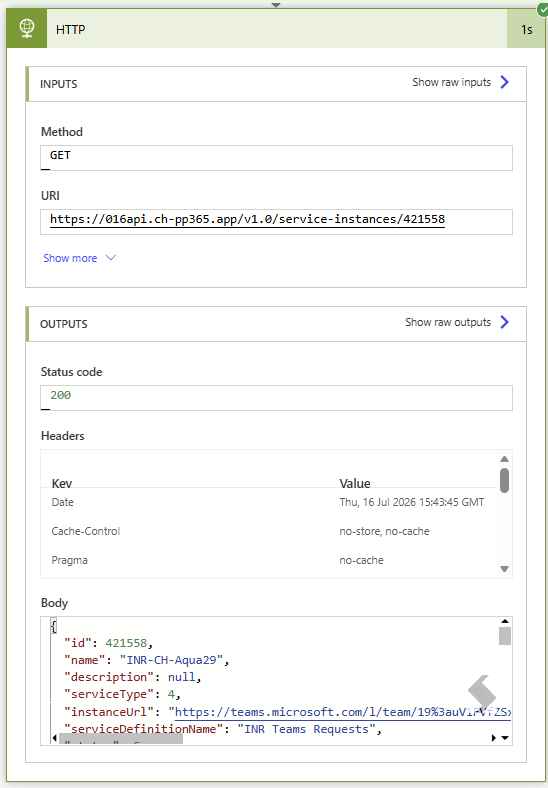
This Article will presume that the API is already setup and you know the endpoint you want to call, if you are unsure read ProvisionPoint API & Setup
Within PowerAutomate a Flow should be created and a HTTP step added.
HTTP is a premium connector so please ensure you have the appropriate license to run the calls you need.
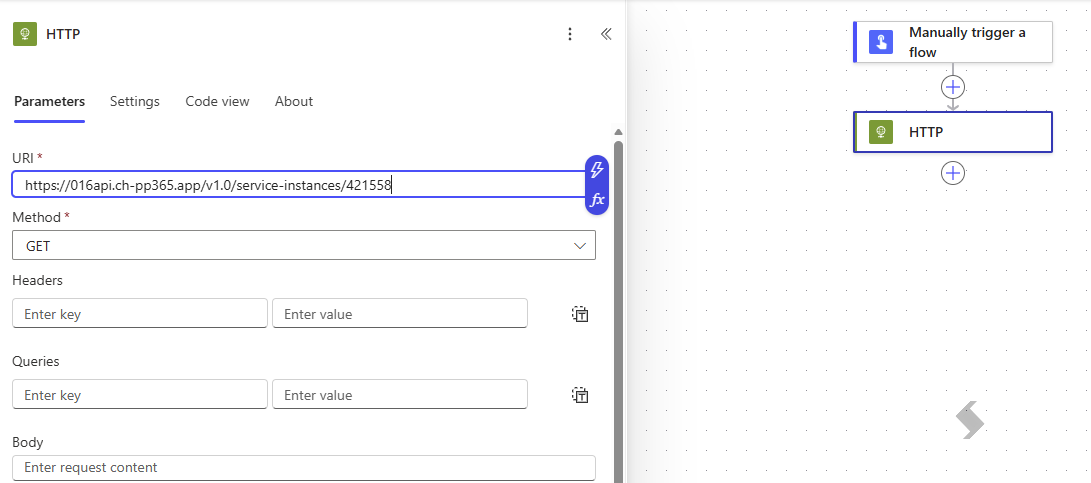
- The 'Method' can be a mixture of GET, POST, PUT or DELETE depending on the task to be completed. The example above will Get information about a workspaces.
- The 'URI' is made up of a base URL and the endpoint for your requests
- Headers can be used to set a delegated requestor, this will change the 'Requestor' shown in the ProvisionPoint job queue
- Key: delegated-requestor-upn
- Value: The upn of an exiting user account. This can also be pulled from a previous step by using variables.
- If delegated requestor is not used, the name of the API App Registration will be used.
- The 'Body' of the HTTP step should contain a correctly formatted JSON to send a request to the ProvisionPoint API.
- When adding values to the Body of a HTTP call, the following is true:
- Text, GUID & boolean values must be in quotes, for example, "Title": "Add name here"
- Number fields do not require quotes, for example, "ServiceDefinitionId": 589
-
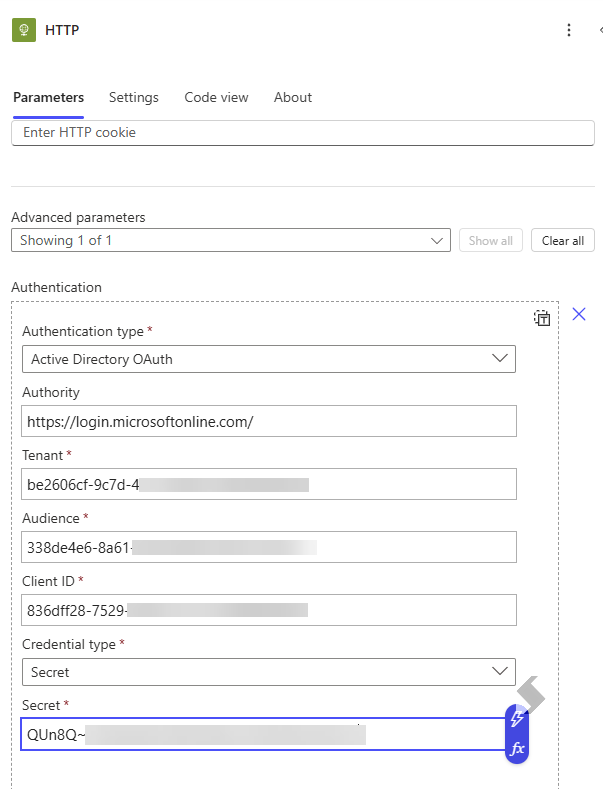
- 'Advanced options' select 'Show all' to setup the authentication properties
-
|
Property
|
Notes
|
|
Authentication
|
|
|
Authority
|
https://login.microsoftonline.com/
|
|
Tenant
|
The value of the Tenant ID captured during the creation of the API App Registration
|
|
Audience
|
- The Application ID of the ProvisionPoint App consented in Azure AD
- Go to Entra Admin centre > Enterprise Application > Find the ProvisionPoint instance & Copy the Application ID
|
|
Client ID
|
- The Application (client) ID of the API App Registration created for the API
- Go to Entra Admin Centre > App Registrations > Find the App registration created for the API & Copy the Application (client) ID
|
|
Credential Type
|
- Certificate - Upload a signed certificate to the API App Registration & copy the thumbprint
- Secret - Add a secret in the API App Registration and use the value of the secret
- This is only displayed for a short time on creation of the secret.
- Multiple secrets can be created for specific requests
|
-
Variables can be created to store the authentication values if there will be multiple HTTP API calls to ProvisionPoint. These should be created at the start of the Flow:
- Add Step: Initialise Variable
- Give the Variable a name
- Add the value
- When you are in the Authentication, select a dynamic value and select your variable
- Save the Flow.
Test the Call

We recommend testing the flow to ensure it runs as expected.
- Select Test
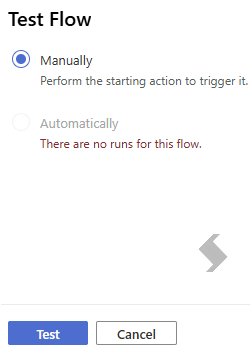
- Run Flow
- Check if there are any errors to be resolved and that results are collected as expected