When defining a Channel in a Service Definition it is possible to use that Channel template as a selection from the 'Add a Channel' Action.
Actions can only be run once a Team has been created successfully.
Enable Channel Templates
Expand here to see the steps for enabling a Channel Template
To define the templates that can be used in the action,
- Go to Admin > Service Definitions > Channels
- Either edit an existing channel or create a new one,
- Set the toggle for 'Enabled for create channel action' to Yes

This will be displayed on the Channel overview
Enable Create Team Channel Action
Expand here to see the steps for enabling the 'Create Channel' action
- Go to Admin > Service Definitions > Actions > Content
- Set the toggle for 'Create Team Channel' to On
This will allow your Team Owners to be able to select this action from the Directory Info page. - If needed, an approval process can be applied and notifications.
- The Approval Template must be created and setup
- Add Notifications for when the Action is run - The Notifications Tab must also be setup to ensure emails are sent
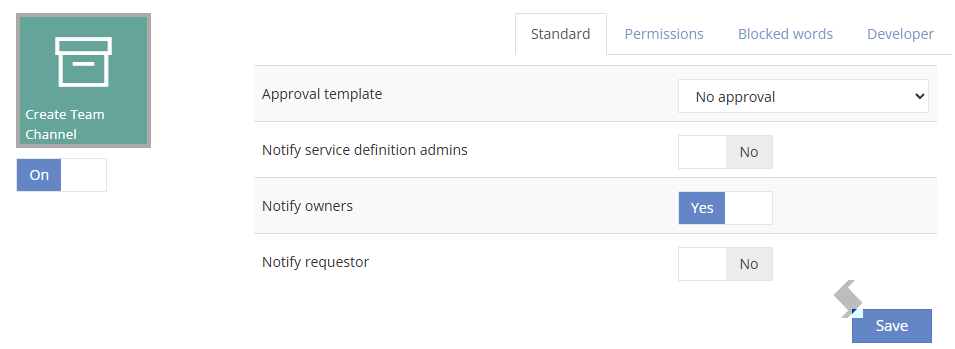
- Additional users or groups can be given permission to run this action, click on Permissions
- Enabled for Owners - Will ensure any Service Instance Owners or people set on the Owners filed will be allowed to run the Action
- Named user or Groups - Select Groups or Users from Entra that can also run the action
- To only allow Admins add the group and remove the toggle for Owners
- Form Filed names - Type the column name added to the request for people picker fields.
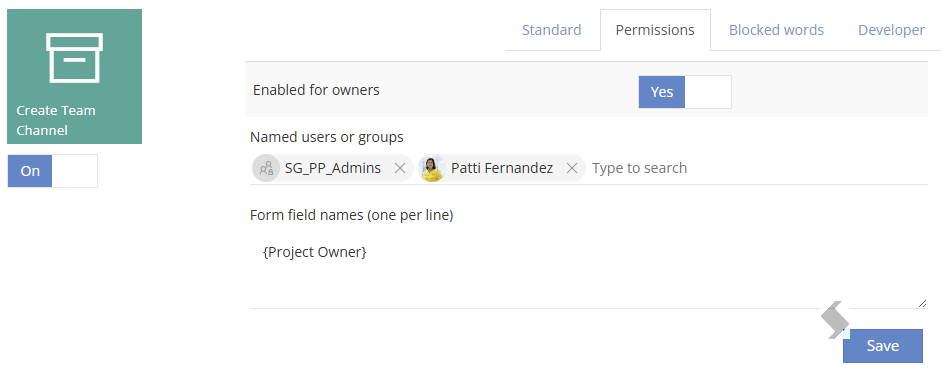
- Click Save on the bottom right hand side
- Click Save on the Service Definition
Create a Channel using the enabled Action
Expand here to see how to request a new channel via the Info page
Once the Team is provisioned the Actions can be accessed via Directory > Site Info > Actions > Content
To use the 'Create Team Channel' Action click the tile, then select the template to use and complete the Name and Description.
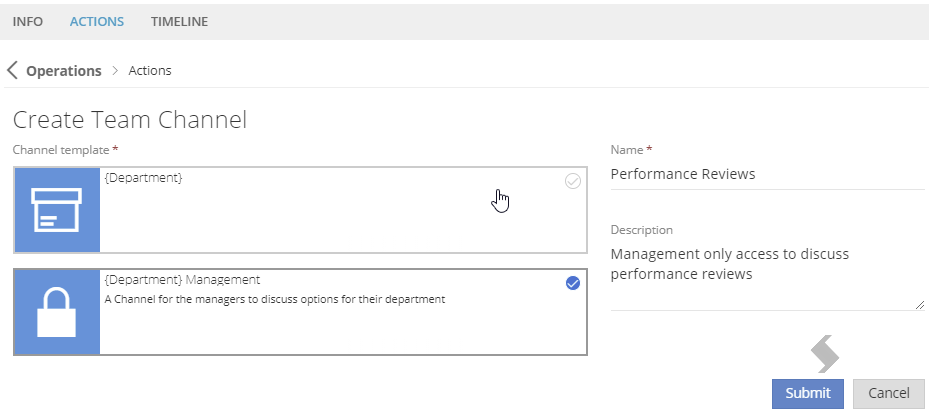
Click Submit to create