Within the Lists tab of a Service Definition, folder structures can be configured within a Document Library.
Folders and Sub folders can be added to the default Document library (Shared in Teams)
If a List is Displayed it will not show options for Folders.
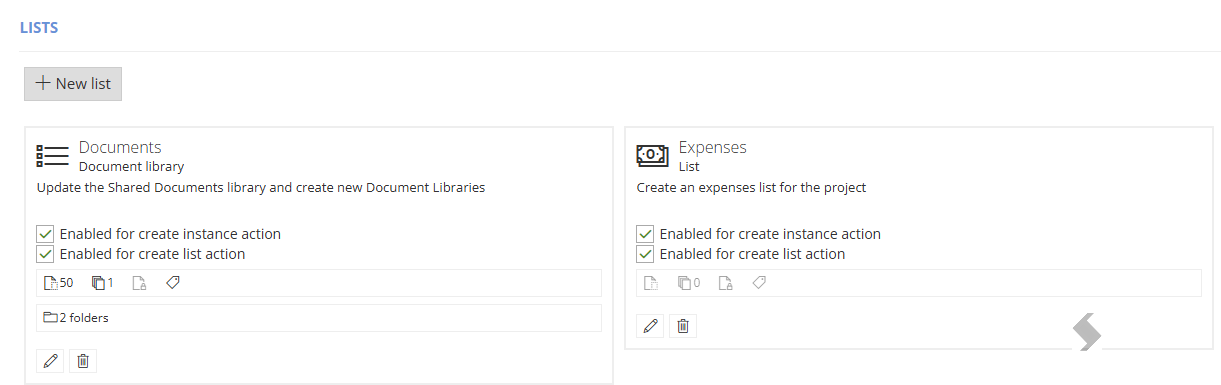
When you create a List template in the app, this can be used at the point of provisioning or using the 'Create List' action to add additional Lists after, ensuring consistency on your lists or libraries.
- Go to Admin > Service Definitions > Open your Service Definition template > Lists
- Click Click +New List to add Documents or additional libraries
- When creating a new, or editing an existing Document Library, the card displayed will show if there are and how many folders configured.
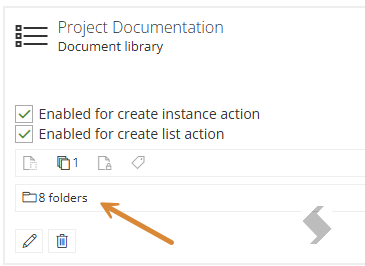
- To create new folders within a Document Library, click on No Folders to open up the folder dialog. If there are existing folders, the number of folders will be displayed, clicking here will open the editor.
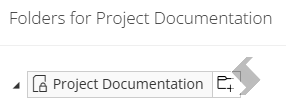
- Hover over the name of the Document Library and click the Add Folder button
 .
.
- Enter the name required for the folder and set the colour of the folder, then click the tick icon to store.
- When adding folders to Microsoft Teams, remember to add the folder name of the Channel
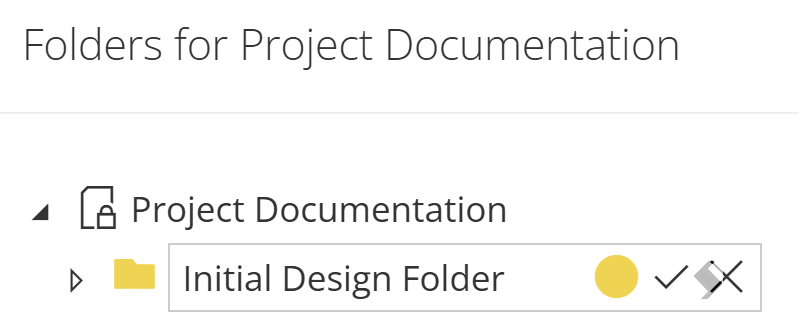
- The default colour is set to the same as in SharePoint, but a different colour can be selected for each folder by clicking on the folder colour icon.
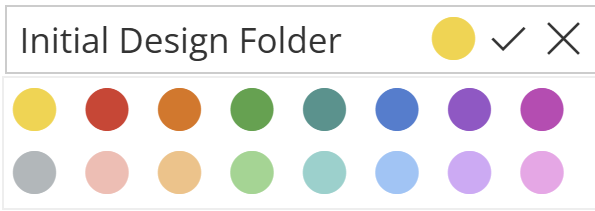
- The folder name is limited to 64 characters, and cannot include the following characters: " * : < > ? / \ |
- Once a folder has been added, hovering over it will give the options to edit, delete or add sub folders, allowing you to build up a folder hierarchy as required.

- Once you have configured the folders needed, click on Close.
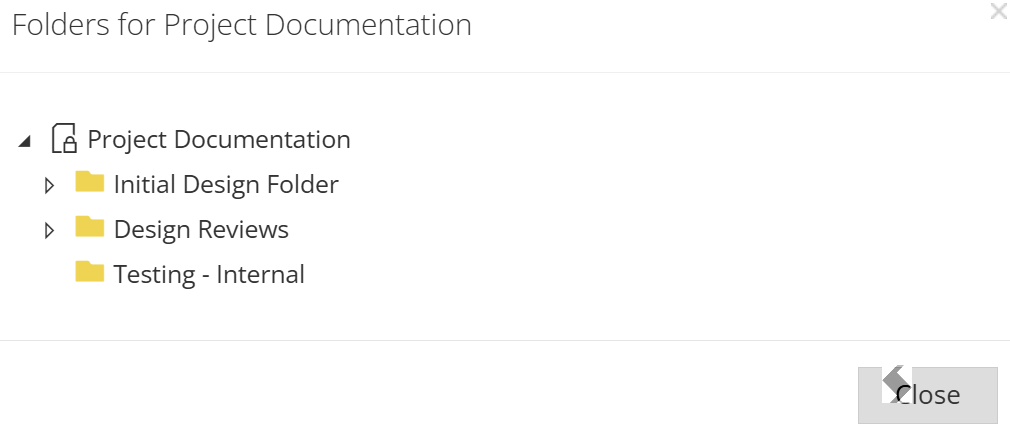
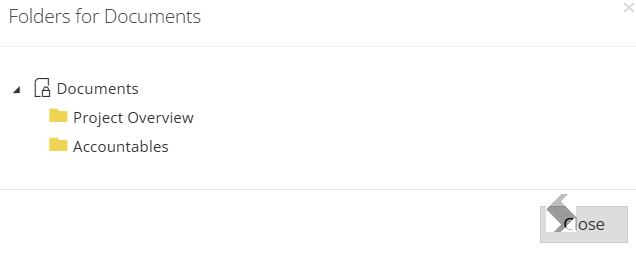
The card for the Document Library will then automatically update to show the amount of folders configured.
Once the folder structure has been configured, save the Service Definition.