Any members of the 'App Manager' or 'Queue manager' Roles can view failed Compliance Policies results in the Job Queue.
Failures will be listed in the 'Requests' area allowing them to reprocessed if there is an issue.
How to Check for Failures
The Scheduled runs view will highlight failures with an exclamation, hover the cursor over it to see how many failures there are. This will not display which rule failed to run.
View Policy Details
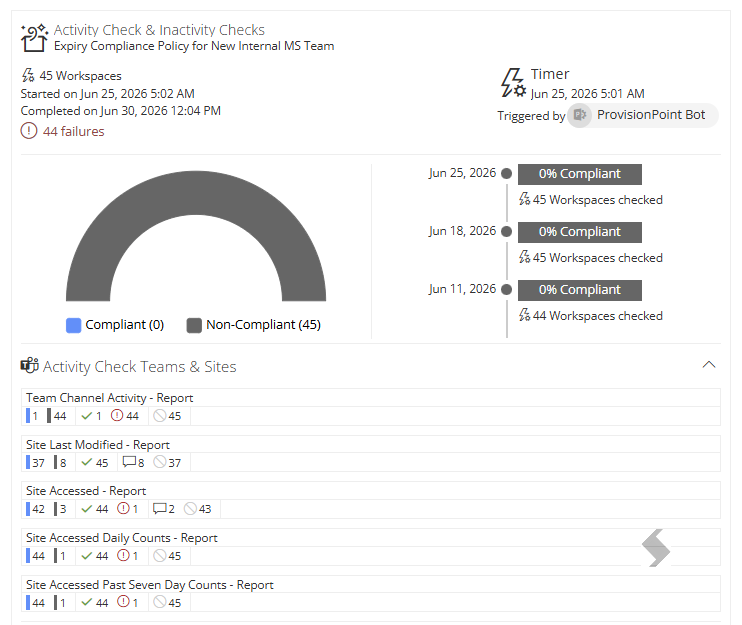
This will give you an overview of all the Rules and how many are failed, non compliant and more:
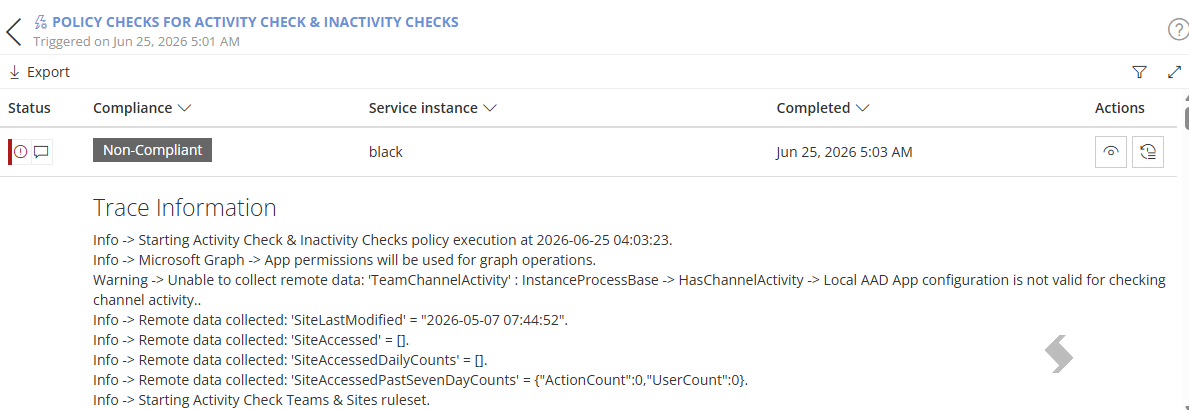
The Policy checks view will display each workspace that has had a policy check run. This view allows you to check the trace log or look at a summary of the rules.
Access this from the scheduled run Action

for a prefiltered list or open the full Policy Checks view and apply your own filters, a few examples are listed below:
- Compliance Equals Non-Compliant
- Completed Greater than or equal to a date in the past
- Policy Name equals
- Service instance (Name) equals
The Policy check is the best place to find the rule that failed and what the possible cause would be.
A Trace log can be displayed or View details actions can be checked to get more details

Policy Check Trace Log
The Log will show all data that was collected from Microsoft & ProvisionPoint.
Policy Check View Details
The View details will visually display the rules and the results to easily see which rules failed.
Once the issue is solved the rule can be replayed or deleted from the Requests Job Queue.
If a failed Job is deleted from the Job Queue it will be removed from the timeline as well.
Any Jobs that have been run after this result should be deleted from the Job Queue to prevent a built up.
Once replayed the status will be updated in the Scheduled run
Known Failures
Popular causes for failures include:
- The workspace being checked cannot be accessed in M365, either temporarily or because it is deleted
- This will show as the Remote data could not be collected, Resource not found
- Run the deletion mismatch rules to ensure the status is correct.
- Additional Premium Licenses are required for the Inactive Guest Rules, if you do not have this in your tenant the following error will be displayed: Tenant is not a B2C tenant and doesn't have premium license
- Additional configuration is required for Teams expiry policies - Error: Local AAD App configuration is not valid for checking channel activity
- The check being made is not supported on the workspace, for example checking for Privacy on a non-group connected workspace
- Create separate policies for Group & non Group connected workspaces, allowing the same checks but exclude any Group only options to prevent the errors.
- Removal of an Owner has taken the total owner below the minimum allowed in ProvisionPoint
- Review and discuss with existing Owners/members who else should be added to keep the minimum of 2 active owners
- Addition of owners has taken the total owners over the maximum allowed
- Adjust the maximum or reduce the number of owners
- Addition of owner is not a member of the base group assigned in the Service Definition
- Either add them to the base group or remove them as an owner
- If a Site has been Archived by M365 Archive, access to the Site will be blocked. This may prevent changes being made or collection of data (for example Activity or inactivity)
The following error will be displayed: Access to this site has been blocked. Please contact the administrator to resolve this problem
- Remove the Expiry check for these workspaces to prevent future errors. Use the Action 'Set Expiry Rule State' to remove from expiry checks or add back in if restored
- Move the Archived Items to another Service Definition that does not complete Expiry Checks or make changes that are not supported