Set Expiry Date to Auto apply a Number of Days from Now
Request Variables allow you to create your own transformation tags that can be used in provisioning or lifecycle, they will apply a calculation that will change the value given by default.
In this article, we will show how to use a request variable to set the expiry date to Now + a number of days and then apply this to the Lease or lifecycle.
Create a Request Variable
First the request variable to set the expiry date will be created, go to Admin > Settings > Templates > Request Variables.
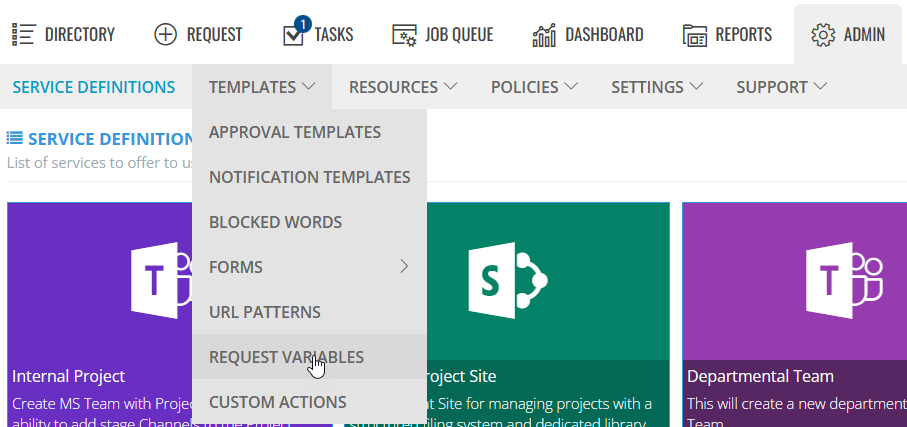
Click +New request variable and complete the details.
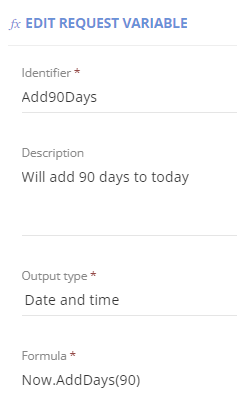
- Identifier, will be the name of the request variable, you will need to save this for later
- Description that will appear when selecting the variable
- Output type, set this to Date and Time
- Formula, will set the date to be a number of days from now, for example, Now.AddDays(90) would be in 90 days time.
Link the Request Variable to a Service Definition
Before we can configure the lease/lifecycle the request variable must be linked to the Service Definition.
- Go to Admin > Service Definitions > Request tab
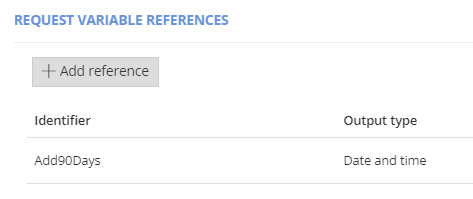
- Scroll to the 'Request variable reference' section.
- Select the variable you just created.
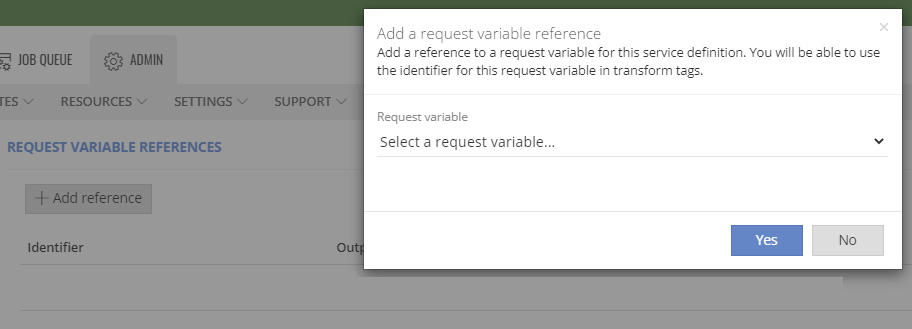
- Make sure your Service Definition displays the variable and click saved
Finally, we can configure the lifecycle policy:
- A Lifecycle will, apply an expiry date to the workspace that will run multiple stages either before, on or after the expiry date set. Email reminders can be sent before each stage and emails can be sent when each lifecycle action is run.
Expand to read more about Configuring the Lifecycle
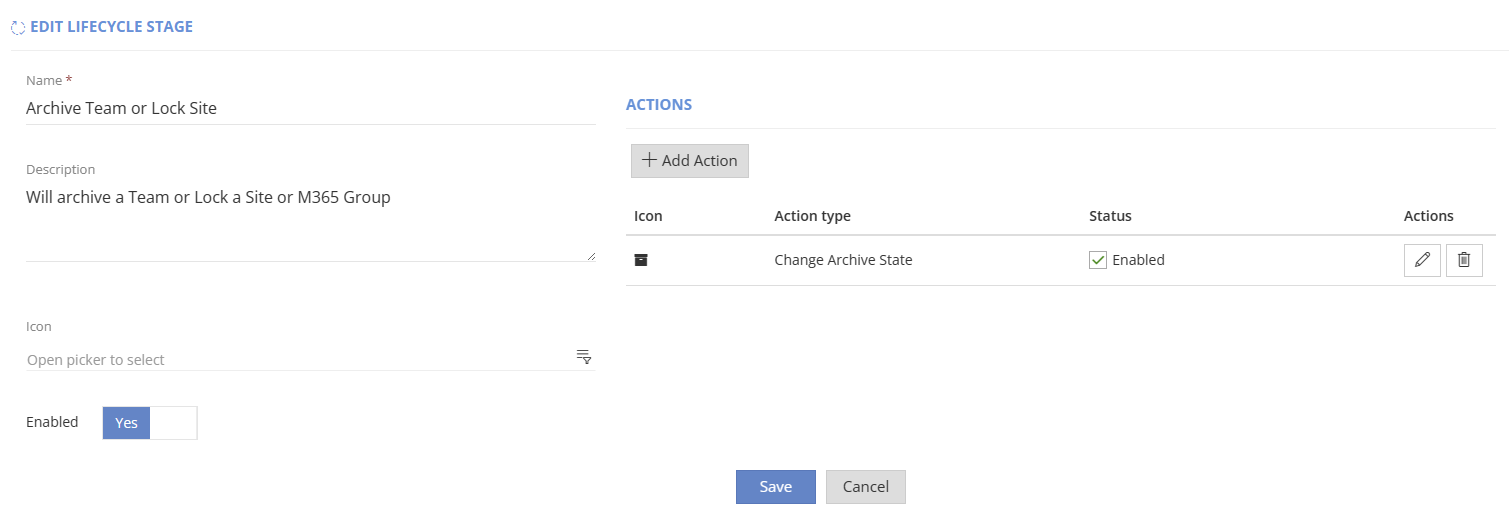
- Create Stages that will be used in lifecycle policies
- Go to Admin > Policies > Lifecycle Policies > Stages
- If you do not have any stages created, click +Add lifecycle stage and complete the configuration
- Name, provide a descriptive name of what actions will be run
- Description, give more details of what will be configured
- Click +Add Action
- Select the Action type that will run - for example 'Change Archive State'
- Setup any additional configuration
- Enable
- Add notifications if needed, an email will be sent once the action is run
- Click Save on Action
- Add any other action types that should be run for this stage
- Save the stage
- Create a Lifecycle policy
- Go to Admin > Policies > Lifecycle Policies
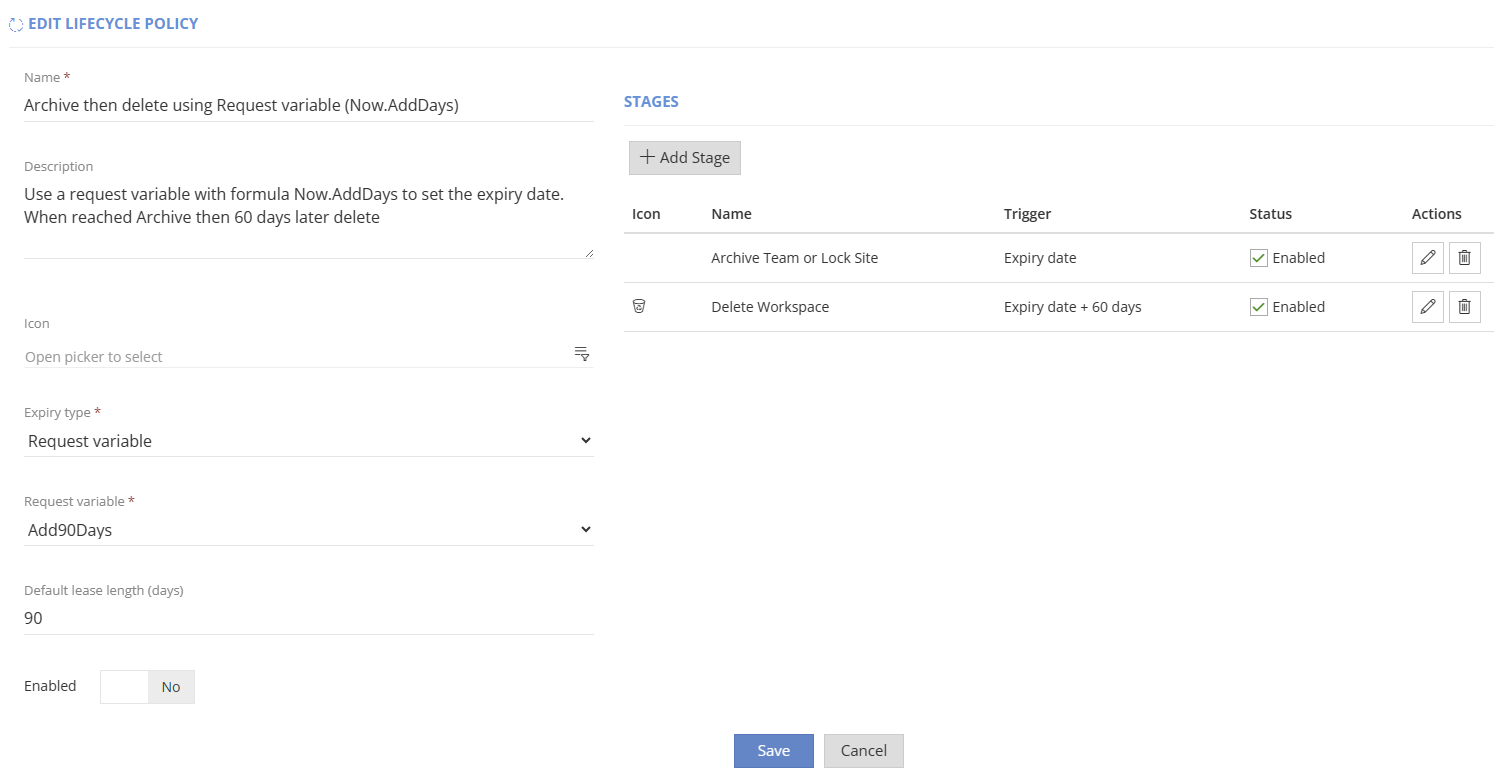
- If you do not have any policies created, click +Add lifecycle policy and complete the configuration
- Name, provide a descriptive name of what actions will be run and how the expiry date is calculated
- Description, give more details of what will be configured
- Set Expiry type to Request variable
- Select the Request variable from the list of available, Select the one created or chosen in earlier steps.
- Set the Default lease length (if the variable cannot be used or fails, this number of days will be assigned, this will also set how many days it can be extended using change the lease actions)
- Click +Add Stage
- Select from the list of stages you created
- Set the Trigger to either
- On Expiry date
- Or Expiry date - #of days before
- Or Expiry date + #of days after
- Enable reminders if you want emails to be sent before the stage is reached
- Save
- Set who reminders will be sent to
- Save
- Repeat for more stages to be added
- Enable the Policy
- Add the lifecycle policy to the Service definition
- Go to Admin > Service Definition > open the definition > Lifecycle tab
- Click +Add Policy
- Select the Lifecycle policy to use
- Show the lifecycle stages in the info pages, set 'show service instance lifecycle tab' to yes
- Add a lease description on request form
- Click Save
- Save the Service Definition.
Change the expiry date after creation
If you need to change the date you can use the following actions:
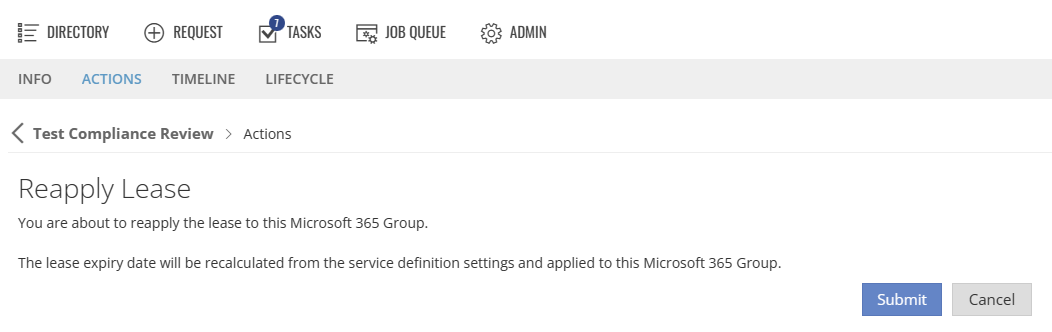
Reapply Lease
Expand to read more about Reapplying Lease
This will reapply the Lease configuration, as the formula is set to Now, it will extend by the same number of days set in the request variable.
Change the Lease
Expand to read more about Changing the Lease
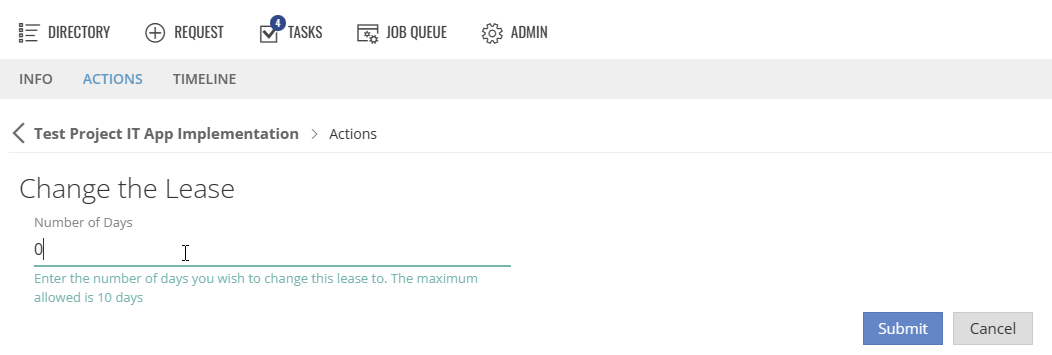
This allows the requestor to set the number of days it will now last, the maximum will be the default lease length. To trigger the lifecycle to run today, set to 0 days.