This guide explains how to configure an External data source for the KWIZ Data View Plus web part to return and sort SharePoint search results effectively.
Create the External Data Source
1. Click the settings cog wheel and choose KWIZ Apps Setting from the dropdown menu
2. Clikc the External Data Connector feature.
3. Click the + new datasource button to create a new configuration.
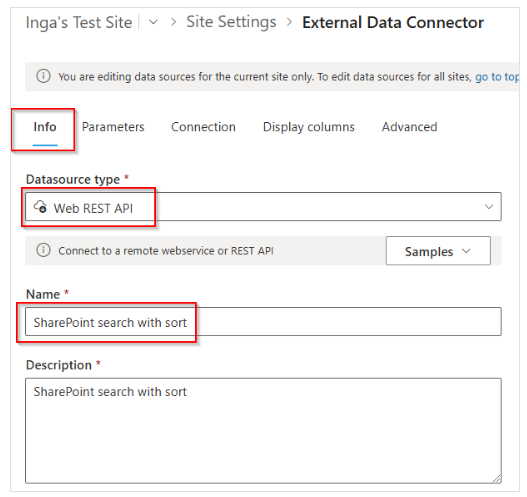
4. In the Info tab:
- From the Datasource Type dropdown menu, select Web REST API.
- Choose a name for your datasource.
5. In the Advanced tab, paste the following JSON configuration to return and sort SharePoint search results
Expand to see the code:
{
    "Columns": [
        {
            "Caption": "Title",
            "ColumnType": "mapped",
            "DataType": "text",
            "Id": "Title",
            "MappedField": "Cells.2.Value"
        },
        {
            "Caption": "Url",
            "ColumnType": "mapped",
            "DataType": "text",
            "Id": "Url",
            "MappedField": "Cells.5.Value"
        },
        {
            "Caption": "Author",
            "ColumnType": "mapped",
            "DataType": "text",
            "Id": "Author",
            "MappedField": "Cells.3.Value"
        },
        {
            "Caption": "Size",
            "ColumnType": "mapped",
            "DataType": "number",
            "Id": "Size",
            "MappedField": "Cells.4.Value"
        },
        {
            "Caption": "Rank",
            "ColumnType": "mapped",
            "DataType": "text",
            "Id": "Rank",
            "MappedField": "Cells.1.Value"
        }
    ],
    "Description": "SharePoint search with sort",
    "DisplayName": "SharePoint search with sort",
    "Headers": {
        "Accept": "application/json; odata=nometadata",
        "content-type": "application/json; odata=nometadata"
    },
    "IDColumn": "Id",
    "ObjectPath": "PrimaryQueryResult.RelevantResults.Table.Rows[]",
    "Parameters": {
        "itemLimit": {
            "defaultValue": "200"
        },
        "searchTerm": {
            "defaultValue": "CMS365"
        },
        "siteUrl": {
            "defaultValue": ""
        },
        "sortList": {
            "defaultValue": "author:ascending"
        }
    },
    "TitleColumn": "Title",
    "Type": "rest",
    "Url": "[siteUrl]/_api/search/query?querytext='[searchTerm]'&rowlimit=[itemLimit]&trimduplicates=true[sortList??&sortlist='{0}']"
}
6. In the Parameters tab you can customize the parameters as needed:
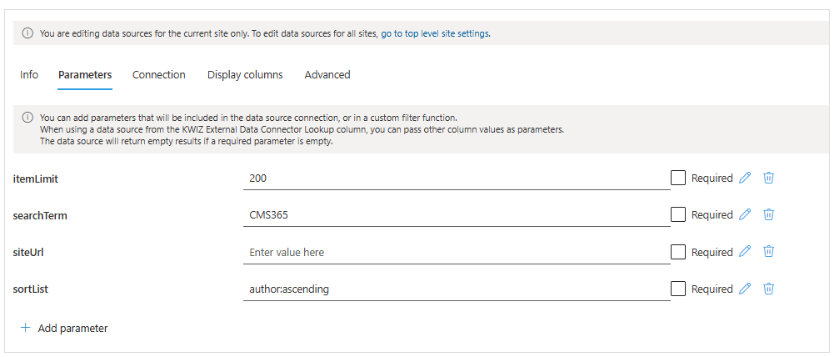
**itemLimit**: Adjust to set the maximum number of items to display.**searchTerm**: Define the default search query text.**siteUrl**: Specify the base URL of the SharePoint site.**sortList**: Use the format <field>:ascending or <field>:descending to set sorting options.
This configuration enables the Data View Plus web part to connect to SharePoint search and display results based on your defined sorting criteria.
Configuration of External Data Source in Data View Plus
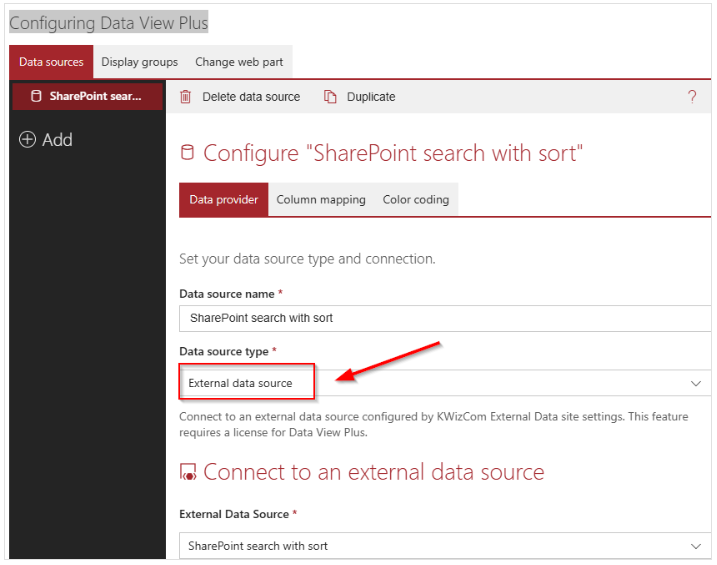
- While configuring Data View Plus, select External Data Source in the Data Source Type field.
- In the External Data Source field, choose your configured data source.
-
- In the example below, the external data source is called SharePoint Search with Sort.
For general configuration instructions, refer to the Web Part configuration page.