In Audit, the permission settings can be configured to limit the reporting, allowing the owner that is logged in to only run reports on items they are an owner of and view their run reports
This also ensures that members of the role are unable to run tenant wide reports and see information they should not be able to see.
Below are the Reports that Owners can run:
- Workspace Summary,
- Guest Users,
- Sharing links and remove link actions,
- Inactive workspaces.
- Their own OneDrive Storage report
Follow the steps below to setup a new role, permissions and assign users to the role. Please expand each stage for instructions.
1. Setup Application Role for Owners Reporting
This article assumes that you have permissions to the Settings area and Application roles configuration. If you do not see the cog, please ask the person who consented the app to grant you the appropriate permission.
- Click on Settings Cog in the top right hand corner
- Click on Open to open the application roles, then View to see the existing roles
- Click + Add, to create a new Application role for Owner only reports
- Enter a Name and Description, then click Save.
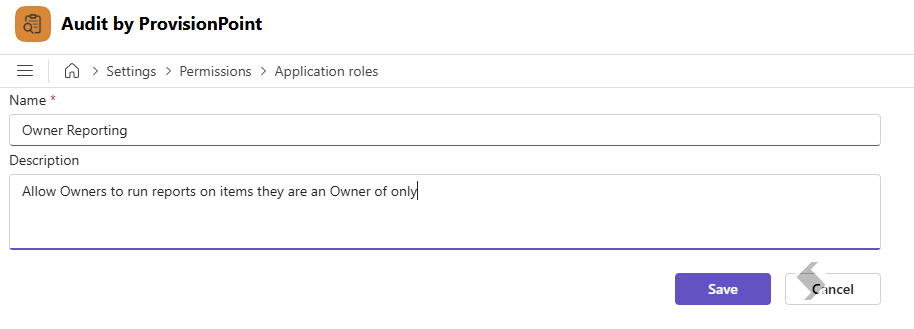
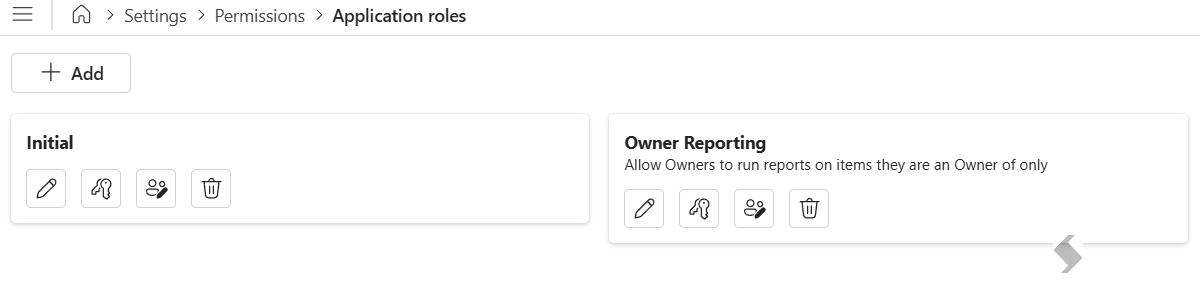
This will then show as an active role to be configured:
2. Configuring Permissions to Limit the Reports to Owners
Click on the permissions (key) symbol to edit and enable the following permissions:
3. Assign Users or Groups to the Role
Select the people icon

to assign the role to people or groups from your Entra tenant
+Add to select the users or groups that will have this role.
This can be set to individuals, security groups or you can allow all members of Entra to have permissions
Once the users next login or app reload, they will only be able to run the reports on SharePoint Sites and Teams they are an Owner of.