In KWIZ Forms, you can dynamically show or hide fields based on user input. However, when a field is hidden, the form layout does not automatically remove the empty space left behind. This article explains how to hide fields using JavaScript and apply custom styling to reduce unnecessary white space.
Optimizing Field Spacing: Dynamically Hiding Fields with Custom Scripts
KWIZ Forms provides the OnFieldChanged event handler, allowing developers to control field visibility based on user selections. The following script demonstrates how to hide fields when specific conditions are met.
Example Script
This script below hides two fields based on changes in a choice field (choice) and a number field (number 2).
- Choice Field Condition: If Enter Choice 2 is selected in the
choice field, the date field is hidden.
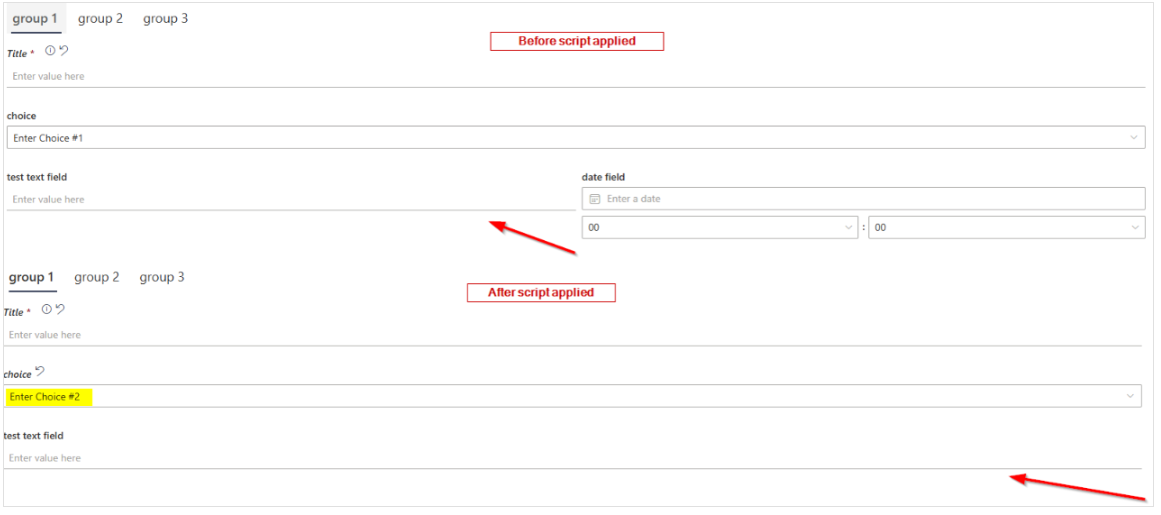
- Number Field Condition: If the value of
number 2 is 1 the test field is hidden.
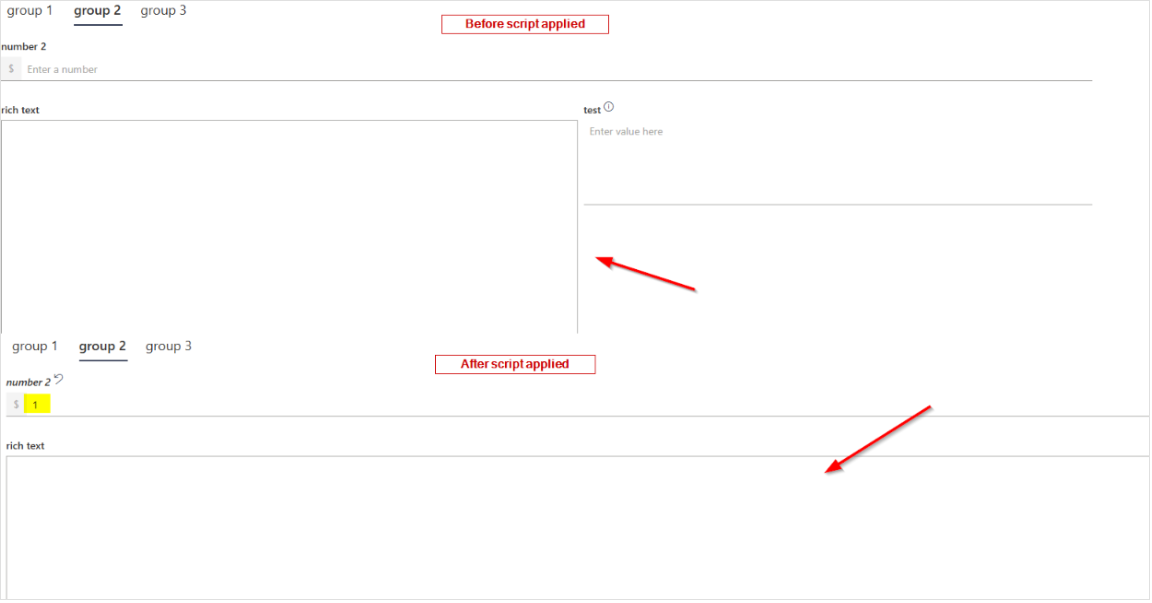
Here is the script
- To open the style editor, open one of the list items in view/edit form.
- Click the gear icon on the top-right side of the form and select Script.
- Copy and paste the script
//#region Add on field changed event handler
kwizcom.ModernUILibrary.FormPage.OnFieldChanged("designer", function (fieldName, form) {
    var field = form.context.fieldMap[fieldName];//get field object
    var fieldValue = form.GetFieldValue(fieldName);//get field value

    //this is the field that changed
    if (fieldName === "choice") {
        //select the field you want to hide by using .kw-field-[field internal name]
        //so in this case we want to hide date_x0020_field which means we jsue .kw-field-date_x0020_field
        let dateField = document.querySelector(".kw-field-date_x0020_field");
        if (dateField) {
            let container = dateField.closest(".ms-StackItem");
            if (container) {
                //choice is a multi select choice field so it's value will be an array
                if (fieldValue === null) {
                    fieldValue = [];
                }
                container.style.display = fieldValue.indexOf("Enter Choice 2") ? "none" : "";
            }
        }

    }

    if (fieldName === "number_x0020_2") {
        //select the field you want to hide by using .kw-field-[field internal name]
        //so in this case we want to hide test which means we jsue .kw-field-test
        let testField = document.querySelector(".kw-field-test");
        if (testField) {
            let container = testField.closest(".ms-StackItem");
            if (container) {
                //number 2 is a numbner field so it's value will be a number
                container.style.display = fieldValue === 1 ? "none" : "";
            }
        }

    }
});
//#endregion Add on field changed event handler
Optimizing Field Spacing with CSS: Dynamically Hiding Fields for a Cleaner Layout
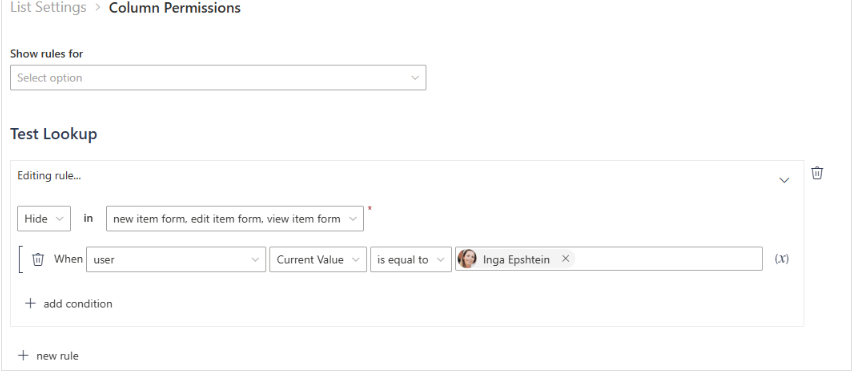
You can achieve this using the Column Permissions feature along with custom CSS.
- By setting a rule in Column Permissions, you can specify which field to hide. In the example below, the test lookup field is hidden when the current user is Inga Epshtein.
- To remove the empty space when a field is hidden, use the following CSS:
- To open the style editor, open one of the list items in view/edit form.
- Click the gear icon on the top-right side of the form and select Styles.
Additional information on how to set up Styles can be found in Configuring Customizing Form Styles
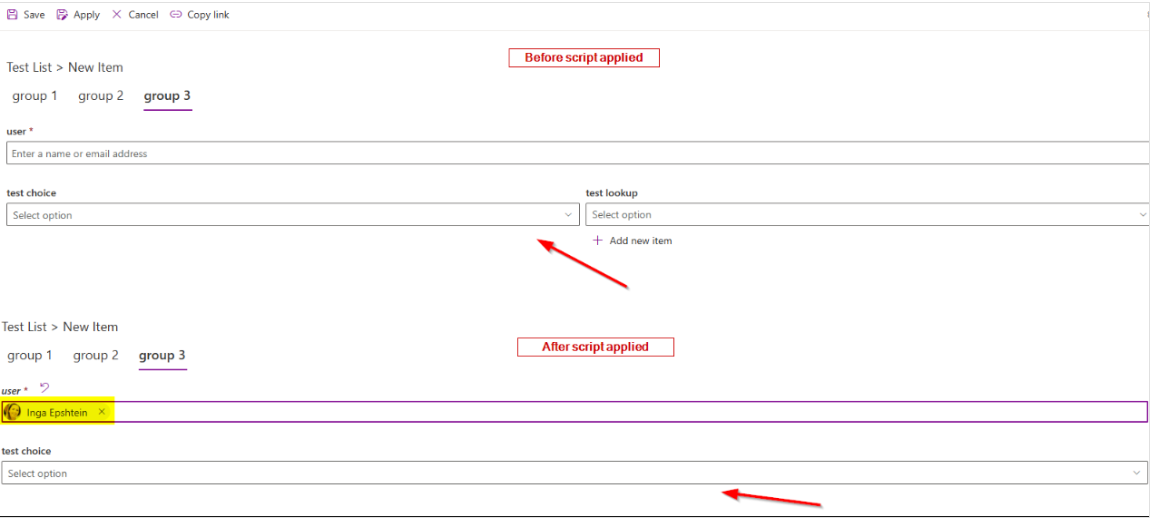
Conclusion
By using JavaScript and CSS, you can dynamically hide fields in KWIZ Forms and ensure the form layout remains compact. This improves user experience by keeping the form clean and organized.