Once a workspace has been created, Actions can be enabled to make changes, these can be run manually in the UI or using the API. The API allows bulk changes to be made in one go.
Follow the guidance below to help you run actions.
Service Definition Configuration
1. Any Actions that will be run via the API MUST be enabled in the Service Definition linked to the workspaces.
2. The API App registration (service principal) must also have permission to run the Action, I have added the security group that contains this service principal.
API Endpoint for Actions
This article presumes you have configured the API and know how to connect to the API via your rest caller (PowerShell, PowerAutomate, Postman, etc)
If you have not please read
ProvisionPoint API & Setup, example scripts are also available.
To run an Action through the API, use the POST method and the action endpoint is required.
The endpoint is made up of a
API Body
Each Action will have different properties that must be passed through to ensure the action is run successfully. These properties make up the body of your Rest call.
The 'ActionTypeId' in the body will define which action will be run and is mandatory for each action.
The details below will show each supported action and properties that are required in the body:
Update Details Action
This will make changes to the Title, description or metadata added to request forms, in some cases this will include who the owners, members or visitors are.
Only pass through the changes you want to make.
Properties
- ActionTypeId=2
- Title
- Description
- Metadata = an array of the columns in the request form.
- FieldName = the name of the Column, must match what is shown in ProvisionPoint
- FieldValue = the value you want to apply.
- If the column type is drop down or managed metadata, the value must match a value that is listed
- If the column type is boolean you can pass true or false or 1 or 0
- If the column type is date/time it must be formatted as ISO8601 string value
- If the column type is a person or group picker, provide the Upn, AAD Object Id or part of a ProvisionPoint Request Variable object
- If you are using PowerShell, see the attached examples
If a naming convention is in place and 'Update formula on update' is set to Yes, any changes made will respect the naming convention.
Change URL Action
This action will allow the Site URL to be updated. This will follow the same rules as in Microsoft, a redirect will be created.
Once changed a little time is needed before URL mismatch rules or other changes are requested. This can be up to 24 hours (Microsoft restraint)
It can also be used to update ProvisionPoint with an updated URL where the change was made in M365.
Properties
- ActionTypeId = 39
- RelativeUrl = 'NEW_URL'
- Has a maximum of 1024 characters that can be used and must be just the name that will appear after https://...sharepoint.com/sites/
- UpdatePPOnly = true or false
- Set to true if only updating ProvisionPoint, it will validate that the URL exists
- Set to False to apply the change to our app and M365
Change the Lease Action
Should only be run on workspaces that have a lease or lifecycle linked to the Service Definition.
This action will amend the length of the lease, use it to increase or reduce.
Properties
- ActionTypeId=13
- LeaseLength = number of days from today
- If set to 0 this will essentially end the lease and run any lease or lifecycle actions
Change Archive State Action
When the change archive state action is run it will apply different options depending on the service type:
- Microsoft Teams - archive the Team and can set the site as read-only for members (optional).
- Site Collection - lock the Site.
The Action can also be used to restore workspaces (unarchive or unlock)
Properties
- ActionTypeId=22
- ArchiveActionType=0 or 1
- Archive = 0
- Restore = 1
- SetSiteReadonly = true or false (only valid for Microsoft Teams)
Delete Workspace Action (M365)
This action will delete the workspace from M365 only. If you also want to delete it from the app run the delete from directory action after this action is completed.
Properties
- ActionTypeId=21
Delete from the Directory Action (app only)
This will remove the workspace from ProvisionPoint Directory only, it will remain in M365 unless it has already been deleted.
Properties
- ActionTypeId=19
Create List Action (Modern)
This Action will create a new List or Document Library on the Site using a template stored in the Service Definition
Will only be displayed if there is at least one Modern list template enabled for 'create list action'.
Properties
- ActionTypeId=55
- Title='New List'
- Url ='NewList'
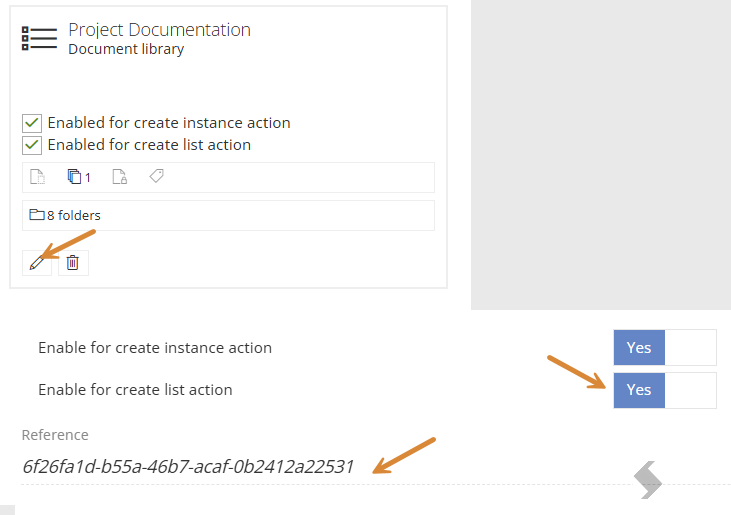
- listReference ='insert reference'
- The reference of the list template to be used for the request,
- Collect the 'Reference' from the List in the Lists tab in the Service Definition.
Create Planner Plan Action
This action will add a Planner Plan to the Group, using a template setup in the Service Definition > Planner.
Will only be displayed if there is at least one Planner template enabled for 'create Planner Plan action'.
Properties
- ActionTypeId=25
- Title
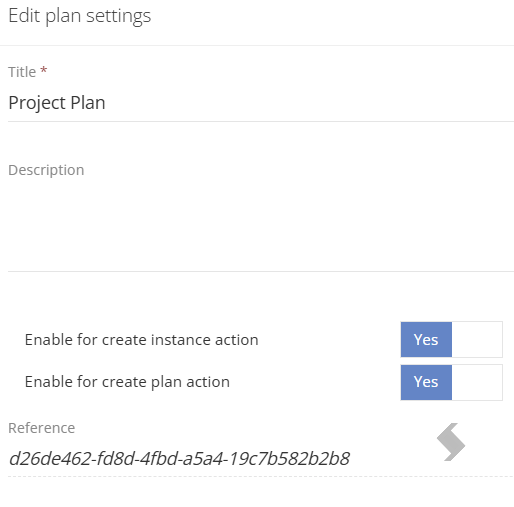
- SettingsReference
- The reference of the Planner template to be used for the request,
- Collect the 'Settings Reference' from the Plan in the Planner tab in the Service Definition
Create Team Channel Action
-
This action will add a Channel to the Team, using a template setup in the Service Definition > Channels.
Will only be displayed if there is at least one Channel template enabled for 'Create Team Channel action'.
Properties
- ActionTypeId=27
- Name
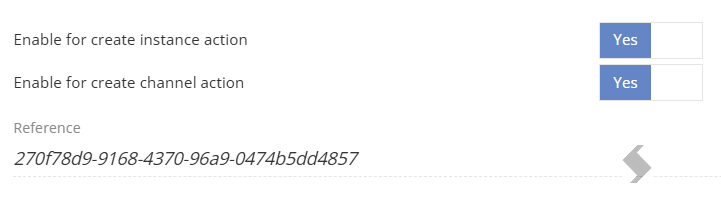
- ChannelReference
-
- The reference of the Channel template to be used for the request,
- Collect the 'Settings Reference' from the Channel in the Channel tab in the Service Definition
Add Members Action
This action will add Members to the Group, Team, Site, Planner or Community.
Add 'Members' to the M365 workspace using an array of one of the following values:
- a user’s upn
- a group’s name
- an objectId from AAD
Properties
- ActionTypeId = 30
- Members
Remove Members Action
This action will remove Members from the Group, Team, Site, Planner or Community.
Remove 'Members' from the M365 workspace using an array of one of the following values:
- a user’s upn
- a group’s name
- an objectId from AAD
Properties
- ActionTypeId = 31
- Members
Add Owners Action
This action will add owners to the Group, Team, Site, Planner or Community.
Add 'Owners' to the M365 workspace and Owners field in ProvisionPoint, using an array of one of the following values:
- a user’s upn
- a group’s name
- an objectId from AAD
Properties
- ActionTypeId = 36
- Owners
If you are using custom request forms to set your owners and members this will only update M365 membership, the form fields you have created would not be updated, use the 'Update details' action instead.
Remove Owners Action
This action will remove owners from the Group, Team, Site, Planner or Community.
Remove 'Owners' from the M365 workspace and Owners field in ProvisionPoint, using an array of one of the following values:
- a user’s upn
- a group’s name
- an objectId from AAD
Properties
- ActionTypeId = 37
- Owners
If you are using custom request forms to set your owners and members this will only update M365 membership, the form fields you have created would not be updated, use update details action instead.
If there is a minimum set, and you remove owners to below the minimum, the action will fail.
Add Guest User Action
Guest users can be invited to the tenant and added to the Group, Team or Site. Define the permission level to be granted.
Please note that if your tenant does not allow guests to be added as Owners, this permission should not be used.
Ensure the Security tab in your service definition sends the invite to Guests to allow them to accept and be redirected and guest access is enabled.
Properties
- ActionTypeId = 46
- DisplayName
- EmailAddress
- PermissionType
- Owners = 0
- Members = 1
- Visitors = 2
Change External Sharing Action
This action will allow the External Sharing setting to be changed, but only if the override values are set in the Service Definition Security Tab.
External Sharing can be defined by name or Id, however the name will differ to what is displayed in the app, to set to:
- Your organizational default = NotSet or 0
- 'Only people in your organization' = Disabled or 1
- 'New and existing guests' = ExternalUserSharingOnly or 2
- 'Anyone' = ExternalUserAndGuestSharing or 3
- 'Existing guests only' = ExistingExternalUserSharingOnly or 4
Properties
- ActionTypeId=23
- externalSharing = 1
Change Privacy Action
This action will allow you to change Group connected workspaces Privacy setting (Public or Private)
Define the 'PrivacySetting' that will be set by providing the name or numerical value below:
- Private or 1
- Public or 2
Properties
- ActionTypeId=29
- PrivacySetting = 1
Change Guest Access Action
This action will allow you to change Group connected workspaces to allow or not allow guests to be added.
Define the 'GuestAccess' by enabled or disabled, by providing the name or numerical value below:
- NotSet or 0
- Disabled or 1
- Enabled or 2
Properties
- ActionTypeId=28
- GuestAccess = 1
Change Directory Visibility Action
This action allows you to change the ProvisionPoint Directory Visibility. Use this to limit or unlimit who will see the workspace in our app.
The Visibility property can be defined using the numerical value:
- 0 = General
- 1 = Requestors List
- 2 = Owners
Properties
- ActionTypeId=38
- Visibility=2
Change Sensitivity Action
If you have Sensitivity labels enabled and set for container level, this action can allow a change to be made. This will NOT be passed to the document libraries and files.
Ensure Sensitivity is enabled in the tenant and labels are defined in our app and there are overrides in the service Definition.
This can be used to apply a Sensitivity where there are none set.
If you have permissions assigned in Purview preventing users from changing Sensitivity these will be respected.
Properties
- ActionTypeId = 40
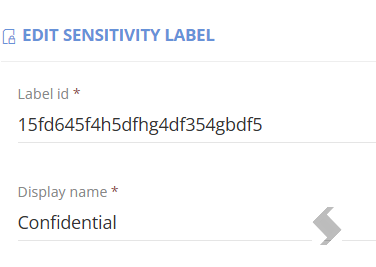
- SensitivityLabelId
- Provide the Label Id from Admin > Settings > Sensitivity Labels
Sync Directory Action
Synchronizes the Service Instance metadata to the Directory List configured in the service definition 'Integration' tab.
If the Site Directory is not enabled this will not perform any actions.
Use the Action to update missing metadata or change the Site Directory List it is linked to.
Properties
- ActionTypeId = 45
Restore to Directory Action
Restores any workspace that has been deleted from the ProvisionPoint Directory or will update the deletion status in the instances info page if restored.
This will not perform a restore in M365, this must be completed in your tenant before the instance can be restored to ProvisionPoint's Directory.
If you do not have the ServiceInstanceId, please check your integration list or reach out to our support team.
If the workspace was Group connected and the Group cannot be restored, this request will fail. Add a new Group and contact support with the name, SiteUrl and new Group ID
This action is an API only action, once enabled it will not be displayed in the Info page > Action List.
Properties
- ActionTypeId = 44
Set Expiry Rule State Action
An Expiry Compliance policy must be linked to the Service Definition with Set expiry rule for this action to be displayed.
Enables or disables the set expiry rules for the Team/Site it is run on.
Use this to exclude a workspace from the expiry rules scheduled run in the Compliance Policy tab. This can be turned back on.
Properties
- ActionTypeId = 41
- SetExpiryRulesEnabled = 0 or 1
- This is a boolean field
- 0 = false to exclude
- 1 = true to include
Change Storage Quota Action
The Storage quota can be changed if the limits for SharePoint are set to manual limits (check SharePoint Admin Centre).
The Service Definition > Overview > Storage section, can define min/max increases to storage.
The storage quota and warning level must be set in MB's!
Properties
- ActionTypeId = 32
- storageQuota = '2000'
- storageWarningLevel = '1750'
Add Member to Channel
This action will add Members to a private or shared Channel
Add 'Members' to the Teams Channel using an array of one of the following values:
- a user’s upn
- a group’s name
- an objectId from AAD
Properties
- ActionTypeId = 57
- ChannelId
- This is the ChannelId and can be found in the Teams Admin Centre when editing the channel or via a graph call to collect the channel ID
- Members
Remove Member from Channel
This action will remove Members from a private or shared Channel
Remove 'Members' from the Teams Channel using an array of one of the following values:
- a user’s upn
- a group’s name
- an objectId from AAD
Properties
- ActionTypeId = 58
- ChannelId
- This is the ChannelId and can be found in the Teams Admin Centre when editing the channel or via a graph call to collect the channel ID
- Members
Add Owner to Channel
This action will add owners to a private or shared Channel
Add 'Owners' to the Teams Channel using an array of one of the following values:
- a user’s upn
- a group’s name
- an objectId from AAD
Properties
- ActionTypeId = 59
- ChannelId
- This is the ChannelId and can be found in the Teams Admin Centre when editing the channel or via a graph call to collect the channel ID
- Owners
Remove Owner from Channel
This action will remove owners from a private or shared Channel
Remove 'Owners' from the Teams Channel using an array of one of the following values:
- a user’s upn
- a group’s name
- an objectId from AAD
Properties
- ActionTypeId = 60
- ChannelId
- This is the ChannelId and can be found in the Teams Admin Centre when editing the channel or via a graph call to collect the channel ID
- Owners
Change Default Retention Label
This Action will allow the default Retention label set on the Site Lists & Libraries to be updated.
Choose if the Retention label should be applied to All Lists or specific lists and if it should be applied to all documents.
When running the action it will display any Retention labels that are available on the Site. If the label you need is not available it cannot be set.
There is also a delay before the label will be applied to all documents, this is determined by Microsoft as well as if a label cannot be applied because the item is a record. This will not cause the action to fail.
Properties:
- ActionTypeId = 61
- ApplyToAllLists = 0 or 1 (yes)
- Lists = not required if applying to all Lists, add the name of the lists to apply to
- ApplyToExistingDocuments = 0 or 1 (yes)
- RetentionLabel = Add the name of the Retention Label to apply (must be exact)
Move to M365 Archive
This actions allows requestors to leverage M365 Archive for Sites. This must be enabled in the tenant before this is successful.
Additional permissions are required (Sites.Archive.All), please ensure you have reconsented ProvisionPoint before running, this was applied in April 2026.
Once run the following will be applied:
- Microsoft Site will no longer open, a message will display it has been archived.
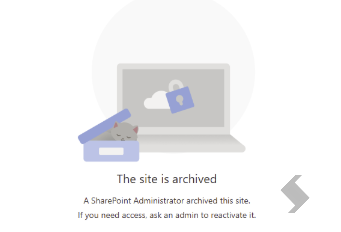
- Admins will be able to view the details and restore in Microsoft
- ProvisionPoint will
- Move the item to the 'Archived Sites' view
- A flag will display M365 Archive
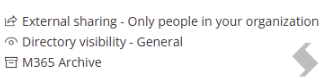
- Site related Actions will not be visible (if Group connected control over Owners and Members of the Group is still possible.
This Action can only move the Site to Archive, it cannot restore. If the item is restored please raise a ticket with the support team to reset the status in ProvisionPoint
Properties:
- ActionTypeId = 63
Extend Lease
Allows a set value to be defined when a lifecycle Policy is added to a Service Definition.
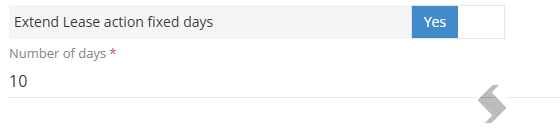
When the action is run it will set the expiry date based on the defined value.
Properties:
- ActionTypeId = 64
Reapply Lease
Reapply Lease was originally designed for the Lease tab Expiry. If changes were made they would not be applied to the existing workspaces.
The changes to the expiry type would be applied to new workspaces, if you also wanted them applied to existing workspace this action can be run.
For Lifecycle this is often used with an expiry type of Request variable set to Now.AddDays. When the reapply lease action is run it would add the same value again based on todays date and the number of days set in the request variable.
Read more in Request Variables
Properties:
- ActionTypeId = 33
Register a Hub Site
To Register a Site in ProvisionPoint as a Hub Site run this action
Properties:
- ActionTypeId = 53
Associate to a Hub Site
Run this action to associate workspaces to a Hub Site. This will need to be a Hub Site that is managed by ProvisionPoint.
You will need to collect the HubSiteId
Properties:
- ActionTypeId = 54
Custom Actions
Custom Actions can also be triggered via the API but have a different setup,
- The ActionTypeId is always 26,
- The customActionId must be provided in the body,
- Collect this by editing the custom action and checking the web url in Admin > Templates > Custom Action
- Any required metadata on the requests forms must be provided as an array
- If a request form is linked to the Custom Action the details must be provided in an array called 'Metadata'. The 'FieldName' and 'fieldValue' will be required:
- The FieldName must match the column name
- FieldValue will be the value to be assigned and must match the field type
- Text Column – string value
- Dropdown Column – string value
- Number Column – number value
- Yes/No Column – Boolean value
- DateTime Column – ISO8601 string value
- Person or Group Column – Upn, AAD Object Id or part of a ProvisionPoint Request Variable object
- MMS Column – TermId or Term Path
Properties
- ActionTypeId = 26
- customActionId = 44
- Metadata