If you want to use your SharePoint Online account to send emails through an application that doesn't support Multi-Factor Authentication (MFA) please follow the steps below:
By following these steps, you can configure your SharePoint Online account to use SMTP authentication with an app password, bypassing MFA for specific applications.
Requirements:
- You must have a SharePoint Online account with MFA enabled using an authenticator app.
- You must have administrative privileges to manage email app permissions in Azure Active Directory.
Steps:
1. Generate an App Password:
- Sign in to your SharePoint Online account.
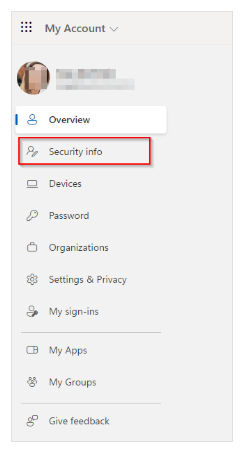
- Go to Security Info
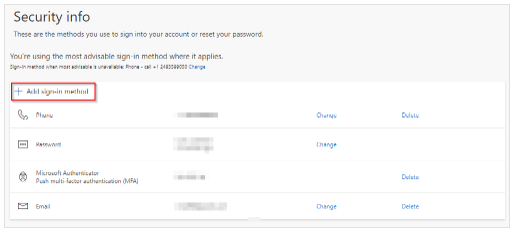
- Click on Add sign-in method.
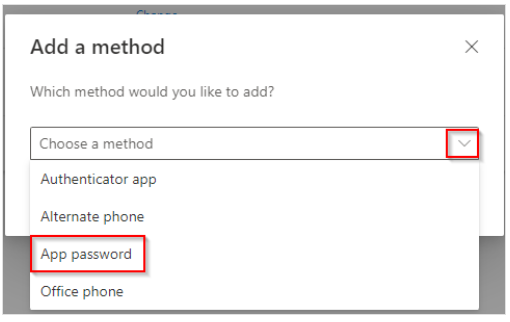
- Choose App password and click Add.
- IMPORTANT: Copy the generated password. You will only see it once, so make sure to save it securely.
2. Verify SMTP Authentication is Allowed in SharePoint Admin setting:
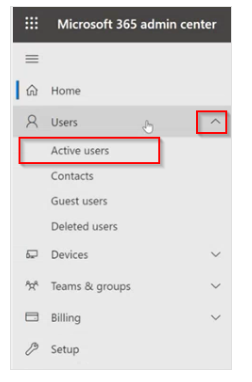
- Find the user account you want to enable for SMTP authentication and click on the user.
- Click on "Mail" and go to "Manage email apps" link.
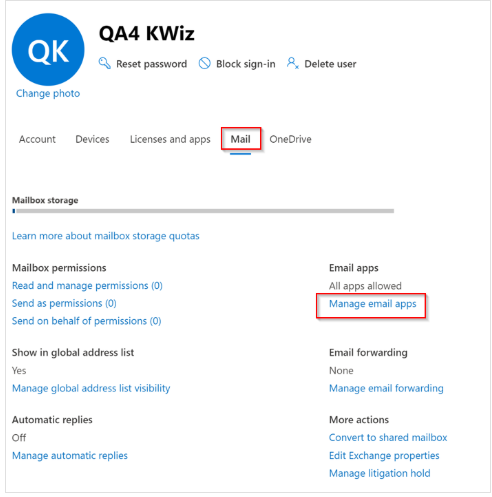
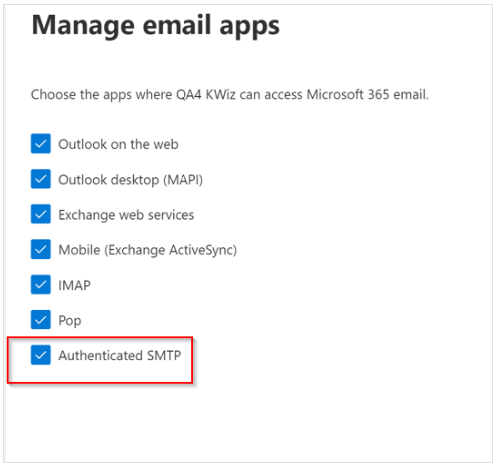
- Under Manage app permissions, ensure Enable IMAP, POP, and SMTP access is checked.
- IMPORTANT: you need to verify that "Enable IMAP, POP, and SMTP access" is checked under "Manage app permissions" to ensure the user is allowed to use SMTP authentication.
3. Enable Tenant-Level SMTP Authentication (Admin - Optional):
- In the Azure Active Directory portal, navigate to Properties.
- Under Manage features, locate SMTP Send.
- If Disabled, click Enable to allow users to send emails via SMTP.
By following these steps, you can configure your SharePoint Online account to use SMTP authentication with an app password, bypassing MFA for specific applications.
Additionally, within the Azure Active Directory portal for the specific user account, you need to verify that "Enable IMAP, POP, and SMTP access" is checked under "Manage app permissions" to ensure the user is allowed to use SMTP authentication.