Microsoft Graph Explorer can be consented in your tenant to help your admins/developers create calls to the Graph API, this could be used to get information or post changes.
You can use Graph Explorer to help find existing tabs that have the configuration to be used for creating Tabs at the provisioning stage.
Find the EntityIds, ContentUrls, etc and add the details into the Service Definition > Channels > tabs.
- Go to Graph Explorer - Microsoft Graph
- Login with your account
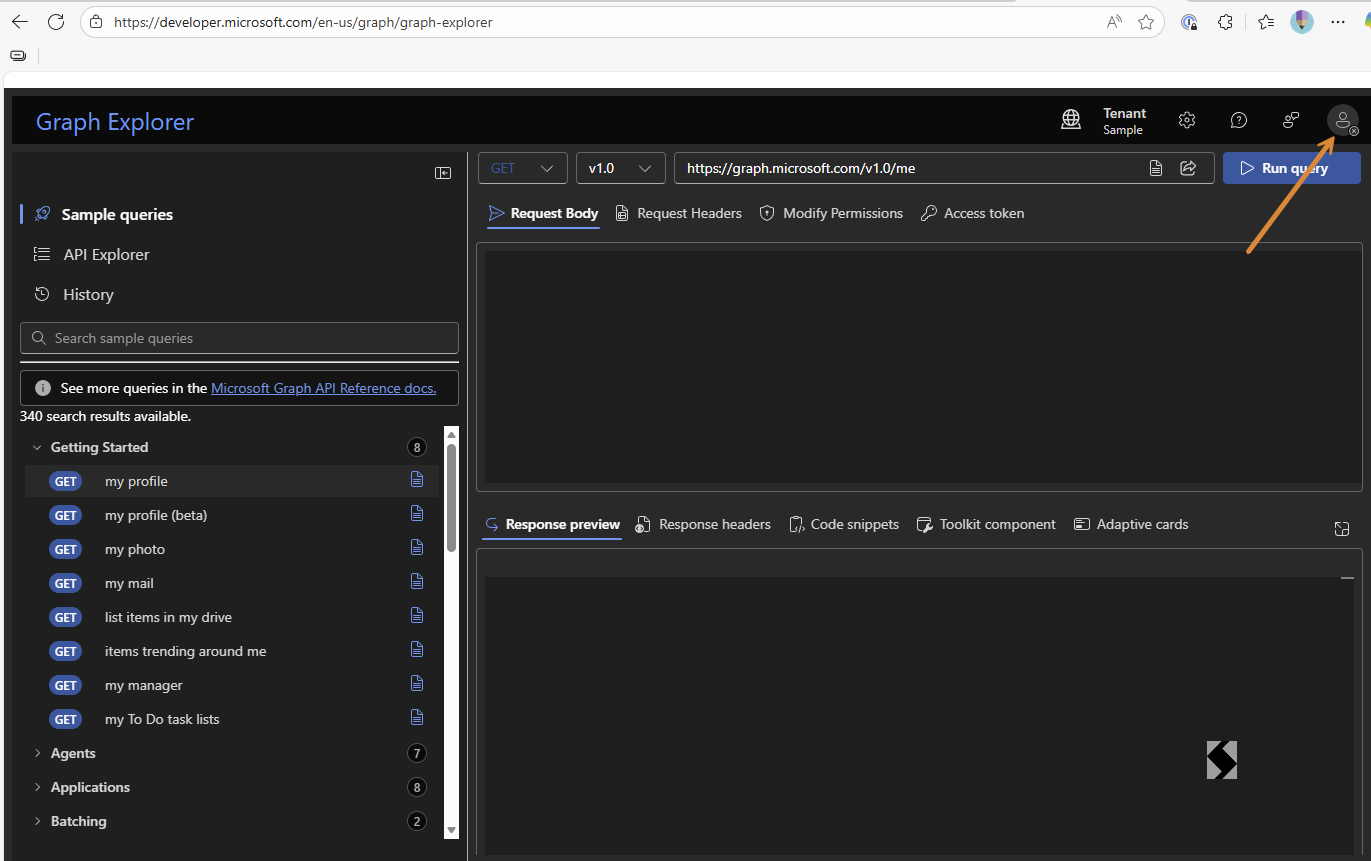
- Use the sample Queries if you are not sure of what to use as an endpoint.
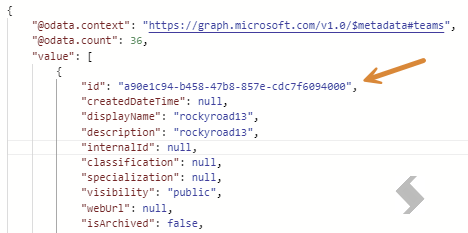
- GET my joined teams, will get you the id for your Team in the response preview
GET https://graph.microsoft.com/v1.0/me/joinedTeams
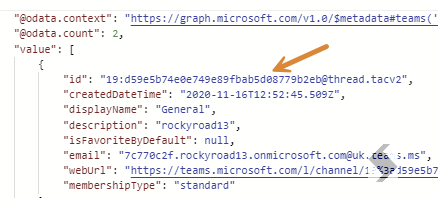
- GET channel of a team which I am a member of, will need the team id from the previous call and will provide the channel ids
GET https://graph.microsoft.com/v1.0/teams/{team-id}/channels
In this example we replaced the {team-id} with the id a90e1c94-b458-47b8-857e-cdc7f6094000
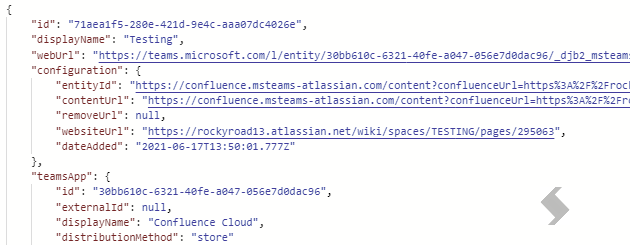
- GET tabs in a channel, will need the team id and channel id from the previous calls and will provide the Tab information
GET https://graph.microsoft.com/v1.0/teams/{team-id}/channels/{channel-id}/tabs?$expand=teamsApp
In this example we replaced {team-id} with a90e1c94-b458-47b8-857e-cdc7f6094000 and {channel-id} with 19:d59e5b74e0e749e89fbab5d08779b2eb@thread.tacv2
-
In this example we have a custom app for confluence cloud, I can use the information above to set up my tab:
-
The 'TeamsApp id' will set the appId (for built-in apps this is not required
-
The 'entityId', 'contentUrl', 'removeUrl' and 'websiteUrl' can all be added to their relevant fields, see the example below that has been completed to match the confluence details we found
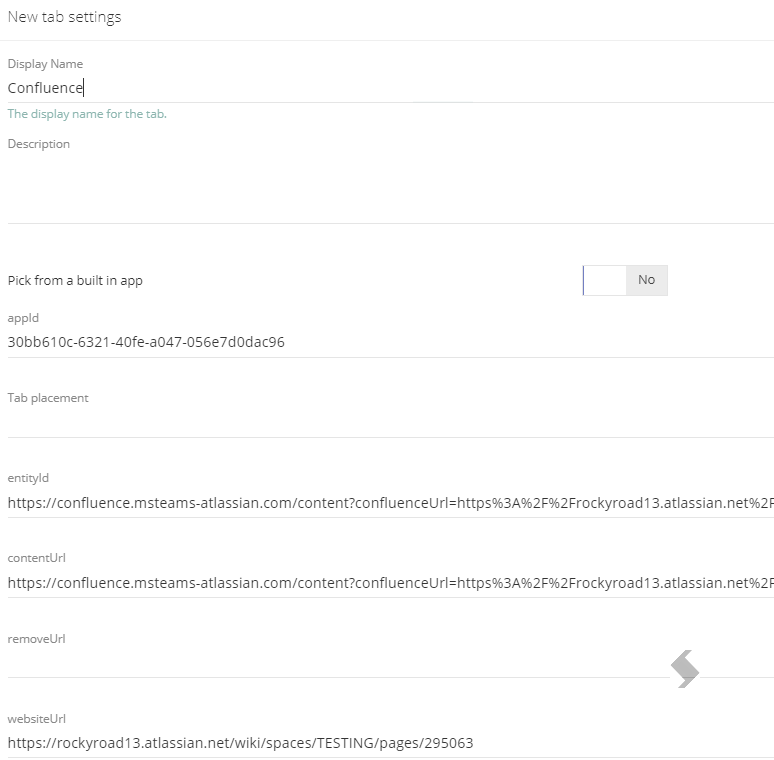
-
Once Saved and requested it will create the tab.
NOTE: Some custom apps will require additional configuration and authorisation to be able to be used in this way. Always check with the app provider to get clarification.