Access is granted to ProvisionPoint by assigning a Security Group or system group to a security role.
The role provided defines what the members of the groups will be able to do.
Access can be granted to everyone in your organisation to allow self service or may need to be limited, for example to the IT admins, M365 Managers or Compliance teams.
Whatever your use case the access can be configured. This article will explain the options available and how users & admins can access the apps.
Types of Groups supported
- Security Groups - In Azure AD, existing security groups or new security groups can be created to define the members of the roles. We fully support nested groups and using Dynamic Groups for membership.
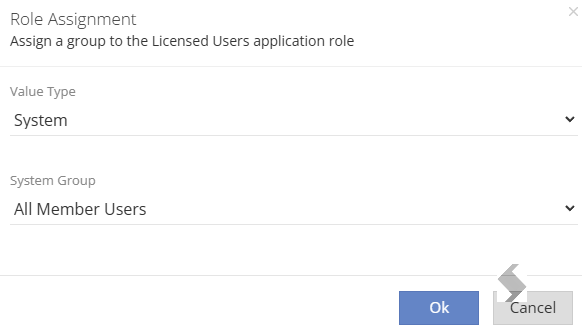
- System Groups - A system group called 'All Member Users' is available, this will grant access to all members in your Azure Tenant. This is often used when an All Users Group does not exist.
Security Roles Available
Expand to see all roles and access it will give
| Role Name | Who should be added | Access Given |
| App Managers | Primary administrators of the app. This role is often assigned to the M365 product managers or IT departments. | All tabs - allowing configuration of the app, access to the app, design and setup Service definitions, templates, resources and policies |
 |
| Queue Managers | IT helpdesk, compliance teams. This role is often assigned to a limited number of people due to the nature of information that can be seen. |
The standard licensed user & Job Queue Tabs - allowing troubleshooting of issues & management any jobs that are processing, failed or going through approval. Compliance runs and lifecycle jobs.
The members will have visibility of all jobs, this includes new requests, changes made by others and automated jobs from notifications and policies.
|
 |
| Service Definition Managers | Users who will assist with creating Service Definitions, but cannot control access to the apps and other resources that link to external items. | Standard Licensed User tabs & Limited Admin Tabs - Service definition managers can view, request, approve and create or update Service Definitions.
Service Definition Managers cannot upload PnP templates, create Request variables, customise help. |
 |
| Report Users | App Admins, M365 managers, Directors, Senior leadership teams. |
The Reports tab - look at report data on workspaces managed by the app. Export data to be used for reporting.
Additional security roles are required to allow access to ProvisionPoint (License users or queue manager).
|
 |
| Dashboard Users | App Admins, M365 managers, Directors, Senior leadership teams. |
The Dashboard Tab - look at a dashboard for overview of what is managed in the app.
Additional security roles are required to allow access to ProvisionPoint (License users or queue manager) and to the Reports users to view the reports linked to the Dashboards.
|
 |
| Licensed Users | Any users who need to make requests for new workspaces. | Directory, Request & Tasks tabs - Least permissive role, allowing visibility of items managed by the app, request new workspaces and process approvals assigned to them.
The Directory can have restrictions so users do not see all items. |
 |
ProvisionPoint Tabs
- Directory - the workspaces that have been created or imported into the app
- Request - create new Teams, Sites, M365 Groups, Viva Engage Communities, Planner Plans via service definitions
- Tasks - approve creation or Action requests that are assigned to the logged in account
- Job Queue - view any outstanding approvals, jobs in progress or errors in processing
- Admin - configuration of the app and the service definitions
- Dashboard - Overview with counts of workspace configuration
- Reports - Report data on workspaces
Assign Groups to a Role
Expand here to learn how to assign groups to the role
To add the groups to a role you will need to be part of the App Managers role, a group will already exist as it was used to consent to the app.
- Go to Admin > Settings > App Settings > App Security
- Select the security role on the top right-hand side of the screen, the example in the image below will allow the members of the security group to make requests but they cannot configure the templates (Licensed users).
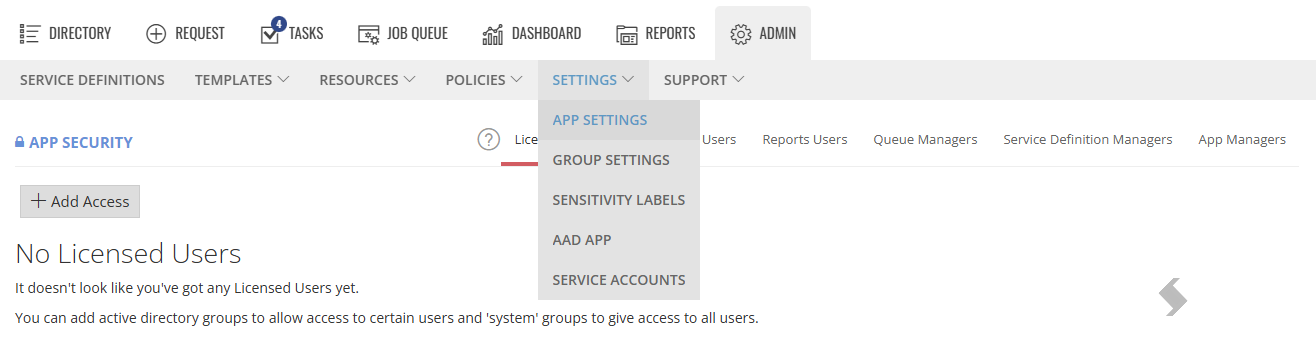
- Click '+ Add Access' to select a relevant Group
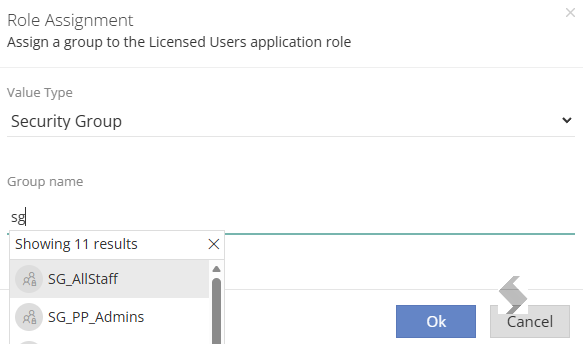
- Select a Security Group from Azure
- Or select 'All Member Users' using a System group built in to ProvisionPoint.
- Click OK
- No need to save this will automatically save.
If a Group needs to be changed, please make sure you add the new group before deleting the old group.
If the name of the Group changes this will need to be reflected in ProvisionPoint. Never adjust the last App Manager role group or access to the configuration may be lost.
Accessing the app
ProvisionPoint can be accessed using: