What are Retention Labels?
Retention labels in SharePoint Online/Teams Files are tools used to manage the lifecycle of documents and items. They help ensure that content is retained for a specific period or deleted when no longer needed, aiding in compliance with regulatory requirements and internal policies.
Expand here to learn more about Retention Labels
Benefits of Using Retention Labels
Retention labels in SharePoint Online offer several key benefits:
- Compliance: They help ensure that your organization complies with legal and regulatory requirements by retaining documents for the required period
- Automated Management: Retention labels can be automatically applied based on metadata or specific conditions, reducing manual effort and ensuring consistency
- Data Protection: By managing the lifecycle of documents, retention labels help protect sensitive information from being prematurely deleted or retained longer than necessary
- Event-Based Retention: They support event-based retention, where the retention period starts based on a specific event, such as the completion of a project
- Disposition Review: At the end of the retention period, you can review and approve the disposition of documents, ensuring that only necessary content is retained
- Flexibility: Retention labels can be applied to both documents and list items, providing flexibility in managing different types of content
Difference Between Retention Policies and Label Policies
Retention Policies and Retention Labels in SharePoint Online serve distinct purposes for managing data retention. The Retention Label can be linked to a Label policy to help define when it should be applied.
Below is a comparison:
| Aspect | Retention Policies | Retention Labels |
|---|
| Granularity | Applied broadly to entire sites, mailboxes, or libraries | Applied to individual items like documents, emails, or list items |
| Application | Ideal for setting uniform retention standards across large data sets | Useful for specific data needs, allowing different retention periods for different types of content |
| Management | Easier to manage at scale, as they apply to entire locations | Provide flexibility for managing distinct data types or specific compliance requirements |
ProvisionPoint can use the Retention Labels and Label Policies to help define specific retention based on the organizations needs.
Retention labels and label policies are configured in Purview. Microsoft have a wealth of information to help you get started:
What happens at the end of a Retention period:
When the retention period for a label in SharePoint Online ends, several actions can be configured to take place:
- Delete Items Automatically: The items are permanently deleted from the site
- Start a Disposition Review: A review process is initiated where designated reviewers decide whether to delete, retain, or relabel the items
- Change the Label: The items are assigned a different retention label with new retention settings
- Run a Power Automate Flow: A custom workflow is triggered, such as moving items to an archive or sending notifications
- Deactivate Retention Settings: The retention settings are removed, but the items remain in place without further retention actions
How Adaptive Scopes Work with Retention Policies
Adaptive scopes in SharePoint Online allow you to dynamically target specific locations or groups for retention policies based on defined criteria.
Here's how they work:
- Dynamic Targeting: Adaptive scopes use queries to dynamically include or exclude users, groups, or sites based on attributes like site URL, department, location, or custom properties.
This means you don't need to manually update the scope as your organization changes.
This can also be linked to the naming conventions applied in ProvisionPoint for the Site URL - Add a Naming Convention to a Workspace - Automatic Updates: The queries run daily, ensuring that the scope remains up-to-date with any changes in your organization
- Flexible Configuration: You can create multiple adaptive scopes for a single policy, allowing for more granular and flexible targeting.
For example, you can apply different retention settings to different departments or regions without creating multiple policies. - Reduced Administrative Overhead: By using adaptive scopes, you reduce the need to manually manage and update static groups, saving time and reducing the risk of errors
- Integration with Microsoft Entra: Adaptive scopes can leverage attributes from Microsoft Entra (formerly Azure AD), making it easier to target specific users or groups based on existing directory information
When using adaptive scopes to apply retention labels in Microsoft 365, the changes typically take effect within 24 hours. This is because adaptive scopes use dynamic queries that run daily to update the membership of users, groups, or sites based on the specified attributes
How Retention Labels Work as Default for a SharePoint List or Library
When a retention label is set as the default for a SharePoint list or library:
- Automatic Application: The label is automatically applied to all new items or documents added to the list or library.
- Consistent Management: Ensures that all content within the list or library adheres to the same retention policy, simplifying management and compliance.
- Overridable: Individual items can still have different retention labels applied if needed, providing flexibility
ProvisionPoint allows you to configure the default retention label for a list or document library
When you create a List template in the app, this can be used at the point of provisioning or using the 'Create List' action, ensuring consistency on your lists or libraries
Expand here to see the Steps to Setup a default Retention Label for Provisioning
1. Go to Admin > Service Definitions > Open your Service Definition template > Lists
2. Click +New List to add Document or additional libraries. We recommend Creating the Documents Library to apply to the default document library in Teams and Sites
3. When creating or editing a List or Library, under the Retention Label field, type the name of the Retention label to be applied.
This is a free type filed that also supports transform tags. {Retention Drop down} can be used to select from a custom column created in ProvisionPoint

4. Click Save and then Save the Service Definition
5. Once the List configuration is saved, the card for the List will automatically update to show that a label has been configured and the name of the label
Once a request is made the retention label will be applied to the lists or libraries provisioned.
This will set a default for any new documents/items added or created in the list or library.
As retention labels may be being applied using adaptive scopes, this can take up to 2 days to become available on the Site.
ProvisionPoint will trigger a Set Default Retention Labels Action to ensure the the site is checked every 2 hours for 54 hours for the label.
Once it is available the label will be applied.
If this fails, it can be replayed in the ProvisionPoint Job Queue, after a check is made in Purview to see why the label has not been applied.
Results in Microsoft
Go to the Library Settings on the Site > More Library Settings > Apply label to items in this list or library.
This will show the Retention Label that has been applied.
Apply Retention Labels using Lifecycle Policies
If part of your requirements include applying a Retention Label at the end of a Project or expiry of a Team or Site, we have the option to use the Change default Retention Label Lifecycle action.
Add this action to one of your stages to ensure your retention label is applied to all lists and documents before the Site is archived or deleted.
Expand here to learn about using Retention actions in Lifecycle Policies
The Lifecycle Policy applied to the Service Definition will set the Expiry Date and is applied as part of the Provisioning
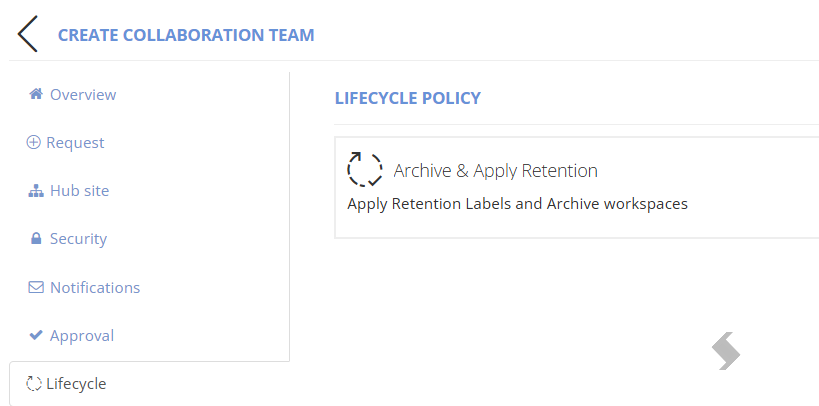
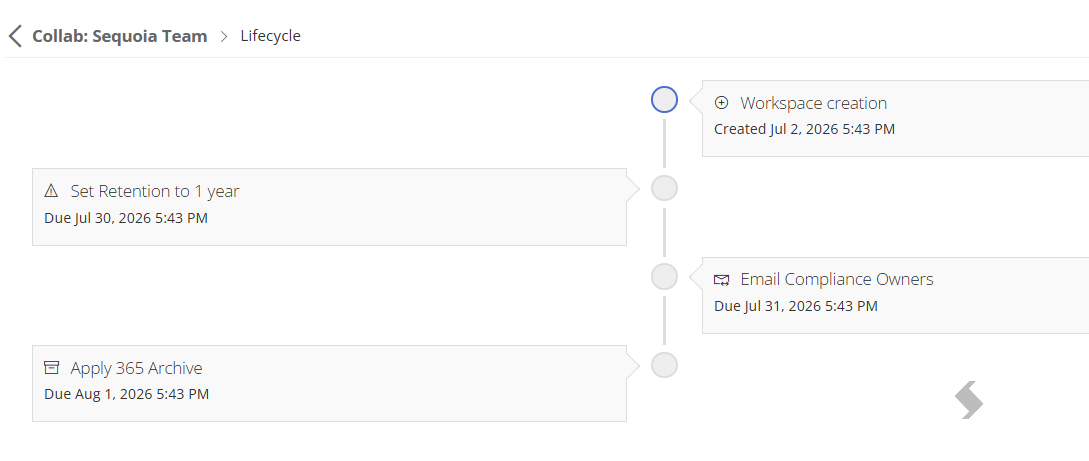
The Stages will define the actions that will run and the reminders that can be sent to Owners, admins, compliance or records management staff to ensure all are meeting your requirements.
- The Timeline will show when Actions have been run
- The Lifecycle Tab will display the timeframe the stages will be run
Change the Retention Label using Actions
Actions can be used to make changes at any stage of a workspaces lifecycle. The Action can have approval assigned or admins can define permissions to manage who can make the requests.
Expand here to see how the Change default Retention Label action works
The Change Default Retention Label action gives additional flexibility to manage the retention or removal of data in the tenant.
The action MUST be enabled with appropriate permissions and will allow the requestor to choose:
- The Retention label to be used (only available labels can be selected)
- Apply to all Lists/libraries or selected ones
- Apply the label to any existing documents.
Please note there is a delay from setting the default to it applying across all documents. This is outside of our control and behaves the same as doing this in the UI
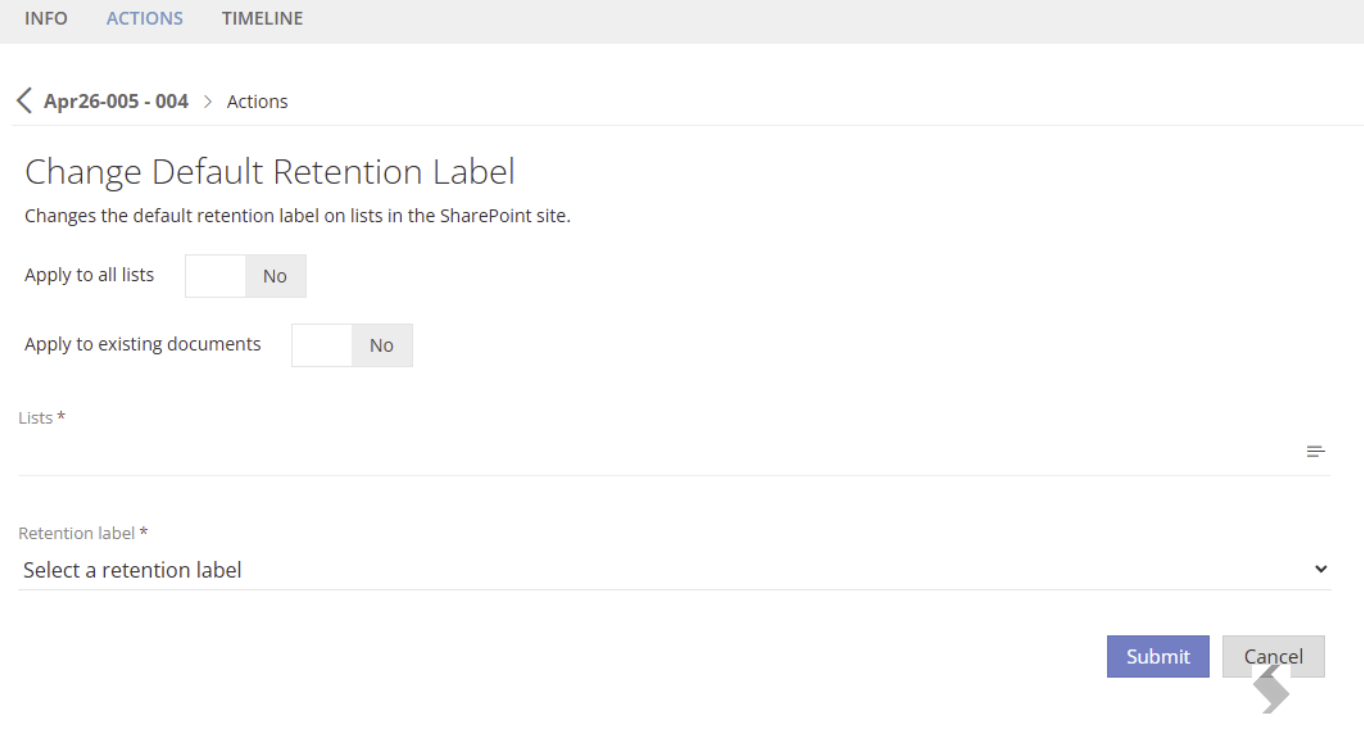
The Timeline will record the settings applied and which lists/libraries were updated
View the results in SharePoint
The Retention label will be set as the default of the lists, any new items will be assigned the Label. To view this:
- Add the Retention label and Retention label Applied columns to view to ensure the correct labelling is applied

- Go to Library or Lists Settings > More Library/List Settings > Apply label to items in this list or library This will also allow you to see which Retention labels are available on the Site. If Dynamic scopes or static scopes that define which sites will see the labels are used, there can be delays of up to 2 days before that label is available
