What is a Content Type in SharePoint
A content type in SharePoint Online is a reusable collection of metadata (columns), workflow, behavior, and other settings for a category of items or documents. It helps standardize and manage content across your site. For example, you can create a content type for "Sales Contracts" that includes specific metadata like client name, contract value, and expiration date. This ensures consistency and makes it easier to manage and search for documents.
Why Sync from the Content Type gallery?
Syncing from the Content Type gallery allows you to publish and manage content types centrally. This is beneficial because:
- Consistency: Ensures that all sites and libraries use the same content types, maintaining uniformity across your organization.
- Efficiency: Updates to content types are automatically pushed to all subscriber sites, saving time and reducing errors.
- Centralized Management: Makes it easier to manage and update content types from a single location
Following the guidance from Microsoft you can create content types to suit your business needs and use ProvisionPoint to add them to your lists and libraries.
This will ensure any columns will be added to the Site and the content type will be available, for example a customized document can be added to the 'New' are in the document library.
Configure ProvisionPoint to Sync Content Types
When you create a List template in the app, this can be used at the point of provisioning or using the 'Create List' action, ensuring consistency on your lists or libraries
- Go to Admin > Service Definitions > Open your Service Definition template > Lists
- Click Click +New List to add Document or additional libraries
- When creating or editing a List or Library, under the Content types field, type the names of the content types to be allowed to be added to the list.
This is a free type field, and the content types will need to named exactly as they in the Content type gallery.

- After a content type has been entered, click the add button. Multiple content types can be added.
- Once the List configuration is saved, the card for the List will automatically update to show that Content types have been enabled.
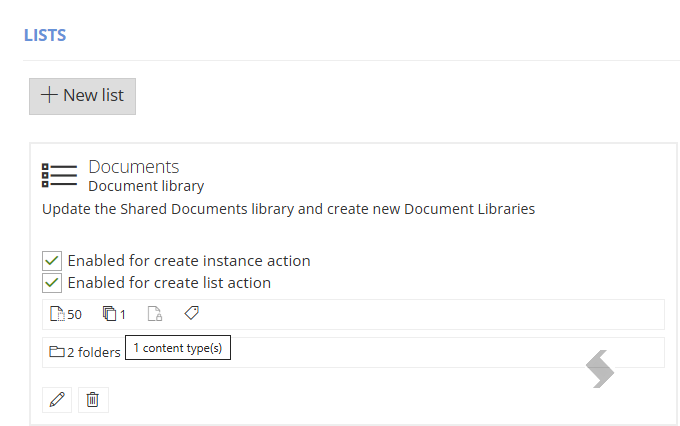
- Hovering over the symbol will show how many Content types have been enabled.
- Save the Service Definition.
If an existing List template is edited, the changes will only apply to new Lists/libraries provisioned after the change is made.