This article will explain how to create lookup columns for the built-in system default columns.
For example, Add 'Ext' to the title of Team's that have guest access enabled.
The following are the names for the built-in system default columns for Security options and the values that can be selected at the request, to use in a lookup.
Column Name to Create
| Values | Example Replacement Values |
|
Privacy Setting Lookup
|
|
|
|
Group Guest Access Lookup
|
|
|
|
Directory Visibility Lookup
|
| |
| Geo Code Lookup |
Any of the enabled Geo Location codes. E.g. GBR, EUR, NAM, etc
|
Europe, UK, US, etc
|
|
Sensitivity Lookup
|
Any of the Sensitivity labels configured for Container level only
|
Confidential
|
Create a Lookup Column
Expand to see the Steps to create a Lookup Column
- Create a new Column in Admin > Templates > Forms > Columns
- Add the name from the table for the property to use
- Set Column type to Dropdown
- Add the Values from the table or from your
- Add the # and the additional values to use
Each # added to the Lookup value represents a different value, in the example below
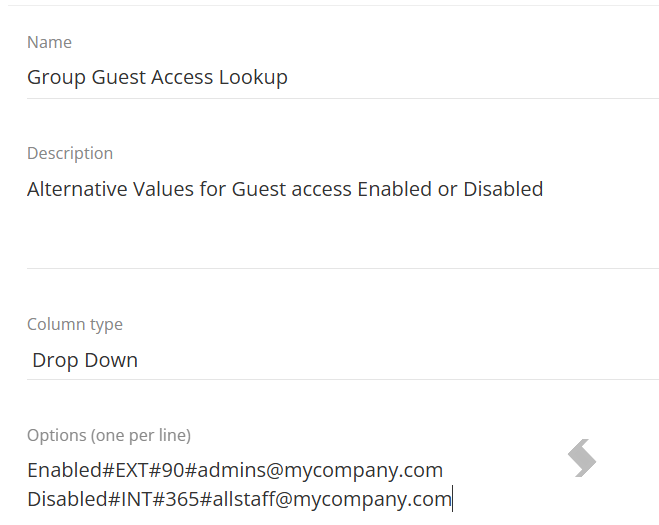
[1] = EXT or INT for the naming convention
[2] = A set number of days for a lifecycle policy
[3] = The approver of the request
Apply the Lookup Value
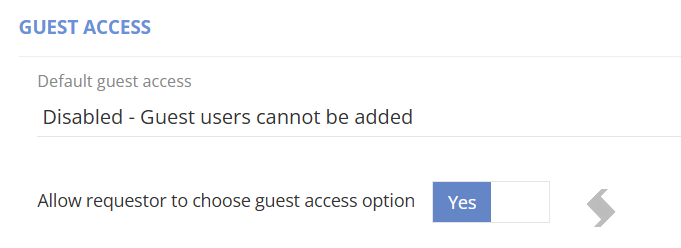
To use the Lookup you will apply the Column name to an appropriate area, for all the Service Definition must be setup to allow the requestor to choose the options.
In our example we have used the Guest Access option, but any of the built in columns in the table above can be used
-
Configure the Service Definition
-
Enable '
Allow the requestor to choose' toggle for the value you have the lookup, in this example it is Guest Access
-
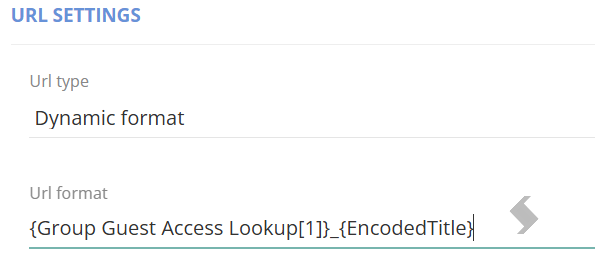
Configure the Naming convention 'Title formula' to use the lookup values. {Group Guest Access Lookup[1]}
- This will pull the values you set after the #. As this is in the naming convention it must be surrounded with {} braces.

- This can also be used in the URL Settings as well
-
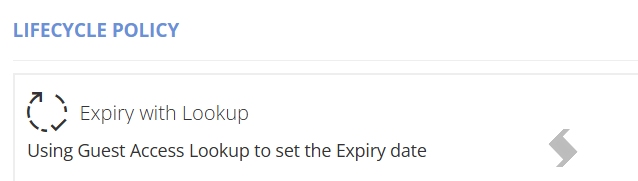
Configure a Lifecycle Policy to have a shorter review before archive, to ensure management of workspaces with Guest access is more often.
- Go to Admin > Policies > Lifecycle Policies
- Create a new Policy
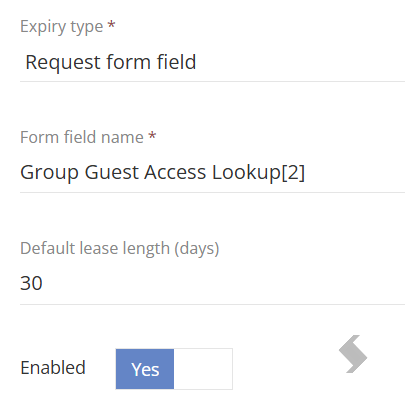
- Set the 'Expiry type' to Request form field
- Add Group Guest Access Lookup[2] in the 'Form field name'
- Set a Default lease length - If the guest access is not set it will use the default. The Change the lease action will have this as the default amount to extend by
- Add the Stages that will run and when
- Ensure the Lifecycle Policy is added to the Service Definition
-
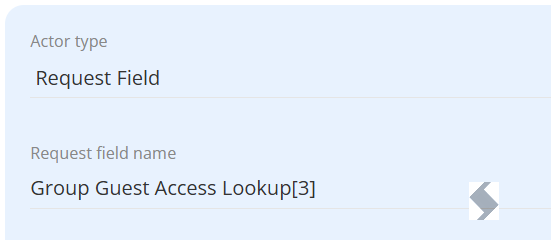
Configure the Approval to set approval to appropriate staff.
- Create a new Approval Template
- Set the 'Actor Type' to Request Field
- Add Group Guest Access Lookup[3] in the 'Request field name'
- Activate the Approval
- Add Notifications if needed
- Save
- Ensure the Approval is linked to the Service Definition

Make a new request using the changes made the new lookup value will be applied:
- The approval when to the appropriate users, before provisioning
- The naming conventions are applied to the Title & SiteUrl
- The Lifecycle has set 90 days for an Group that has Guest access enabled for regular review