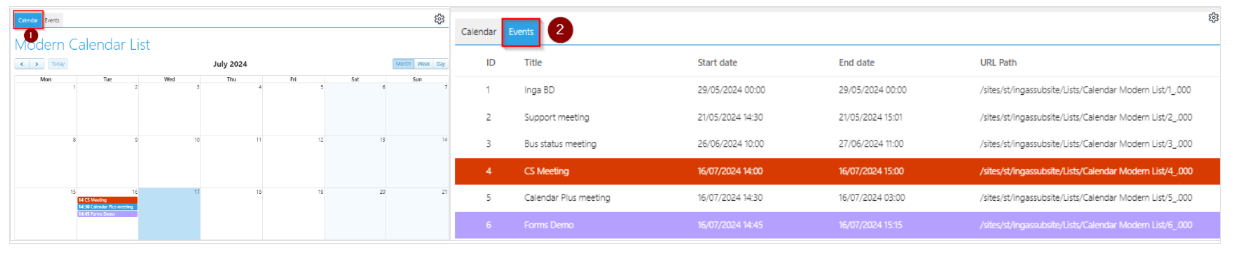
To sort events by additional columns in the Calendar Web Part, follow these steps:
Note: Sorting events by additional columns is not possible in the "Calendar" control. To achieve this, you must use the "Table" control.
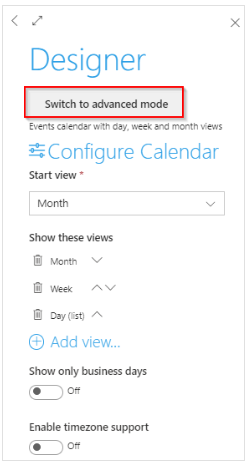
1. Switch to "Advanced Mode" by clicking on the Calendar "Configure Control" cogwheel.
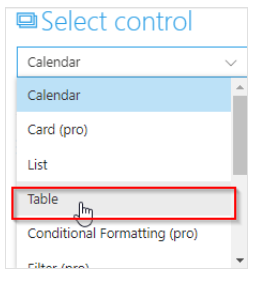
2. In the "Select Control" drop-down menu, choose "Table".
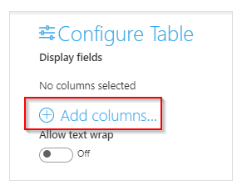
3. In the "Configure Table" section click "Add columns" to include the columns you want to sort.
You can change the order of the columns using the arrows on the left. To delete a column, click the "delete" icon on the right.
The screenshot below shows how sorting by additional columns will appear:
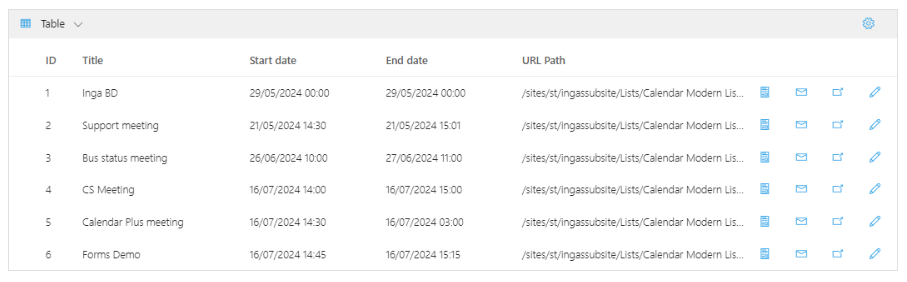
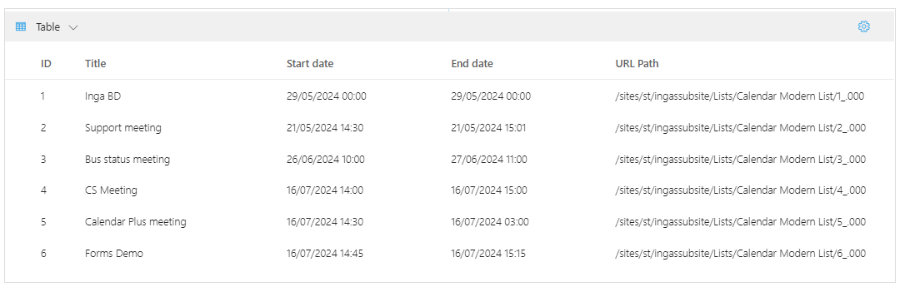
If you want to remove action buttons, as shown in the screenshot below, please refer to this KB article:
How to remove "Action Buttons" from the Table control in Data View Plus Web Part
To display the Calendar and Table controls in separate tabs, you need to use "display-groups".
Configure display-group
IMPORTANT: Display-groups are only available with a Data View Plus web part subscription.