This article explains how to add ProvisionPoint into Teams tabs or to SharePoint using the unique URLs of the app.
ProvisionPoint has a Teams app that can be added to your existing Teams environment, allowing you to stay within Teams to configure or make requests with the app. To find out more about setting this up read
Install ProvisionPoint Teams App article.
Link to the ProvisionPoint Requests page
To add a link via Teams or SharePoint to the request page, simply use the ProvisionPoint instance Url (listed in the table below, followed by /request
| Location |
ProvisionPoint Instance
|
|
UK
|
|
|
EU
|
|
|
US
|
|
|
AUS
|
|
|
CH
|
|
Additional filters can also be added, using ? at the end of the url
- hideBanner = hides the ProvisionPoint banner
- hideNav = prevent navigation to another page
Both can be used together to show only the one page you want.
Please watch the video showing how to add to an existing Team:
I could also use the link to create a button on a SharePoint page or Intranet site:
Link to the ProvisionPoint Info Page to Teams Tab
When configuring your Teams Service Definitions, the info page can be added to a tab in a channel.
This would give:
- Owners access to the Actions to make changes
- All Owners and members access to the info, timeline and Lifecycle tabs.
Follow the instructions below to configure this:
- Open your Service Definition
- Go to the Channels tab
- Create a Tab
- Set it as a website
- Set the Tab order
- Add Content Url:
{app_domain}/service-instance/{service_instance_id}/info?hideBanner=true&hideNav=true OR {app_domain}?SiteUrl={SiteUrl}&hideBanner=true&hideNav=true - Add Website Url:
{app_domain}/service-instance/{service_instance_id}/info?hideBanner=true&hideNav=true OR {app_domain}?SiteUrl={SiteUrl}&hideBanner=true&hideNav=true
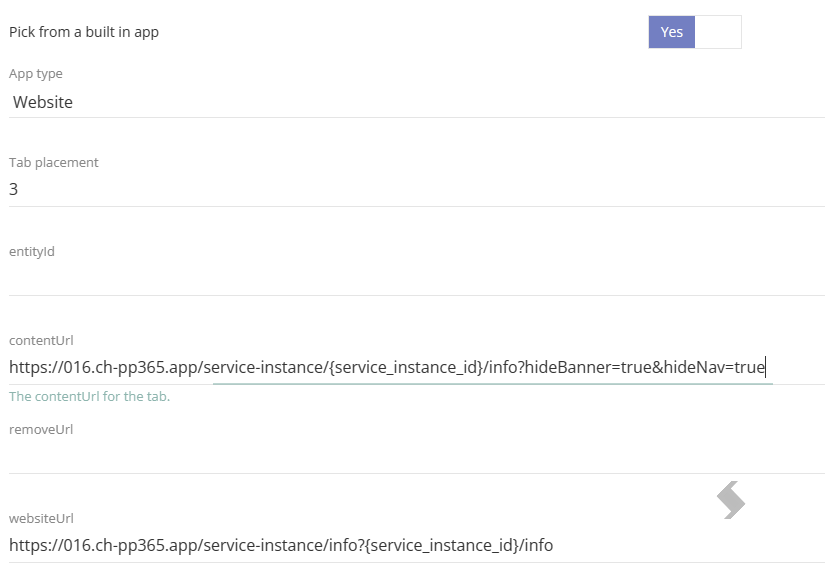
- Save the tab
- Click Done
- Save your Service Definition
Once requested it will show the info page you can see from the ProvisionPoint Workspaces Directory.
Other ProvisionPoint URLs
Each page/tab in ProvisionPoint has unique URLs, these can be used to navigate to a specific locations throughout the app: