If you want to print only a specific tab from your KWIZ Modern Form and hide other tabs during printing (i.e., in Print Preview mode), you can achieve this by adding a custom JavaScript snippet to your form.
Step-by-Step Instructions:
- Accessing the Script Editor. Open a list item in either view or edit mode.
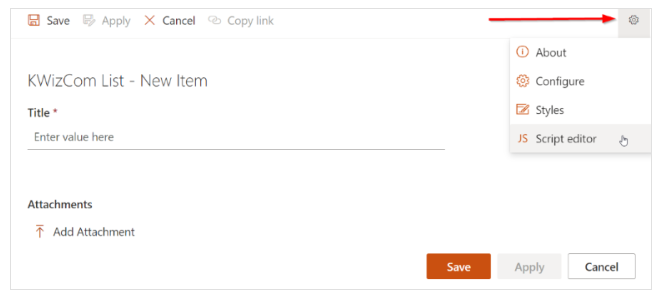
- Click the gear icon at the top-right corner of the form, then select Script editor.
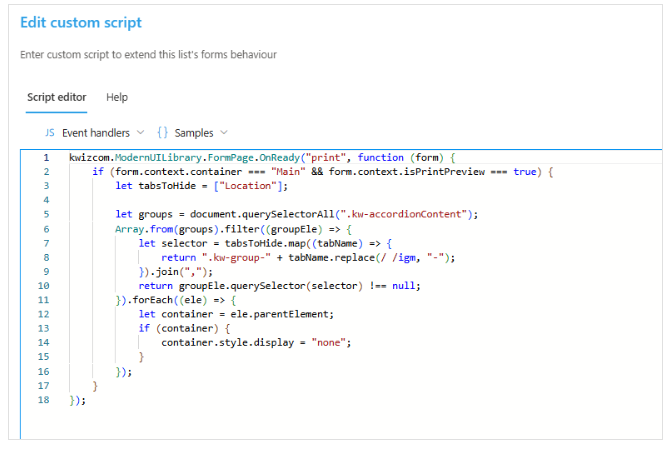
- Add the following script:
kwizcom.ModernUILibrary.FormPage.OnReady("print", function (form) {
    if (form.context.container === "Main" && form.context.isPrintPreview === true) {
        let tabsToHide = ["Location"];
        let groups = document.querySelectorAll(".kw-accordionContent")
        Array.from(groups).filter((groupEle) => {
            let selector = tabsToHide.map((tabName)=>{
                return ".kw-group-" + tabName.replace(/ /igm, "-")
            }).join(",");
            return groupEle.querySelector(selector) !== null;
        }).forEach((ele) => {
            let container = ele.parentElement
            if (container) {
                container.style.display = "none";
            }
        })
    }
});
tabsToHide: Add the name(s) of the tabs (groups) you want to hide when printing.- In the example above, the
Location tab will be hidden. - If you want to hide more than one tab, include all tab names in the array, like this:
tabsToHide: = ["Location", "Location 1", "Location 2"]; - This script runs only during Print mode, the specified tabs will remain visible in View/Edit mode.
Results
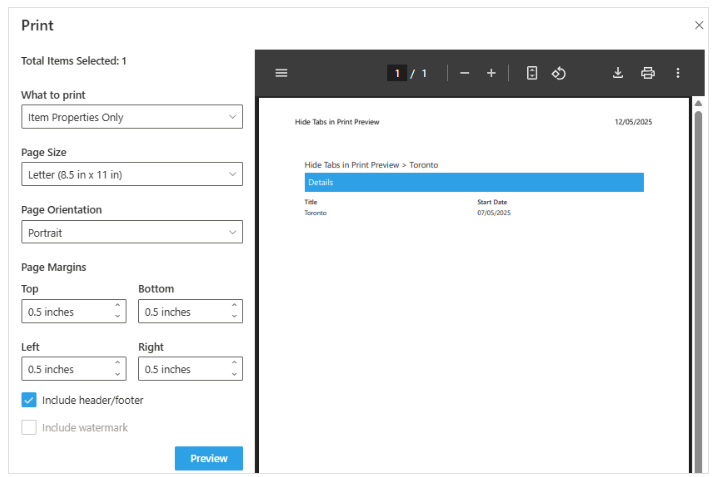
When you click Print Preview, only the desired tab will be visible. The other tabs will be hidden according to your configuration.
In the example below, the Location tab is hidden, and only the Details tab is visible in Print Preview.