What Are Lookups in ProvisionPoint?
Lookups or Lookup formulas can be applied to Drop Down Columns created in Templates > Forms > Columns or built-in columns, (guest access, sensitivity or privacy)
When a value is selected on a request form, an alternative value can be used in its place for:
- Naming conventions, Title and Url
- Approval assigned to
- Lifecycle Policies (define the expiry date)
How to Create Custom Lookups
If additional metadata is added to request forms via Columns and Forms, alternative values can also be added.
Expand to see how to create them
- Create a Drop Down Column with options
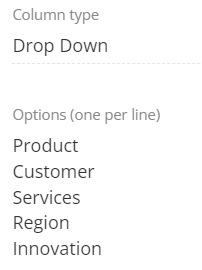
- Create the Lookup column, another Column with the exact same name appended with 'Lookup' and the same options.

- Add # for each variable to the Options in the Lookup Column, in this example 2 have been added
- [1] = naming convention short name
- [2] = approver
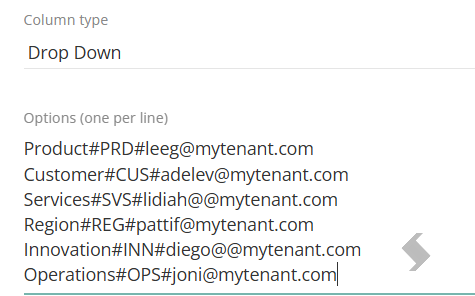
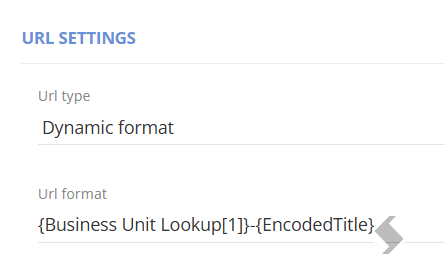
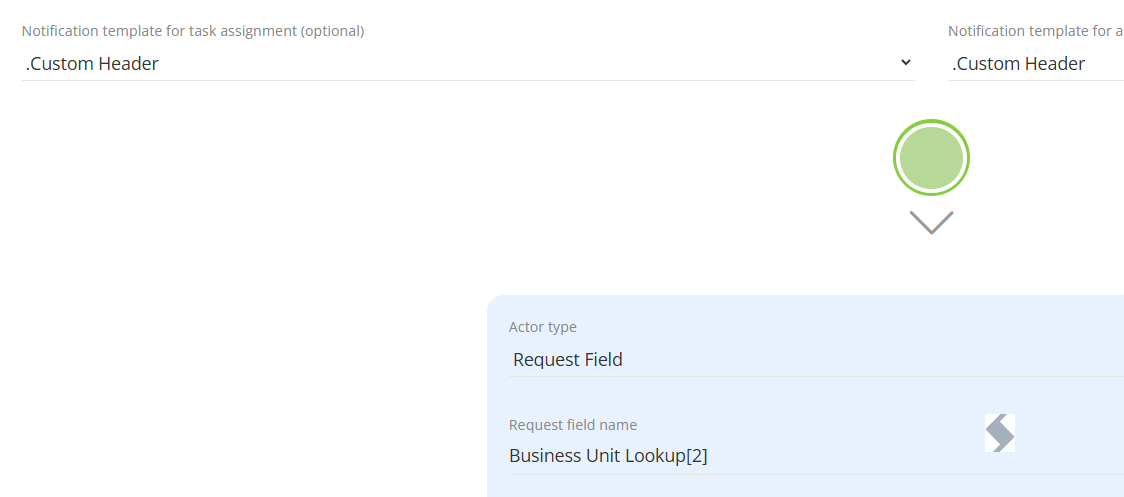
- Assign the Lookup Column name and value in square brackets
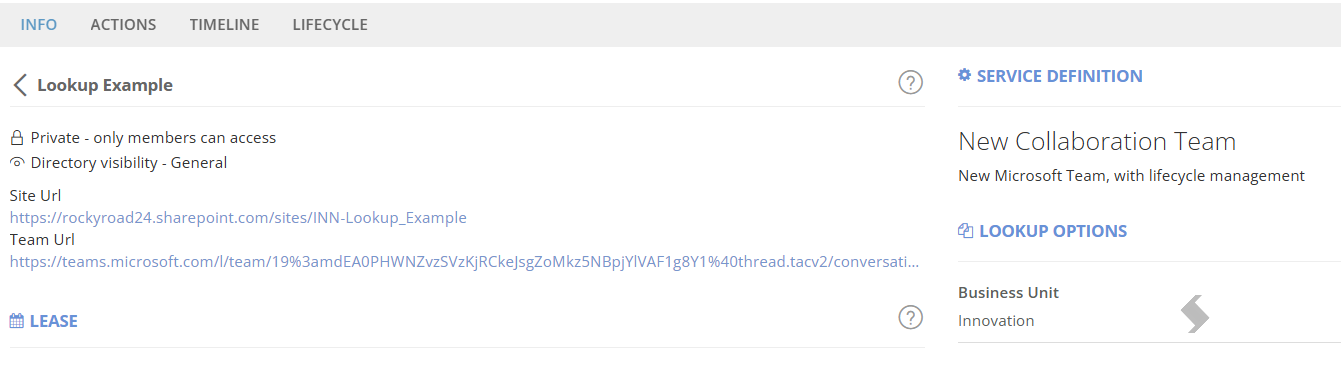
- Below shows the URL naming
- Below shows the Approval screen
- Add the Column to the Request Forms and assign to the Service Definitions.
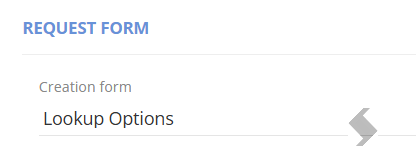 Will show on the requests form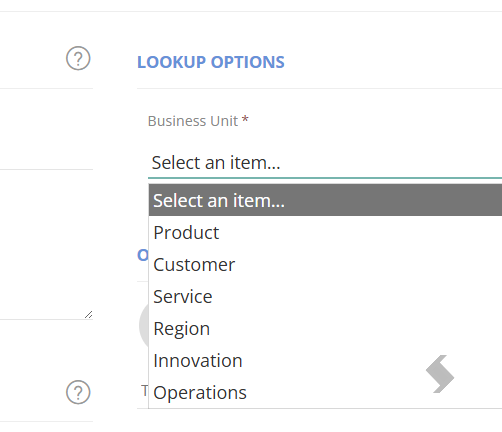
The changes will be put in place for the approval and the naming
How to Create Lookups for Built-in columns
There are some drop down columns built into ProvisionPoint that are used on request forms.
Use Lookups to create alternative options for these items: Privacy Settings, Group Guest Access, Sensitivity, GeoCode
Expand here to see details for built-in columns
The following are the names for the built-in system default columns for Security options and the values that can be selected at the request, to use in a lookup.
Column Name
| Value |
|
Privacy Setting Lookup
|
|
|
Group Guest Access Lookup
|
|
|
Directory Visibility Lookup
|
|
| Geo Code Lookup |
Any of the enabled Geo Location codes. E.g. GBR, EUR, NAM, etc
|
|
Sensitivity Lookup
|
Any of the Sensitivity labels configured in Admin > Settings > Sensitivity Labels
|
Example 1: Add 'Ext' to the title of Team's that have guest access enabled.
We will need to create the Lookup Column that will be used. Unlike other scenarios, there is not an existing column to copy from.
- Go to Admin > Templates > Forms > Columns
- Click +New Column
- Name the column after one of the System Tags, see the Column Name in the table above.
For example, 'Group Guest Access Lookup'
NOTE: This is case sensitive, ensure the capital letters are used - Set Column Type to 'Drop Down'
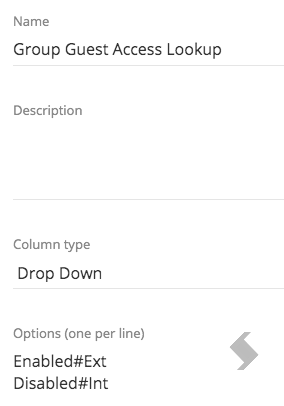
- Add the Values shown in the table above to Options
-
Add a # then the new value you want to use for the title naming convention.
The example below shows, if guest access is set to enabled in the request then 'Ext' will be used.
-
Click Save
-
Configure the Service Definition
-
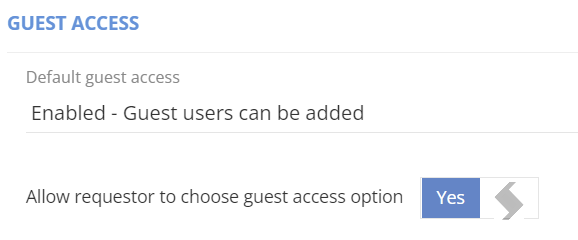
To allow the requestor to choose the guest access option in Security
-
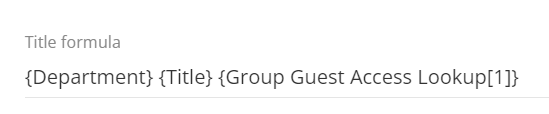
Configure the naming convention for the 'Title formula' to use the lookup values. As multiple lookup values can be added using multiple # you need to specify the lookup value using [1] [2], etc.
This will pull the values you set after the #. As this is in the naming convention it must be surrounded with {} braces.
-
Save the Service Definition
4. Make a new request using the changes made the new lookup value will be applied:
Additional Use case articles: