The Directory in ProvisionPoint provides a searchable list of workspaces that have been created from or imported into the app.
This page is available to all users and lets you view the mixture of workspaces for your organisation in one location.
Directory Tabs
There are 3 tabs shown in the Directory.
- All Sites - Any workspaces the logged-in user has been granted visibility of, will include deleted items if they have not been archived.
Directory visibility can be restricted, read the [Directory Visibility] article to learn how restrictions can be applied. - Sites I Manage – Any workspaces the logged-in user is an owner of.
- Archived Sites – Any workspaces that have been archived through ProvisionPoint, will be visible to the logged-in user if they are an owner of or a member of the 'App Manager' role.
In each view of the directory the type of workspace, its status, which service definition it is linked to, who the service instance owners are and when it was created are visible.
By default, all users can see all workspaces, if this needs to be restricted you can configure the Directory Visibility within each Service Definition or apply restrictions on specific workspaces.
Directory Actions
Next to each completed creation, there are actions that allow you to:

Open the Site, Team, Planner, or Viva Engage Community in M365

View the workspace
info page, to see details about the workspace and the request, make changes to the workspace via
Actions, look at the history of changes in the
Timeline, view
Lifecycle if applied to see when the next stages will be run.
If
Compliance is enabled the last run of the policy and its result can be displayed. See more details on the [Workspace Information Page] article.
Directory Search & View options
When the directory is accessed, it is often to find a workspace, look to see if an existing workspace has been created or to manage the existing workspaces.
Use the search, filter or sorting to help find what you are looking for.
Expand here to learn about Search
The search bar will allow you to type alphanumeric characters to help you find the name, URL, GroupID of the workspace or owner's name.
These can help you check quickly to see if an existing workspace exists or find workspaces with specific owners.
You will only be able to search items you have visibility of, if there are restrictions this applies to search as well.
Search for name:
Search for owners:
Expand here to learn about Sort
The Directory list can be sorted to help group the same service definition together or to order the names of workspaces alphabetically.
The columns can be sorted in ascending or descending order alphabetically or dates oldest or newest.
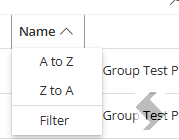
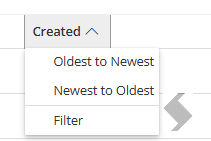
Expand here to learn about Filters
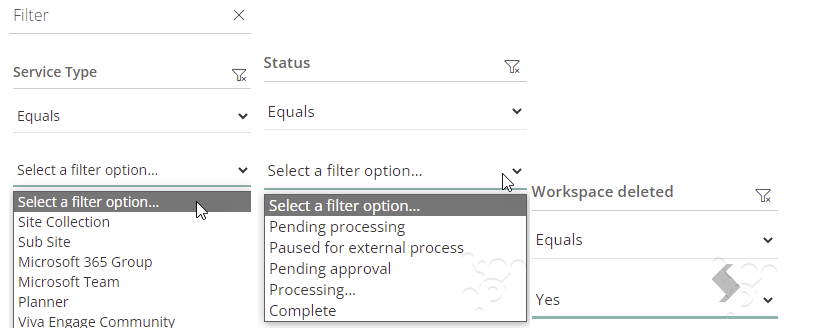
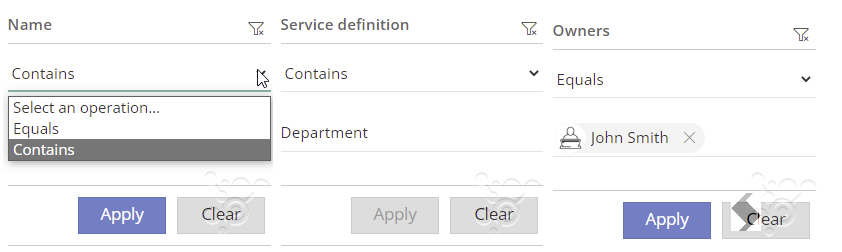
Filters can be applied to each column allowing you to build up a view, for example, any workspaces created in the last 7 days or just the Microsoft Teams. Whatever you are looking for use the filters to get the results.
Either apply the filter on each column or open all filters in the right hand side.
The options for each filter will vary depending on the type:
- Service Type, Status or workspace deleted will allow you to select from the list we support.
- Text and people picker columns like Name, Service definition and Owners will filter on values you provide. the search method is either equals for an exact match or contains to have a wider search.
- Date columns like Created will filter based on dates greater than, less than or between the dates and times provided
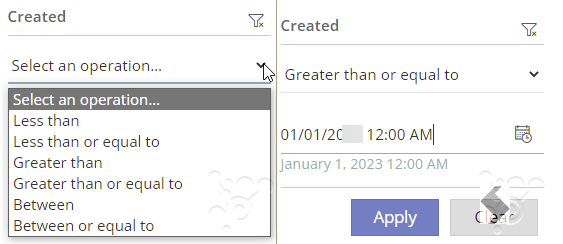
Once all filters are setup, click Apply.
The filter above shows any Active Teams that were created between the 18th December and the 30th December
To remove the filters simply open the filter and click the
Clear 
Expand here to learn about Export
The view details can be exported to CSV, apply filters and sorts to the data and then click the export button.
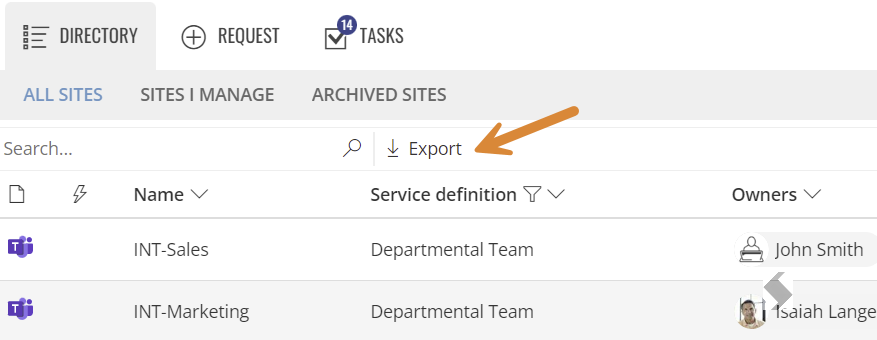
Once selected the Export button will be greyed out until the export is completed. Navigating away or refresh will stop the export.
This will default to your user setup for downloads to a file called 'directory.csv'
This will display additional information about the requests including:
- Name
- Id (ServiceInstanceId)
- Service Type
- Service DEfinition
- GroupId
- Created Date
- Status
- Description
- SiteUrl
- TeamUrl
- PlannerUrl
- YammerUrl (Viva Engage)
- Requested by
- Owners
- Classification Label
- Sensitivity Label Id & Name
- Visibility (ProvisionPoint's directory visibility)
- Prviacy Setting
- Guest Access
- External Sharing
- Expiry Date
- If the Lifecycle has been processed
- Geo Code
- Archived status
- Deletion status
- Storage Quota
- M365 Archived Status