For each Service Definition, define the security options that will be set for each workspace that is created. The options available are shown in the table below:
| Setting | Options available | Option to override on request? | Additional information |
| Directory Visibility | General
Requestors List
Owners |
Yes
| Choose who will have visibility of any newly created workspaces in the app's Directory. Read the Directory Visibility article to learn more information. |
| Privacy Settings* |
Private - only members can access
Public - anyone in the organisation can access
|
Yes
| Choose whether or not the Group will be private, only members will see this in M365 or Public, anyone will be able to search and see it in M365. For SharePoint this will also add the permissions for everyone except members. |
| Guest Access* |
Enabled
Disabled
|
Yes
| Choose whether or not Guest Access is enabled or disabled for the Group. |
| External Sharing** |
Only people in your organisation
Existing guests only
New and existing guests
Anyone
|
Yes
| Choose the Site level External Sharing permissions for the workspaces. If this is not enabled it will use your tenant settings. Read the Enable Site Level External Sharing article for more information. |
*Group related workspaces only, if you are creating a non-group related site, these options will not be shown.
**Will only affect the SharePoint Site content
The Service Definition allows you to restrict the options so only the default will be applied or give the requestors the choice.
As a result multiple service definitions may be required to meet your companies individual needs.
Remember you also have control over who can request each Service Definition, you may only want IT or managers to be able to override the defaults, this is possible.
In the example below, the requestor can choose between Public or Private but the Guest access will always be disabled.
On the request form the Guest access will show a blocker icon when it is selected.
Invite Guests
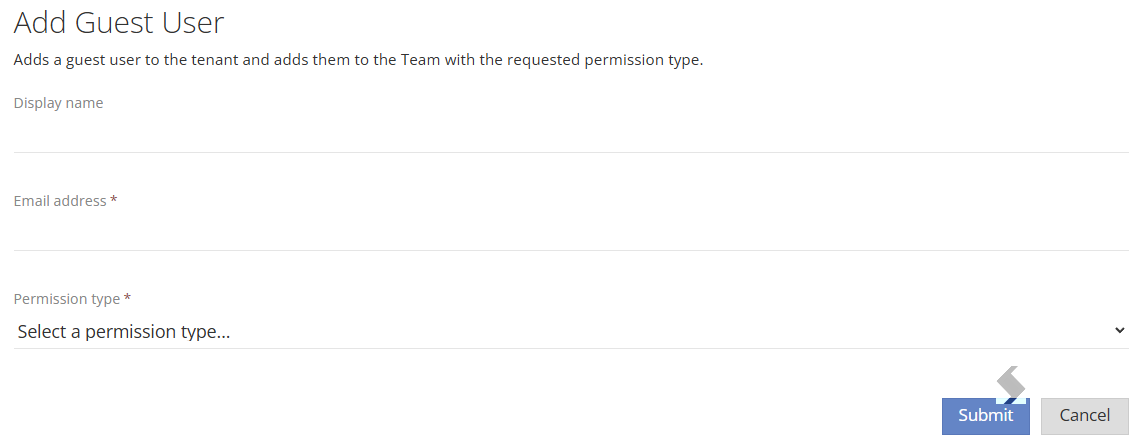
If Guest Access is Enabled and the external sharing allows new and existing guests, you can also use the Add Guest User Action.
You will need to enable the Invite to be sent from the Security section. This will send the standard Microsoft invite email to the Guest.
The Redirect Url is generally the SharePoint Site, for Microsoft Teams you can add {TeamsUrl} to the redirect Url field to send them to the Team instead.
The Action can be run from the Info Page:
Existing Guests will be listed in Azure so can be selected on the request form.
Security
Security options will show any groups that have been given access to the created Site, any groups added in the Requests > Requestors tab in the same Service Definition & will automatically be added with 'Can Request' permissions.
Additional Groups can be given access to the SharePoint Site with defined permissions selected. This is designed for Classic SharePoint, if you would prefer to give access to the Group, this can be achieved using Default Owners.
Alternatively PnP can be used to add additional Admins Owners, members or visitors to the groups on the SharePoint Site only.