What is a Service Account?
A Service account is a standard user account with a M365 license applied.
We use the service account to make Graph API calls that only support delegated permissions instead of the application permissions.
A Service account must be created in Entra Identity, it cannot be synched from Active directory on prem.
We fully support service accounts with MFA enabled.
When is a Service Account Required
Expand here to see the settings that will require a Service Account to be in place:
- Creating Planner Plans
- Creating Viva Engage Communities
- Applying Sensitivity Labels
- Apply default Retention Labels to Lists & Libraries
- Creating Private or Shared Channels in Teams
- Adding Messages to Team Channels
- Making Teams SharePoint site Read only when archiving (Change Archive State for Microsoft Teams)
- Lock Team Site for members when archiving Microsoft Sites
-
Assigning users as owners of every Group created
- Using the Convert to Team or Convert to M365 Group actions*
- Group Settings to
- Allow external senders
- Auto subscribe new members
-
Additional configuration via PnP templates (e.g. apply Group logos)
Set up a New User in Entra Identity/AAD or M365 Admin Centre
Expand here to see how to create a Service account in Entra
- Login to Entra Admin Centre as an administrator of your tenant or M365 Admin Centre
- Create a new user
- Do not reset the password on the first login
- No specific roles are required
- Apply a license to the user, a minimum of E1 or business basic is required.
- Ensure the App Managers of the app can access the password
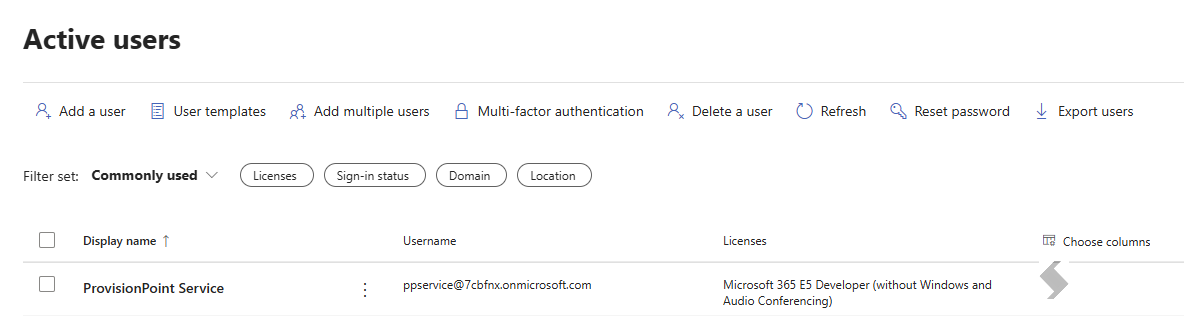
This example is from a developer tenant, there fore shows an E5 license
How to Setup & Manage the Service Account in the app
- Login to ProvisionPoint using an incognito browser
- Go to Admin > Settings > Service Accounts page
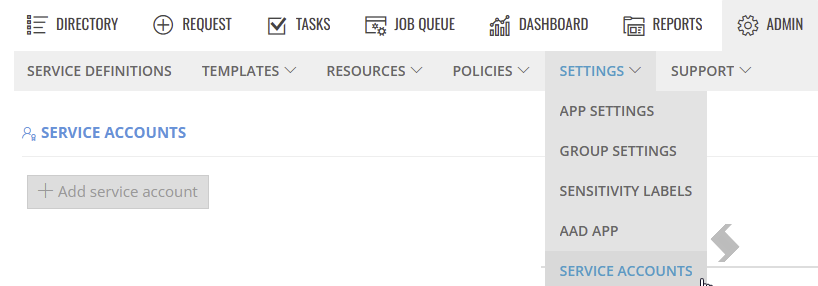
- Click +Add service account
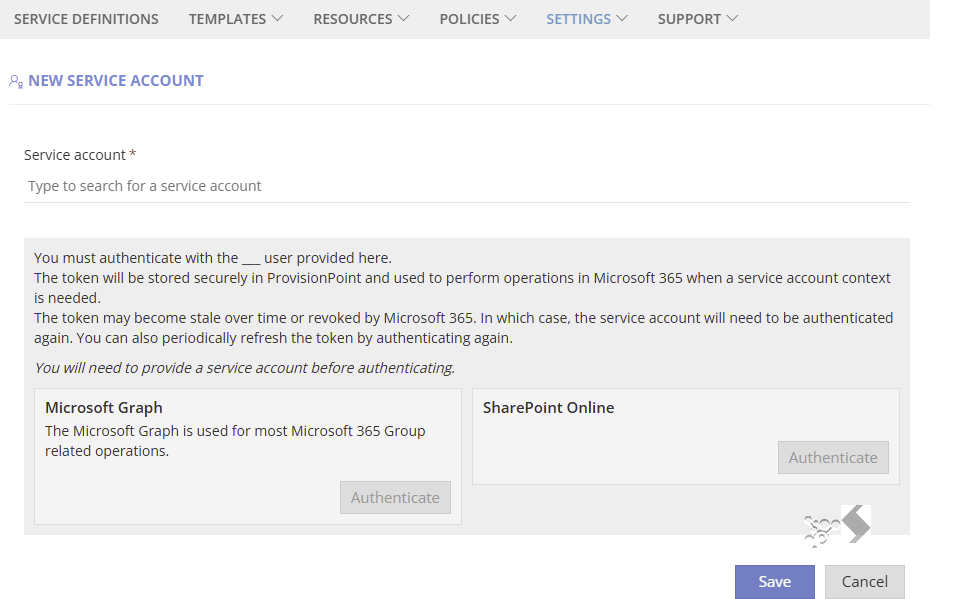
- Type the name of your service account, this will look it up in your Entra / Azure Active Directory
- Click Save
- Click Authenticate on Microsoft Graph, follow the prompts to add the password (and MFA if enabled)
This will store the token in a secure Azure Key vault
- *SharePoint Online is only required for the Convert to Group or Convert to Microsoft Team actions. If these will be required repeat the Authenticate step for this.
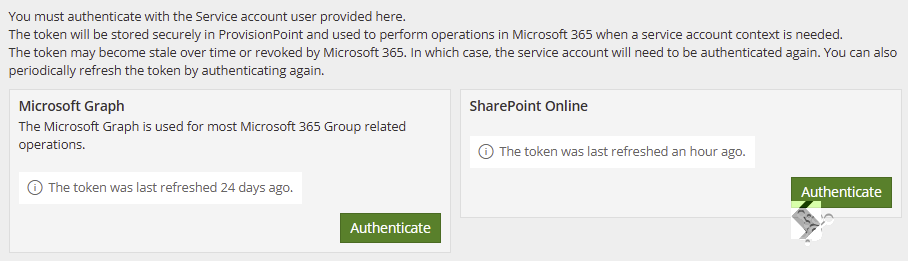
The Service will now be used when needed, this happens automatically and no further input is required.
The Service account is added as an owners, the action is run then, the service account is removed.
Group Operations for Service Account (Optional Setup)
The Service account can be added as an owner and be left in place, using Group operations options.
This is needed if you wish to limit Owners permissions in M365 (prevent delete and archive in M365) or want to ensure the service account has permissions on all requests.
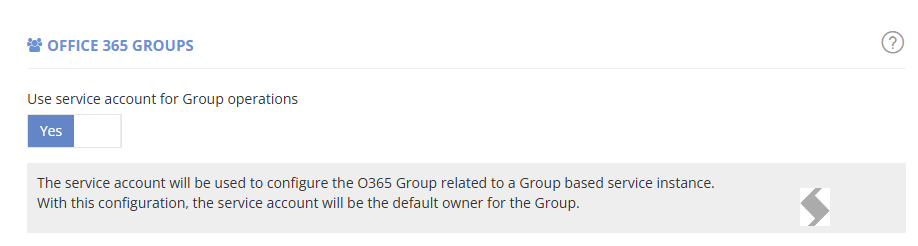
- to Admin > Settings > App Settings
- Select the 'Use service account for Group Operation' option to Yes
- Click Save
The Service account will be used for all requests and will remain as an Owner on all requests.
Token Refresh
The service account token will automatically be refreshed when any actions is run that will use the account.
This will mean manual refresh of the token is no longer required on a regular basis
If the token is not refreshed within 90 days, it will expire, this will:
- Cause errors on the Job Queue: AADSTS700082: The refresh token has expired due to inactivity
- Require authentication in the app to get a new token
Microsoft can expire a token and define the length of the token (often 90 days).