The ease of sharing files, especially externally, is one of the benefits of Microsoft 365.
However, there is a significant risk attached to oversharing, especially with personal or sensitive data.
The Audit app allows administrators and compliance managers to easily identify content which has been shared from SharePoint, Teams, or OneDrive.
Detailed reports include the type of sharing link, who the file is shared with and any expiration policies that have been applied.
The Audit app allows you to quickly identify:
- Shared links to Anyone - High risk
- Shared links to guests
- Multiple shared links from OneDrive accounts
- Longstanding shared links that should be removed
- Shared links with Edit permissions
- and more
You can also use the different reports to:
| Report Name | Why it may be run | Filters available | Results include |
| Tenant wide Sharing Links report |
Get a complete picture of all the Shared links in the tenant and in OneDrive.
Review which links may need to be removed due to incorrect permissions, invitees, anonymous links, links shared with guests, old links that are no longer required.
Use the filters to focus on specific business units or range of workspaces ( for example, projects Site url may start with PRJ_).
|
- Workspace filter by Upn, Title or Url
- Include Workspaces - enabled by default, can be removed if reporting on OneDrive only.
- Include OneDrives - toggle on to include in the report
|
- Workspace name
- Workspace type - Teams, Groups, Site Collections
- Item - The folder of file
- Shared by
- Shared on
- Permissions
- Invitees
- Members
- Expires - If an expiry date was set
- Anonymous access - Was shared to anyone, big risk if the link gets into the wrong hands
- Has Guests
|
|

|
| Sharing Links in workspace report |
Focus on specific workspaces to see if there are shared links in that Site or Team.
| Workspace - type the name of the workspace to review |
- Item - The folder of file
- Shared by
- Shared on
- Permissions
- Invitees
- Members
- Expires - If an expiry date was set
- Anonymous access - Was shared to anyone, big risk if the link gets into the wrong hands
- Has Guests
|
|

|
| Sharing Links in OneDrive report | Focus on a specific OneDrive accounts to find all shared links | OneDrive - will default to the logged in user, but this can be changed or locked |
|

|
| Sharing Links in workspace by owner report |
Focus on specific workspaces to see if there are guests in Sites or Teams the person selected is an Owner of.
Allows Owners to report on items they are responsible for.
Review which guests may need to be removed due to incorrect role assignment, invite outstanding for too long or access to the wrong Team or Site.
| Owner - This will default to the logged in user. The Owner can be changed or this can be locked. | Same results as the tenant wide report |
|

|
Export Results
Each report result can be exported for further filtering and actioning. This will be exported to an excel file (xlsx) with the name of the report that has been run.
Remove Sharing Link
From the Tenant wide Sharing link report & Sharing Links in workspace reports, an action is available to remove the Shared link from the document or folder. This can only select a single result
- Select the check box for a specific row, to enable the Remove action button.
- Click the remove button to open the panel that allows the removal of the selected Shared link.
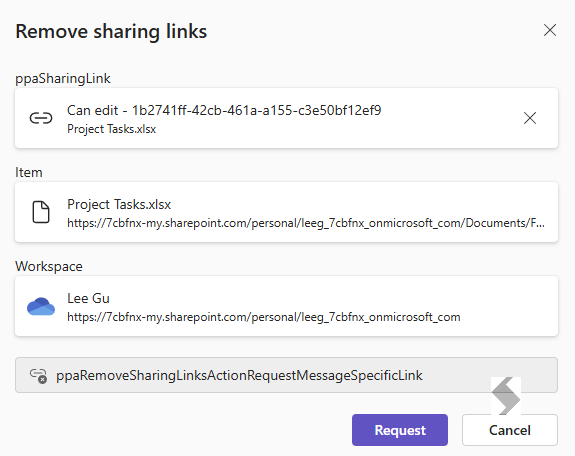
- To remove all shared links from the item, click the X on the Sharing Link
- Click Request
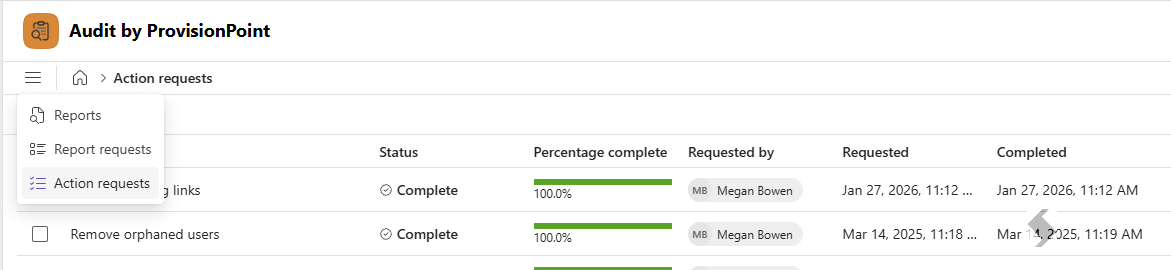
The Action will be logged against the report and can be reviewed from the Action Request area.