Easily being able to identify inactive Teams and Sites in your Microsoft 365 tenant is important for security and compliance as well as for cost and resource optimisation. Inactive Sites consume storage space which can lead to additional costs if you exceed your storage quota, and unchecked growth or Teams and Sites can lead to confusion, duplication and difficulty in finding relevant content.
The Audit app can help here but easily allowing you set the inactivity, and report on what Teams and Sites have not been used for that period of time.
The report will check for
- Workspaces that haven't had any add, edit or delete actions on items and documents in lists and libraries for the specified period of time.
- If the workspace is a Team, this will also cover reactions, add and update messages as well as replies in channels.
The following two reports can be run within the Usage Reports section:
| Report Name | Why it may be run | Filters available | Results include |
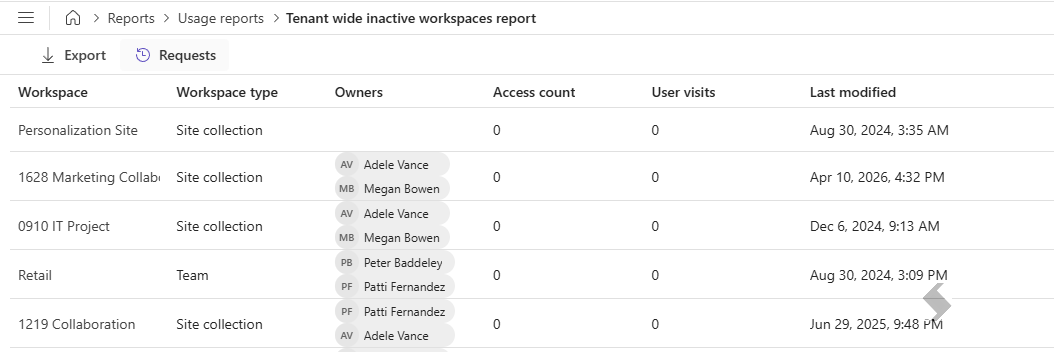
| Tenant wide inactive workspaces report |
Get a complete picture of the inactive Sites and Teams in the tenant and in OneDrive.
Review which workspaces may not longer be needed to help reduce storage costs and too many Teams and Sites.
Use the filters to focus on specific business units or range of workspaces ( for example, projects Site url may start with PRJ_).
|
- Inactivity days - type the number of days, up to 90 days
- Workspace filter by Upn, Title or Url
- Include Workspaces - enabled by default, can be removed if reporting on OneDrive only.
- Include OneDrives - toggle on to include in the report
|
- Workspace name
- Workspace type - Teams, Groups, Site Collections
- Owners
- Access count
- User visits
- Last modified
|
|
|
| Inactive workspaces by owner report |
Focus on specific workspaces that the logged in user is an owner of, or allow admins to check for all inactive sites by a specific owner.
|
- Inactivity days - type the number of days, up to 90 days
- Owner - this will default to the logged in user, but can be changed or locked down
|
- Workspace name
- Workspace type - Teams, Groups, Site Collections
- Owners
- Access count
- User visits
- Last modified
|
|

|
Export Results
Each report result can be exported for further filtering and actioning. This will be exported to an excel file (xlsx) with the name of the report that has been run.