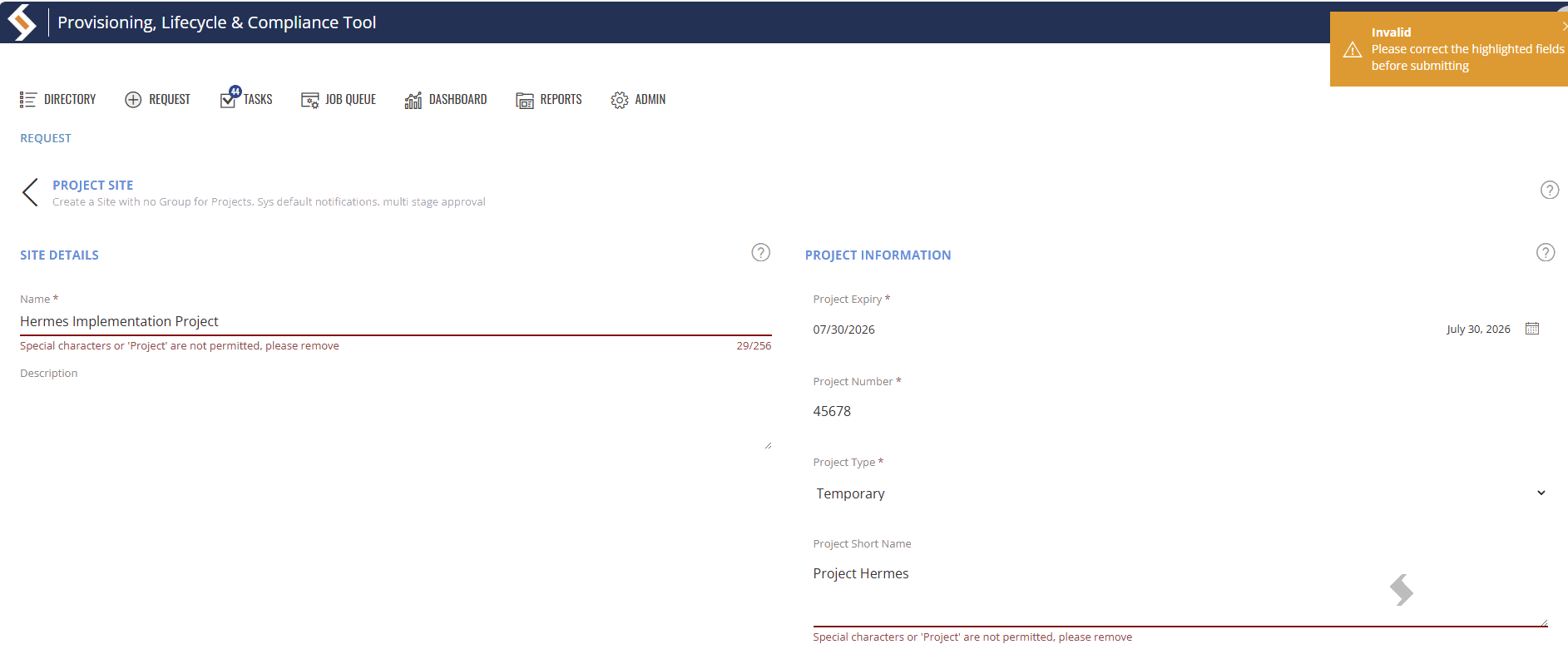
What are Blocked Words?
Blocked word templates can be used to define words or characters that should not be used in the Title or URL of new requests.
- Prevent 'Project' to be added to the Title of a Team and PRJ at the beginning of the URL, because you include them in a naming convention.
- Prevent expletives or business terms from being used on all requests.
- Prevent special characters being used
A blocked word template allows you to choose the words to block and when they should be blocked (regular expressions).
Blocked words can be applied to:
- Title (Name)
- Description
- URL
- Text Columns on Request Forms
- Actions that allow changes to any of the above
Apply Blocked Words to Service Definitions
Please follow these 5 steps to ensure a successful implementation of Blocked Words:
-
Upload or add Words that will be blocked
Expand to see steps
- Go to Admin > Resources > Words
- Import via a CSV
- To Import CSV must have 2 columns with NO headers.
Columns 1 is the word to import
Columns 2 is the description (The description can be used to search for words that can be grouped together in a blocked word template.)
- Add words manually
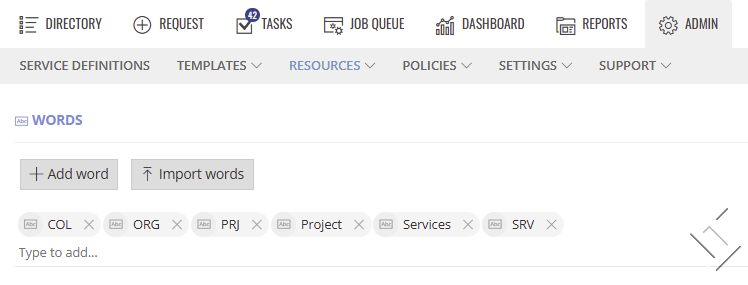
-
Create blocked word templates to define which words and when they should be blocked
Expand to see steps
The template will allow you to choose the words, using regular expression to define when the words should be blocked and the error message that will be displayed to requestors.
This gives a lot of flexibility and allows case sensitivity checks as well.
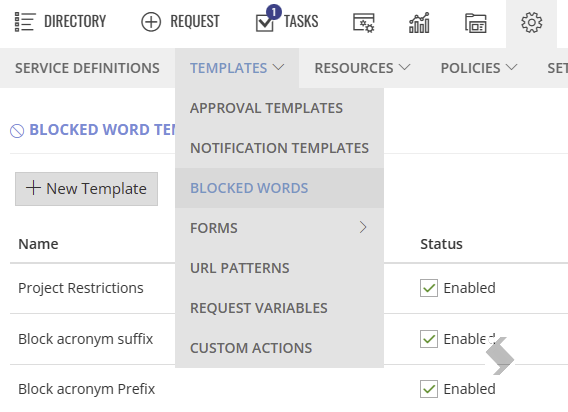
- Go to Admin > Templates > Blocked Words to create templates.
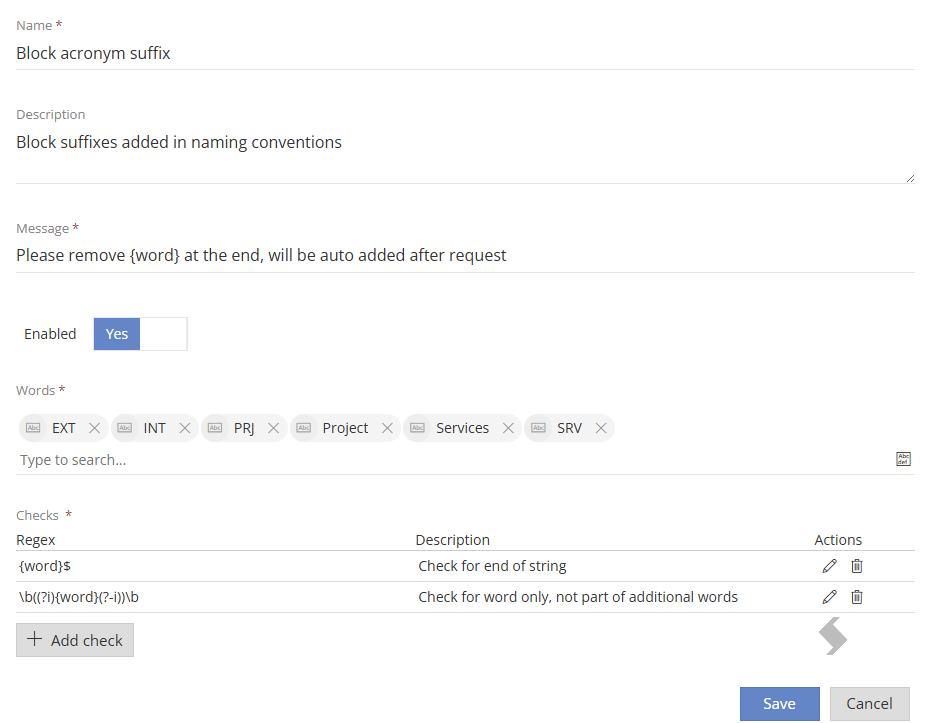
- Click +New Template
- Give the template a 'Name' (this should give a hint as to what it will do)
- Add a 'Description' to help other admins know what it will do in full and if it should be selected
- Add the error 'Message' that will be displayed if the words and checks are found to be true
- Include {word} in the message and it will replace with any words that are used
- Enable the template to allow it to be selected
- Select the 'Words' to be used in this template, multiple words can be added by typing the name or clicking the select button
 to choose
 - 'Checks' must be added to define the regular expression that will be used. Multiple Checks can be added by clicking +Add check
- Adding {word} will check if the word appears anywhere, even within other words.
Expand here to see other Checks and guidance on the regular expression
- [ -_]{word}[ -_] checks if the word exists with added space, underscore or hyphen before or after the word
- (?i){word}(?-i) checks if the word exists as a case-insensitive check, this will also block if the word is part of another word (projection)
- \b((?i){word}(?-i))\b checks if the word exists as a case-insensitive check, but allow if it is part of a longer word like projection or projects.
- {word}$ checks if the word exists at the end of the string
- ^{word} checks if the word exists at the beginning of the string
- [ ]*(?i){word}(s)*(?-i)[ ]+ checks if the word exists as a case-insensitive check with or without a preceding space, with or without being followed with an ''s'' and followed by at least one space.
- Add the | (pipe symbol) to add an or option. For example to also block special characters
- (?i){word}(?-i)|[<>'"/;`%!^*] also prevent special characters as well as check for the word as a case-insensitive check
-
Test the regular expression used in the Check
Expand to see steps
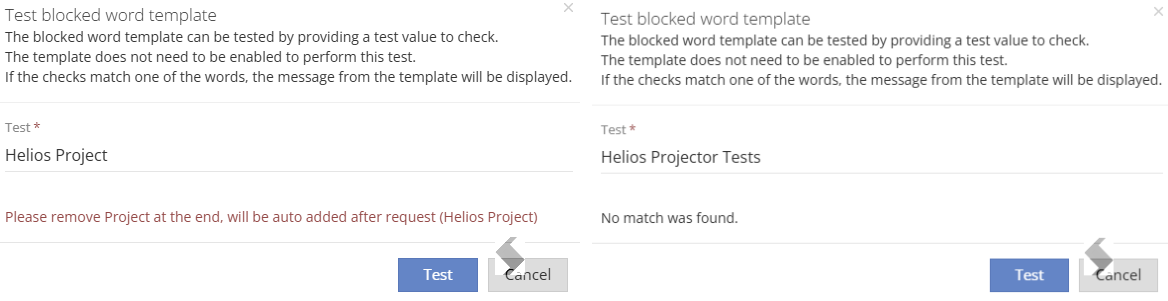
Test the regular expressions to ensure it is catching all the variations you need.
- Select the test button
 from the Actions list
 - A pop up will be displayed, allowing to type a variety of names to ensure the message is as expected
- Repeat with the variations to ensure the error message appears as expected
-
Map the blocked word template to the Service Definition, Form or Action
Expand to see steps
Title or URL on Request
- Go to Admin > Service Definitions > Request Tab
- Click +Add Blocked Words
- Select the template to be applied
- Toggle where the check should be applied to 'Yes' to apply the blocked word template to
- Title
- Description
- Url
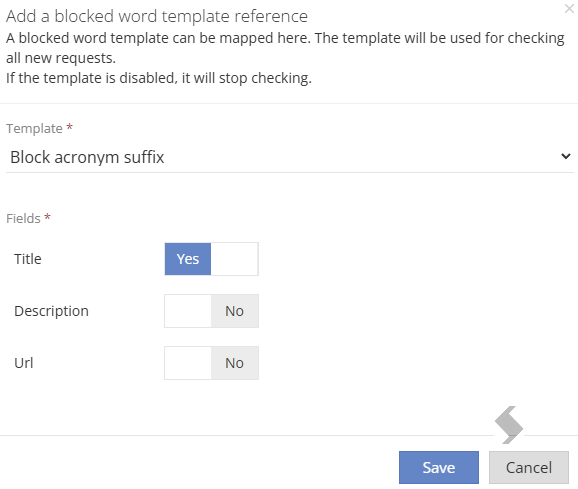
- Click Save
- Repeat for other templates
- Save the Service Definition
In Actions
If the Update Details, Change URL or custom Actions contain text columns the blocked word can be applied
- Go to the Actions tab in the Service Definition
- Select the Blocked Words tab (This will be prevented if there are no columns/fields that support this
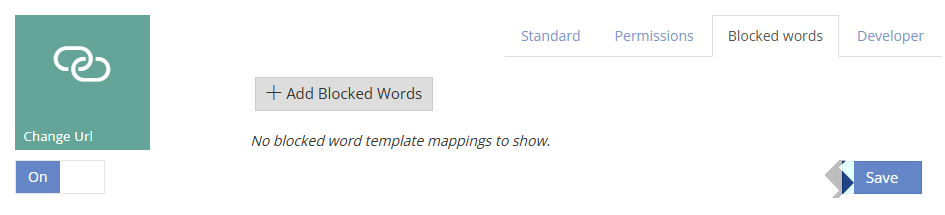
- Click +Add Blocked Words
- Select the template
- Toggle where the check should be applied to 'Yes' to apply the blocked word template to
- The options will vary depending on the Columns available
- Repeat from any other templates or Actions
- Click Save
- Save the Action
- Save the Service Definition
In Request Forms
If you have added additional Metadata via Columns & Forms to the Service Definition you can apply a blocked word template to:
- All supported fields
- Individual Columns
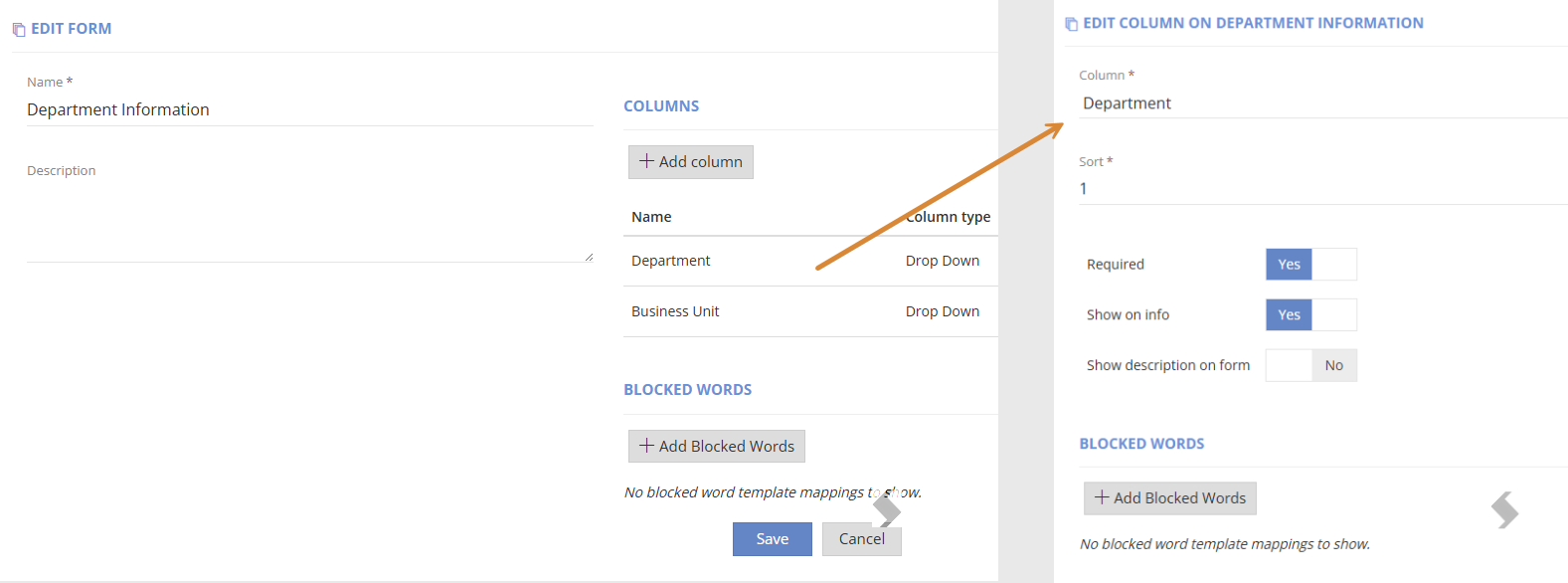
- Go to Admin > Templates > Forms
- Edit the Form and/or Column
- Click + Blocked Word template
- Select the template to apply
- Toggle where the check should be applied to 'Yes' to apply the blocked word template to
- The options will vary depending on the Columns available
- Repeat for additional templates
- Click Save
- Save the Service Definition
-
Test the Request process gives the messages you expect
Expand to see steps
Now you have created your templates and mapped them, you should do a final test to confirm the blocked words work as expected.
- Go to the Request Tab and fill in the Title and any other mandatory columns from .
- Click Request
A pop up will ask you to address any highlighted fields and the Title column will show the message you have defined: