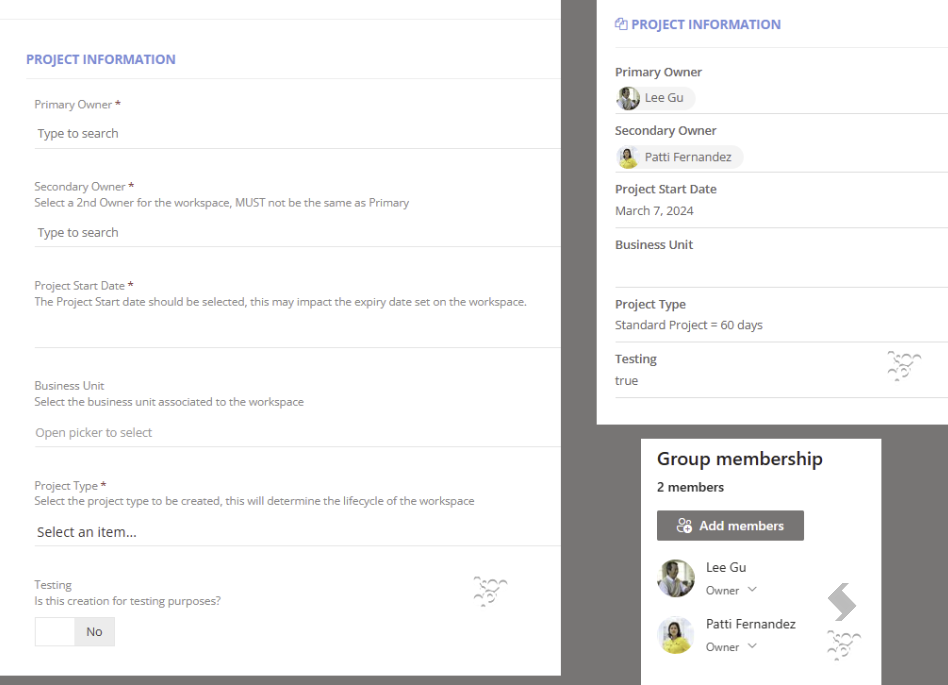
Custom Columns can be created in ProvisionPoint, allowing you to choose the name of the fields that are created and which permissions will be applied.
The Columns you create can manage the owners and members in the following ways:
- Define the label of the column on the request form.
For example, you may want a Business Owner or Project Owner instead of Owners. - Force the number of Owners that can be set for each request.
For example, there must always be 2 with specific naming, 'Primary Owner' and 'Additional Owners' - Set the permission people pickers will be granted
- Instance Owners in ProvisionPoint
- Associated Owners in M365
- Associated Members in M365
- Associated Visitors (SharePoint only) in M365.
- Limit the selection of users to a specific Group from Entra/Azure
For example, only allow managers to be the Owners of Departmental Teams or Sites
To Add the additional options you will need to complete the following steps:
-
Create the Columns in Admin > Templates > Forms >Columns
Columns can be used in multiple Forms
- Click +New Colum to create your required items
- Complete the following:
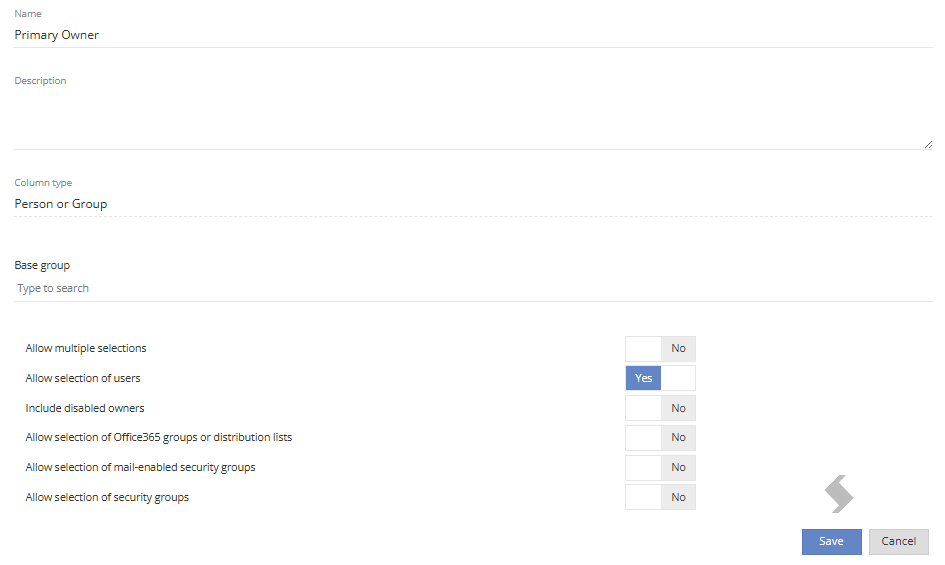
- Name', the label that will appear in the request form, for example, Project Owner, Site Owner
- 'Description' the description can be displayed on the request form, add relevant information for your users
- 'Column Type' for this article we are focused on Person or Group only
- 'Base Group' select a group to limit the scope of people that can be selected
We recommend adding details of this to the description if this is used. - 'Allow selection of users' must be set to Yes, it means you will choose someone to add to the form.
- 'Allow multiple selections' Yes means more than 1 can be added, set to No if you only want to allow a single person to be selected.
- 'Include disabled owners' a choice if they should be allowed, this will also impact when you update these fields.
If a disabled owner is found it will prevent the request being processed - 'Allow selection of security, Office365, mail-enabled groups or distribution lists' only possible in SharePoint Sites with no Group associated.
For all other services (Teams, Sites, Communities, Planners) that already include a Group do not use these options.
- Click Save
- Repeat to add other columns
-
Add the Columns to a Form in Admin > Templates > Forms
Forms can be used on multiple Service Definitions
- Click +New Form
- Complete the following:
- 'Name' the name of the Form, this will be displayed on the Request form as a header
- 'Description' add a description of what the form is for
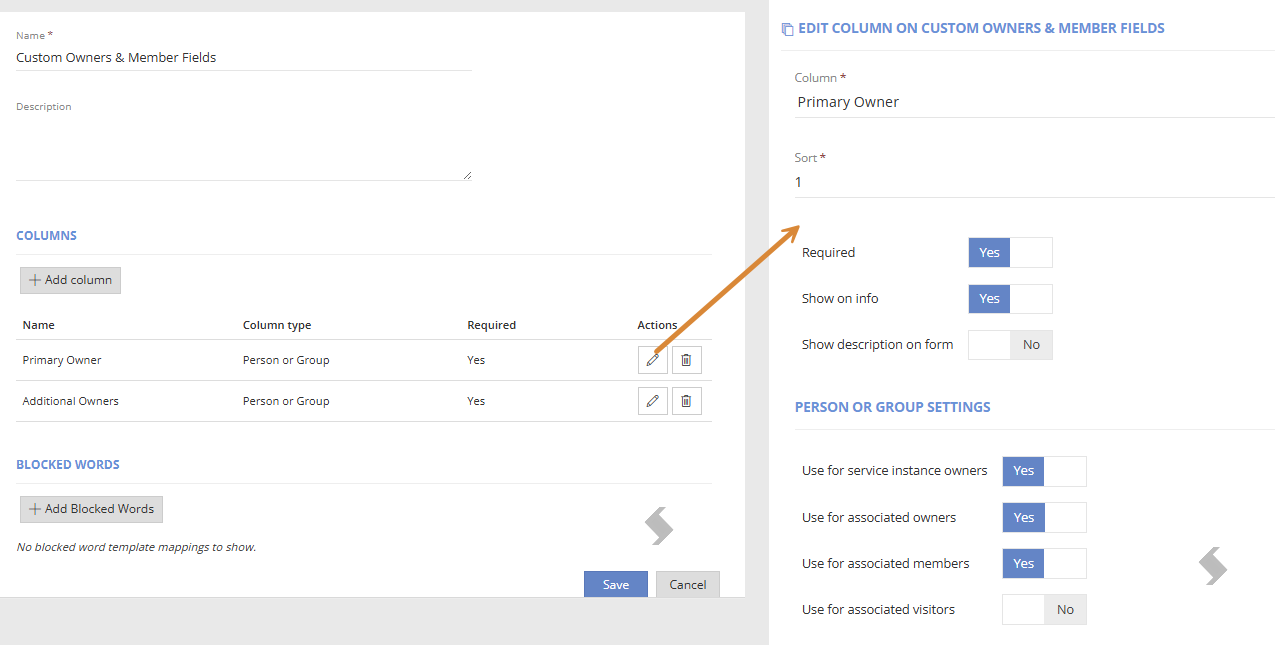
- Click + Add Column to select the Columns created earlier, one at a time
- 'Sort' the order the column will appear on the form (1 = top or first)
- 'Required' should this be mandatory, if you are defining the Owners then this should be Yes
- 'Show on Info' should the values be displayed on the ProvisionPoint Directory info page, this can be useful so we recommend Yes
- 'Show description on form' should the description of the column be visible on the request form, this can offer extra guidance for your requestors
- 'Description Placement' where will the description be placed
- Info bubble
- Under the label
- Under control when it is selected
- 'Person or Group Settings' which permissions will be granted to the people selected, this is only relevant once you choose to manage ownership via form fields.
- Service instance owners - the owners within ProvisionPoint giving them access to Actions and notifications.
- Associated owners - owner within Microsoft, they will be able to manage the workspace from M365.
- Associated members - member within Microsoft (for owners must also be added to ensure both properties are set via the API call)
- Associated visitors - visitor within Microsoft (SharePoint only service types)
- Click Save to add the column
- Repeat to add more columns
- Click Save on the Form
-
Link the Form to the Service Definition in Admin >Service Definitions > Request tab >
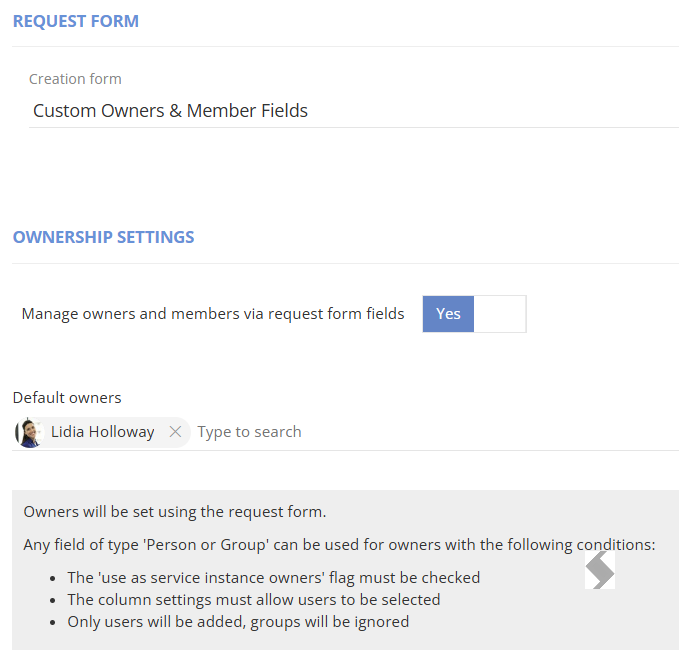
- Go to the Request Form section & select the form you created
- Go to Ownership Settings & set 'Manage owners and members via request form fields to Yes
- You can still define the default hidden owner, but all other options will be hidden
- Save the service definition
Your next requests will use your request form and previous requests can be updated using the 'Update Details' action
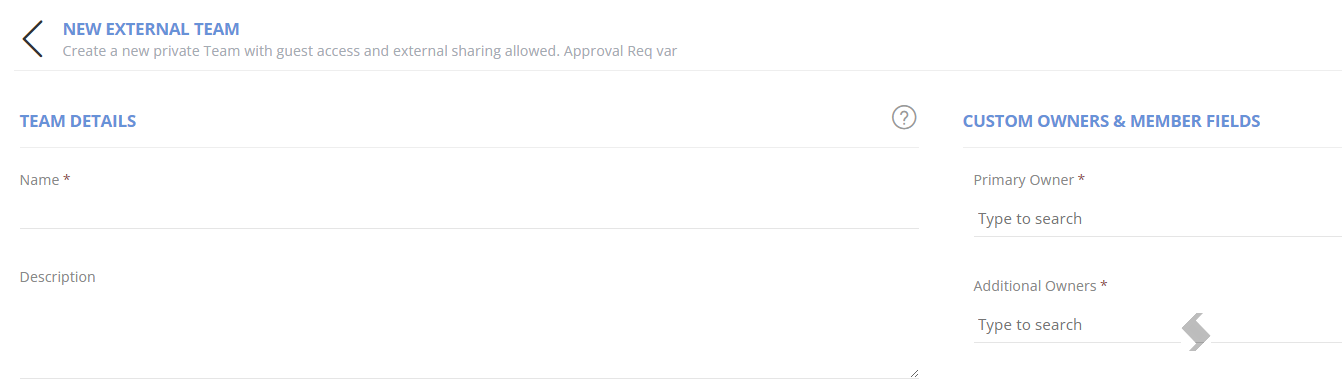
Once created the Owners and Members will be defined as you did in your setup.
Here is an example where other columns have been added as well as the Owners and Members