When an approval template is applied to a Service Definition, it will define who will receive the approval requests.
When the assigned user logs in to ProvisionPoint they will see a Task assigned and if configure may receive an email to notify them.
Requestors
As the requestor, this does not tell you who the request has been sent to, and you may need to chase the approver if it is an urgent request.
Below are the options available to check:
View the Approver in the Timeline
From the Directory, click the View details action

Then, open the
Timeline and click '
View Approval Process', this will then tell you if it has been assigned to a person or a group.
If you are the person assigned the task you can also process the approval or rejection from here.
Now you can reach out to the Group or person to ask them to review the approval.
Admins
For the App Managers, queue managers or Dashboard user roles you can also review the approvals:
View all Pending Approval requests in Dashboard/Reports
As an Admin you get access to Dashboard and report tabs, these Roles can also be given to other users to assist.
Go to the Dashboard > Content view to see how many items are pending approval
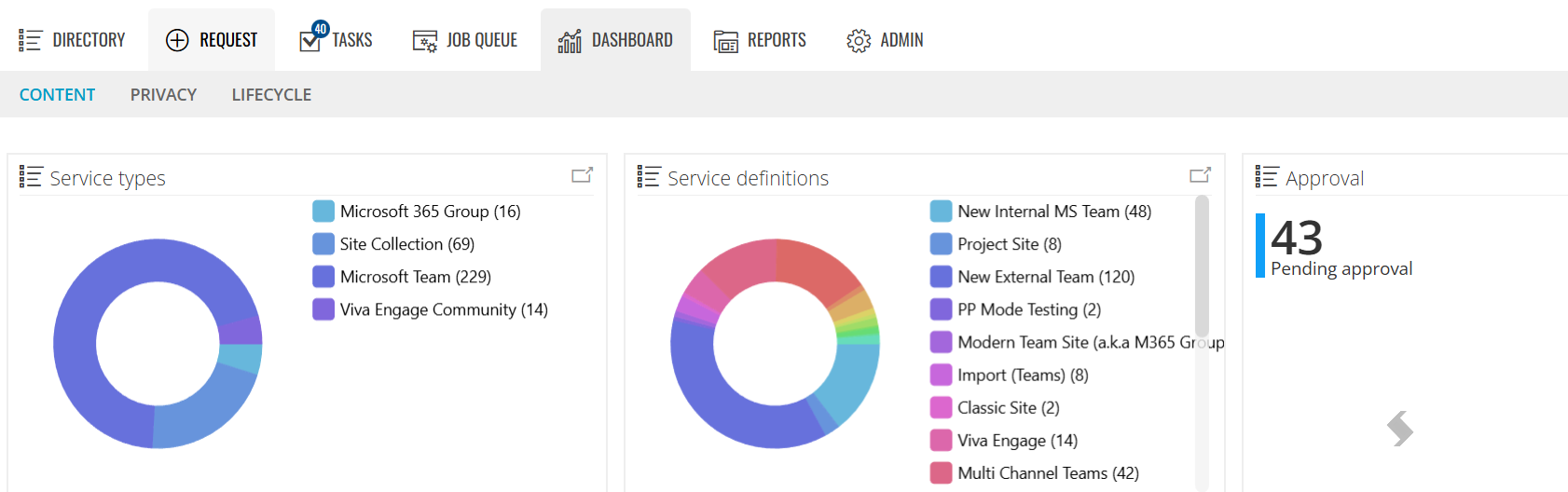
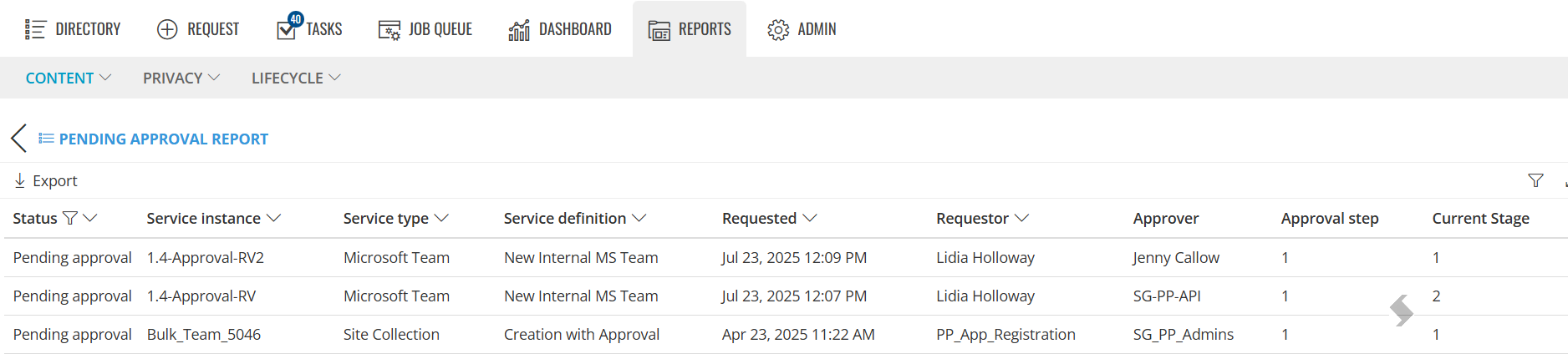
Click on the number to be taken to a filtered report showing the items, the requestor, approver and number of approval steps:
View the Approver in the Job Queue Export
If for any reason you cannot see the request in the Directory, ask an admin or queue manager of ProvisionPoint to view the job queue.
From here you can filter for all requests that are pending approval or just the one in question.
Then, export the Job Queue to CSV. The 'ApprovalSummary_Approvers' column will show the name of the user or Group it is assigned to.