Being able to easily view a summary of all workspaces in your M365 tenant is highly beneficial.
It provides immediate visibility into inactive or orphaned workspaces in one centralised location, helping you prevent security gaps and compliance issues before they escalate. Instead of navigating multiple admin centers or running separate queries, you get a compliance picture in one place - saving hours of manual work. This is where the Audit app can help.
This is a great step to take before implementing a provisioning element going forward, like ProvisionPoint. Run the summary to ensure you only import relevant items into the app for ongoing management.
The summary reports in the Audit app allows you report on your workspaces and quickly identify:
- Inactive workspaces that have not been used recently, allowing you to reduce clutter and improve overall tenant health.
- Orphaned workspaces - any workspaces that have no Owners, or all of the Owners are either deactivated or have no license, which can post security and compliance risks.
- The Owners - if they are not orphaned, the Owners are listed allowing you to easily reach out to see if the workspace is still required.
- Last modified date, allowing you easily see when there was last activity in the Site or Team.
- Total size and % of storage quota that they are occupying, helping you to manage capacity, control costs and plan for growth.
The following two reports can be run within the Workspace Summary Reports section:
| Report Name | Why it may be run | Filters available | Results include |
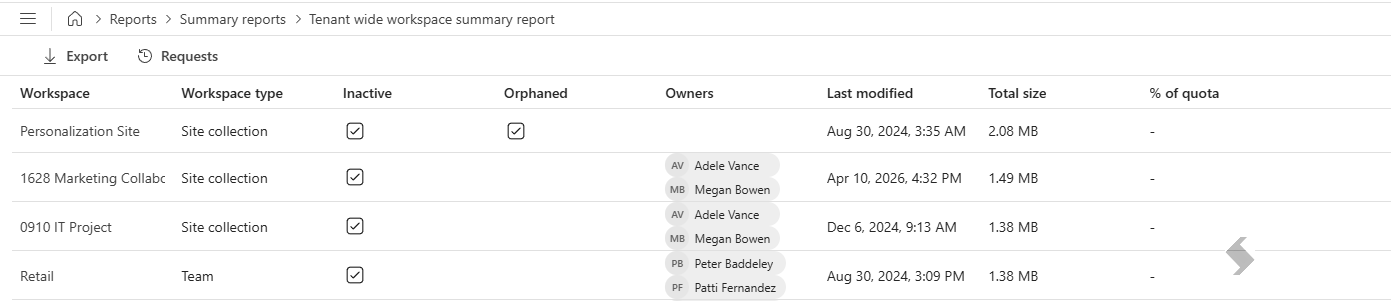
| Tenant wide workspace summary report |
Get a complete picture of the Sites and Teams in the tenant and in OneDrive.
Review which workspaces may not longer be needed to help reduce storage costs and too many Teams and Sites.
Use the filters to focus on specific business units or range of workspaces ( for example, projects Site url may start with PRJ_).
|
- Workspace filter by Upn, Title or Url
- Include Workspaces - enabled by default, can be removed if reporting on OneDrive only.
- Include OneDrives - toggle on to include in the report
|
- Workspace name
- Workspace type - Teams, Groups, Site Collections
- Inactive
- Orphaned
- Owners
- Last modified
- Total size
- % of quota
|
|
|
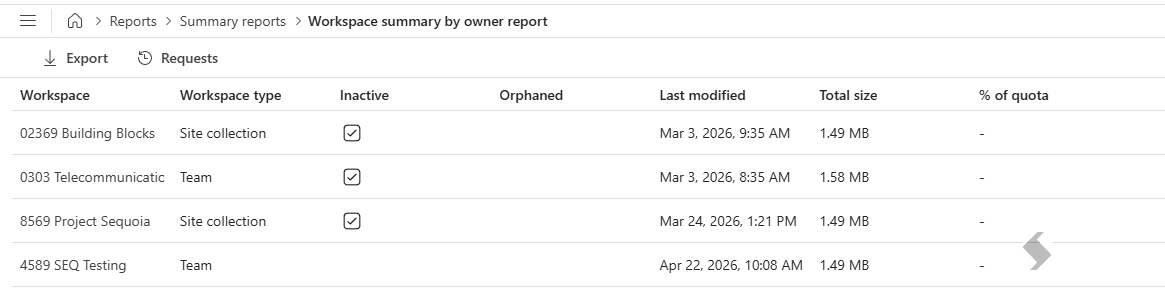
| Workspace summary by owner report |
Focus on specific workspaces that the logged in user is an owner of, or allow admins to check for all inactive sites by a specific owner.
|
- Owner - this will default to the logged in user, but can be changed or locked down
|
- Workspace name
- Workspace type - Teams, Groups, Site Collections
- Inactive
- Orphaned
- Last modified
- Total size
- % of quota
|
|
|
Export Results
Each report result can be exported for further filtering and actioning. This will be exported to an excel file (xlsx) with the name of the report that has been run.