When customising notifications, there are options to add links via the editor. For example:
- External websites
- Internal pages or Sites
- For the workspace referenced in the notification, links to ProvisionPoint:
- 'Info' page - to see who the owners are, or additional metadata that has been collected
- 'Timeline' - to see what changes have already been made
- 'Actions' - to allow owners to choose an action to run.
- To a specific action 'Extend Lease' 'Archive', etc
- 'Lifecycle' - to see what the next stage is and what has already been run
- To ProvisionPoint pages:
- The Directory
- Tasks - to see approvals assigned to the user
- Job Queue - to see any failure details
Whatever the reason for adding a link, this article will explain how to achieve this.
Add a Link to a Notification Template
- Edit or Create a new notification template
- For header, Content and Footer you can edit the text and add a link from the control panel using the add link icon

- Highlight the text to be used for the link or select

- The dialog box will open allowing you to type the link to be added & if it should open in a new window or not
- Type the full URL to be used
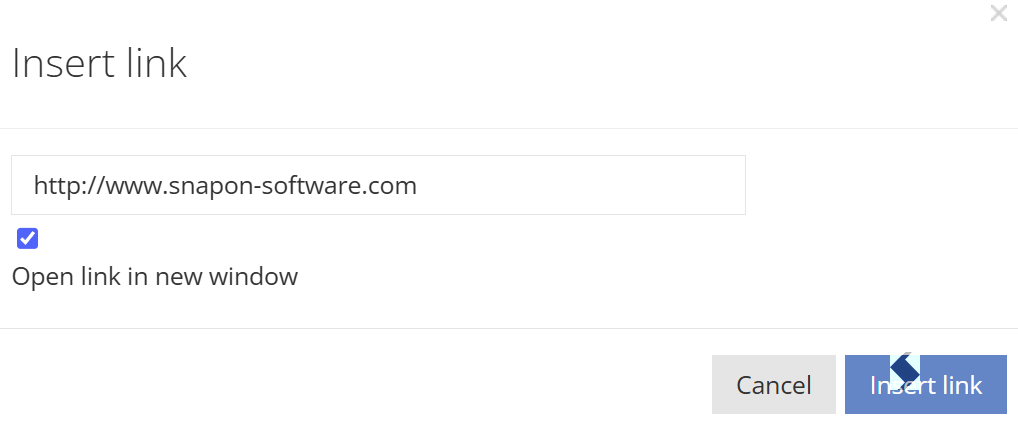
- Click 'Insert Link'
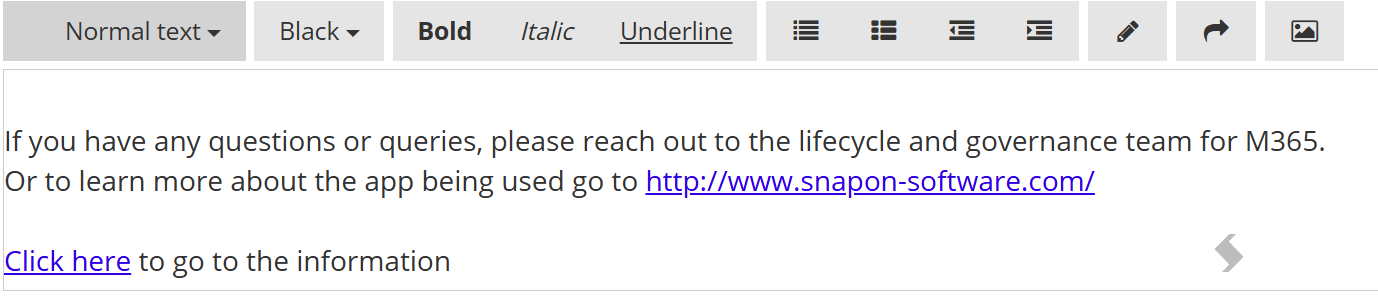
- If text was highlighted that text will be highlighted in blue and underlined (Click here)
- If there was no text highlighted it will add the full url to the text
Other useful tags for the notifications include: use these when {Title} is added to open the actual item.
- {SiteUrl} = Link to the SharePoint site
- {TeamsUrl} = Link to the Team
Add a link to a ProvisionPoint page
To add a link to a ProvisionPoint page you use the same method but use one of the following Urls / tags:
| Page in ProvisionPoint | Url to be copied into the dialog - Replace http:// with |
| The Directory | {app_domain}/directory |
| Tasks | {Notification.Approval.TasksUrl} |
| Job Queue | {app_domain}/queue |
| Workspace Info page | {app_domain}/service-instance/{service_instance_id}/info |
| Workspace Timeline | {app_domain}/service-instance/{service_instance_id}/timeline |
| Workspace Action |
{app_domain}/service-instance/{service_instance_id}/actions
To go to a specifc action, add the action type id:
{app_domain}/service-instance/{service_instance_id}/actions/13 (Change the Lease)
Useful action Id's are listed here
13 = Change the Lease
64 = Extend Lease
22 = Archive
63 = M365 Archive
21 = Delete in M365
30 = Add Members
31 = Remove Members
36 = Add Owners
37 = Remove Owners
41 = Remove from Expiry Check or add to Expiry check if previously disabled
|
More pages exist, look at the url in ProvisionPoint to get the full urls. {app_domain} will add the ProvisionPoint url or you can also use the actual url:
If the link is for a specific workspace the {service_instance_id} can be used instead of the number.
Results
When a notification is sent the links can be selected to take you to the page requested.
Copying Content to another Notification template with Links
If you plan to reuse the same text in another notification and want to retain the URLs:
- Change the edit box to html

- Copy the HTML
- Go to the new notification
- Set the edit box to html

- Paste the data
- This will include the correct links