Version 1.7 - Reconsent, Permission Settings and Application Roles - 18th April 2025
Re-consent is not required for this release
Expand here to see the new features and fixes
Localization
Support localization for the product UI to multiple languages, using your browser languages, including:
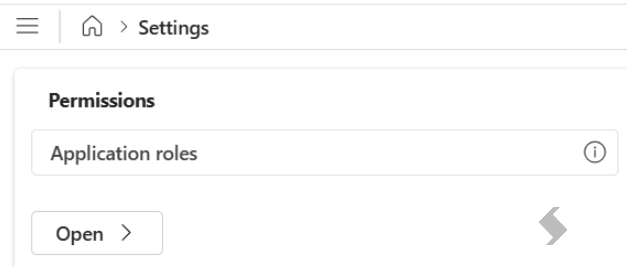
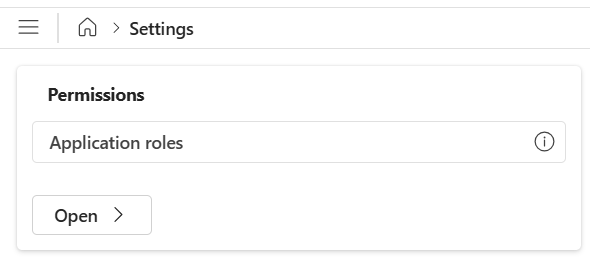
Permission Settings and Application Roles
We are introducing permissions into Audit, allowing you to configure 'Application Roles' and define which reports your users can access.
You'll be able to configure existing roles and create new ones to restrict report access for your users.
There will be two default roles:
- Initial admin - the Global Admin who completed the consent process will be automatically assigned to this role. It provides access to all reports and to the Permissions area, where roles for all other users can be configured.
- All reports - all users who have access to Audit will be added to this role by default, allowing them to continue running all reports as before.
The Application roles configuration will allow you to create new roles and control report access for both individual users, Security or M365 groups. For example, create a role for Owners, defining the reports that can be filtered by Owner only and set the results view to only show their previously run reports and actions.
Read more in the Settings and Application roles article.
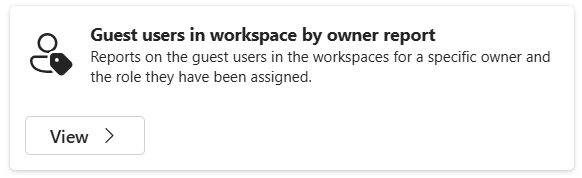
Guest Users in Workspace by Owners Report
We're also introducing a new report for Guests!
Read more in the Limiting Reports to Owners article
This enhancement includes the ability to:
- Filter workspaces by a specific Owner
- Restrict Owners to running this report on their own workspaces
This is the start of enabling Audit reporting for Owners, they will be able to run a report on workspaces they own. Whilst allowing Admins to complete tenant wide reporting. More reports will be added in the future to expand the owner reporting.
Important Information
By default, the Global Admin who consented the app in Teams Admin Centre, will be added to the Initial role. If you'd like to add additional users to this role, please ask the Global admin to add users
Version 1.8 - OneDrive Shared Link Reports - 7th June 2025
Re-consent is not required for this release
Expand here to see the new features and fixes
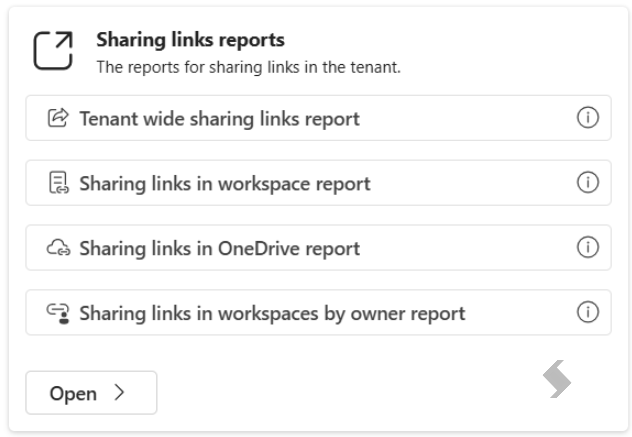
OneDrive Sharing Links Report
This can be accessed from the Sharing links reports section. Once selected, choose a specific user's OneDrive to run the report on and collect the following data:
- The item that was shared
- The date and time it was shared
- The permissions granted
- The recipients it was shared with
- The expiry date (if applicable)
- Whether it has anonymous access
- And more...
Changes to our Tenant wide sharing links report
We've also enhanced the Tenant wide sharing links report. Previously, this report only included workspaces (Teams and Sites). Now, you have the option to include OneDrive's in this report as well.
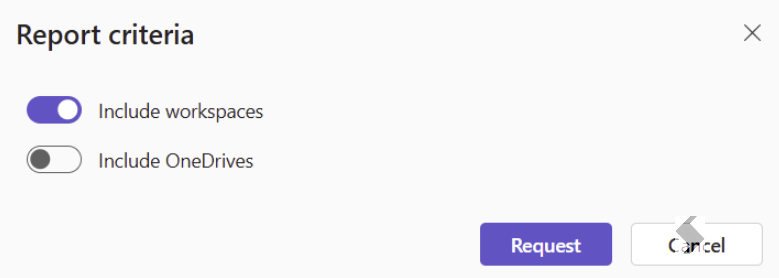
Read more about our Sharing Links Reports here: Sharing Links Report
Maintenance
UI/UX Fixes
- Official release: This version is the first official release of Audit, outside of the preview versions!
Version 1.9 - OneDrive Storage Reports, Shared Links & Guest Actions - 21st October 2025
Re-consent is required for this release
Expand here to see the new features and fixes
OneDrive Storage Reports
We're excited to introduce a new report in the Audit app: OneDrive Storage Reports.
This can be accessed from the Storage reports section. Once selected, choose a specific user's OneDrive to run the report on and collect the following data on each library:
- The total size
- Percentage of site usage
- Percentage of storage quote
- File count
- The date is was last modified

Remove Sharing Links
We're excited to introduce a new action to Audit: Remove sharing links.
Once a sharing link report has been run, there is the option to select a workspace and sharing link. The Remove action will then display in the top panel.
The action will allow you to remove the selected sharing link, or all sharing links from the selected workspace.

Remove Guest Users
A reconsent is required to run the Remove guest users action. Details on how to do this can be found here.
In this release, we are also introducing a second new action: Remove guest users.
From the Guest users report, a specific Guest user can be selected and the Remove action will appear. Clicking remove will allow you to:
- Remove the selected Guest user from the selected workspace
- Remove the selected Guest user from all workspaces
- Remove all Guest users from the selected workspace

Any actions run can be reviewed in the Action requests.
Version 1.10 - Orphan Workspaces & Inactive Teams/Groups Reports - 9th December 2025
Re-consent is required for this release
Expand here to see the new features and fixes
Reconsent now available in the UI
A global admin is required to reconsent permission. Click the Settings cog  , select the Microsoft Entra ID section.
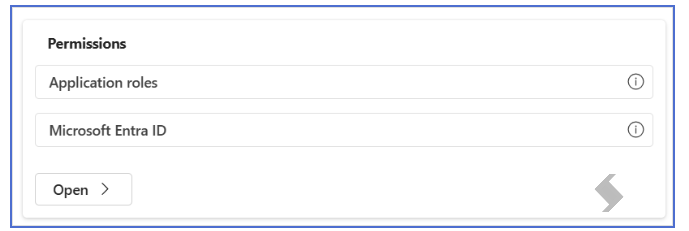
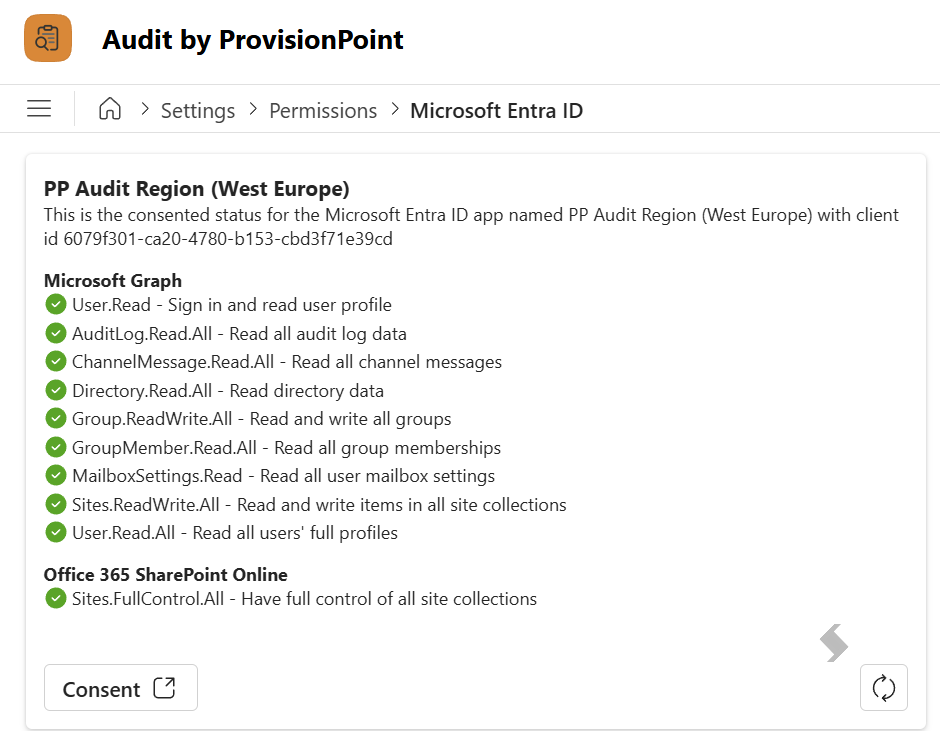
A reconsent will be required to be able to run the new reports in this release. You can see what Graph permissions are required to consent to, and a Global Admin can click Consent.
Orphaned workspaces report
We're excited to introduce a new report in the Audit app: Orphaned workspaces report.
This can be accessed from the Orphaned object reports section. This is available to be run tenant wide and will report on any workspaces where there are no owners, or where all of the owners are either disabled or unlicensed.
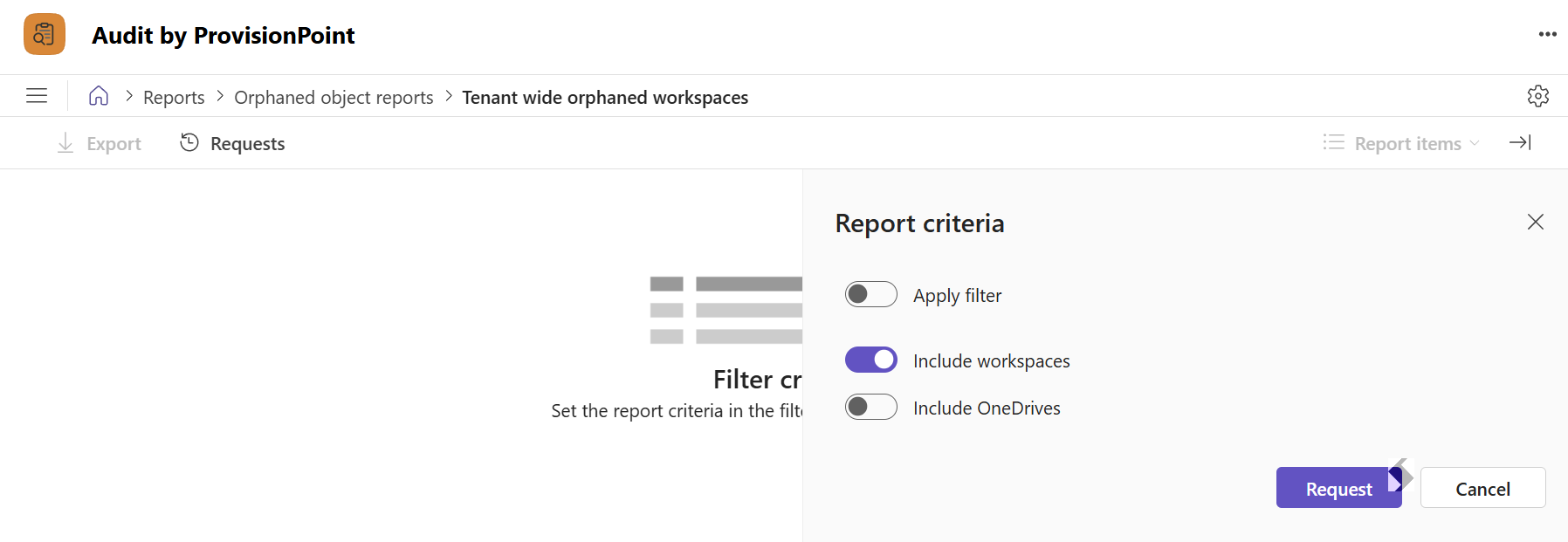
This report will give you the following information:
- Workspace name
- Workspace type - if it is a Team, Site collection etc
- Owners - if there are any
- And the Owner status - if they are disabled or unlicensed
Inactive Teams/Groups Report
We're also excited to introduce two new reports:
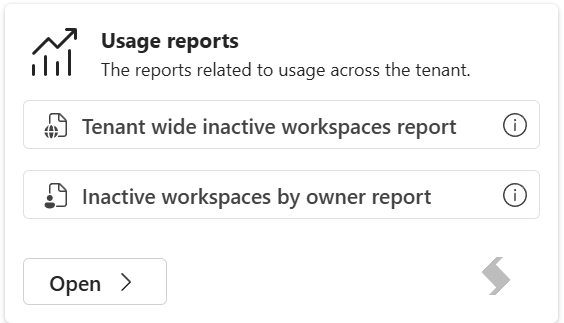
- Tenant wide inactive workspaces report and
- Inactive workspaces by owner report.
Both of these can be located in our new Usage reports section.
![]()
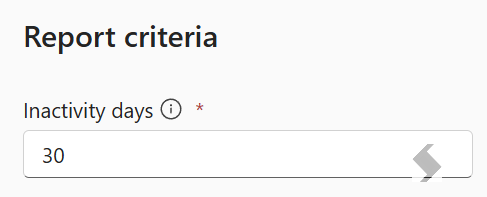
![]() When you request either report, you can choose the number of days since there was last user activity or modification.
When you request either report, you can choose the number of days since there was last user activity or modification.
The report can be run either tenant wide or by specific owner, and will provide the following information:
- Workspace name
- Workspace type - if it is a Team, Site collection etc
- Owners
- Access count
- User Visits
- Last modified date